Classification of Computers
| By Type | By Size | By Purpose |
|---|---|---|
|
|
|
1. Analog
An analog system is one where processes happen continuously; data changes naturally over time. It is connected to the real world—for example, through variables like temperature, speed, or voltage.
Analog Signal
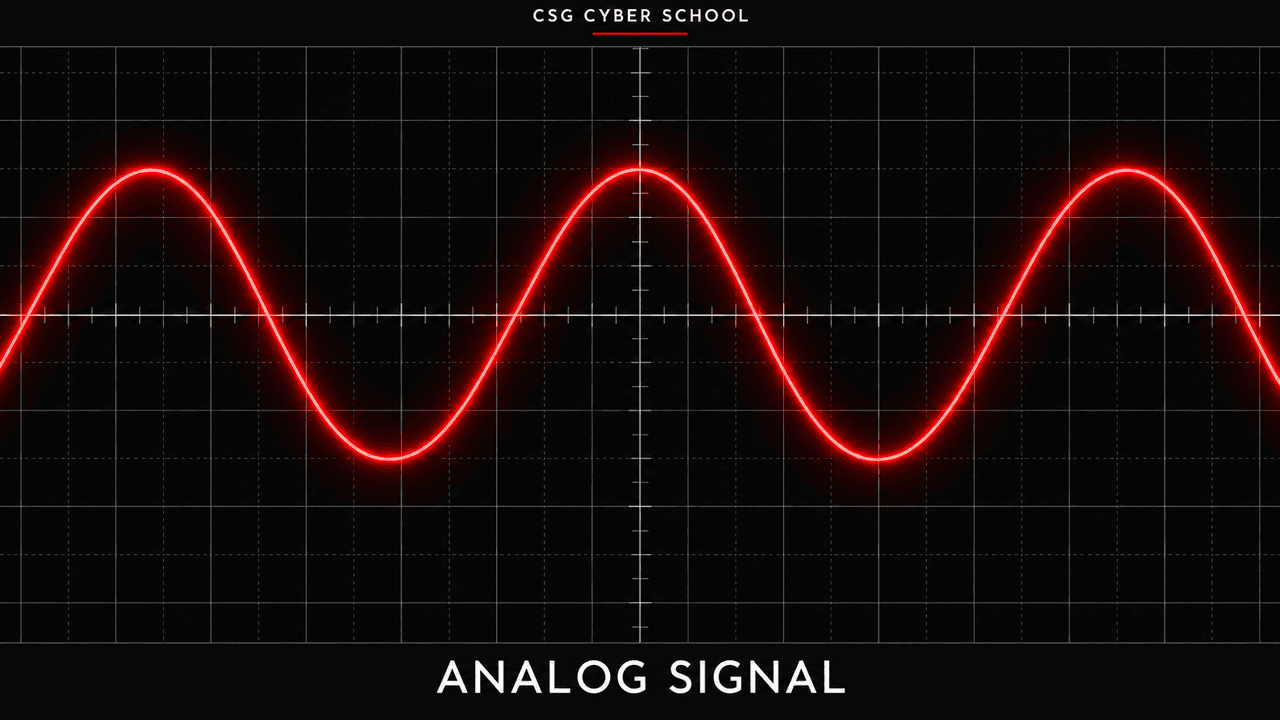
Analog systems have three main characteristics:
- Continuous: In an analog system, data changes continuously without any breaks or interruptions.
- Physical Quantities: Analog systems work with real-world elements such as temperature or speed. For example, if the temperature is 25°C at 10:05:01 and changes to 25.1°C at 10:05:03, the data transitions smoothly from 25.0 to 25.1 without any gaps or pauses.
- Calculation: Analog computers are used to measure and perform calculations based on real-world physical phenomena.
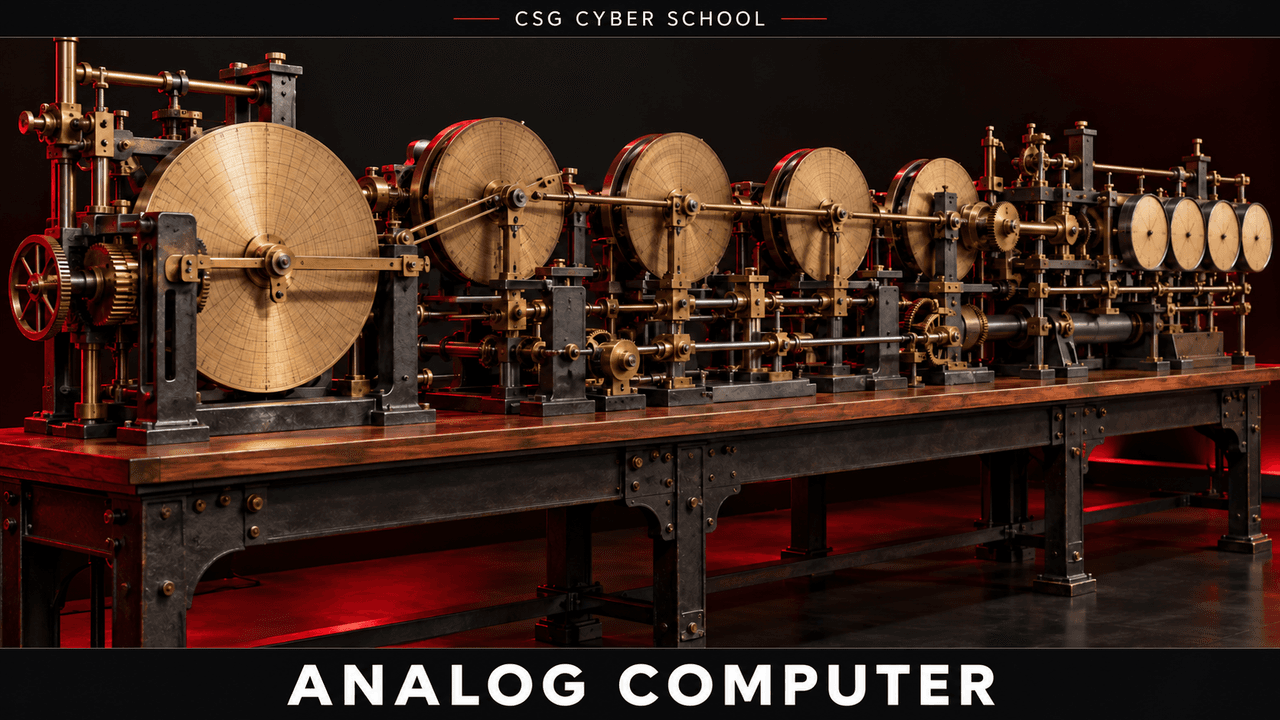
Examples of Analog Computers
- Slide Rule
- Differential Analyzer
- Electronic Analog Computer
Analog Computer
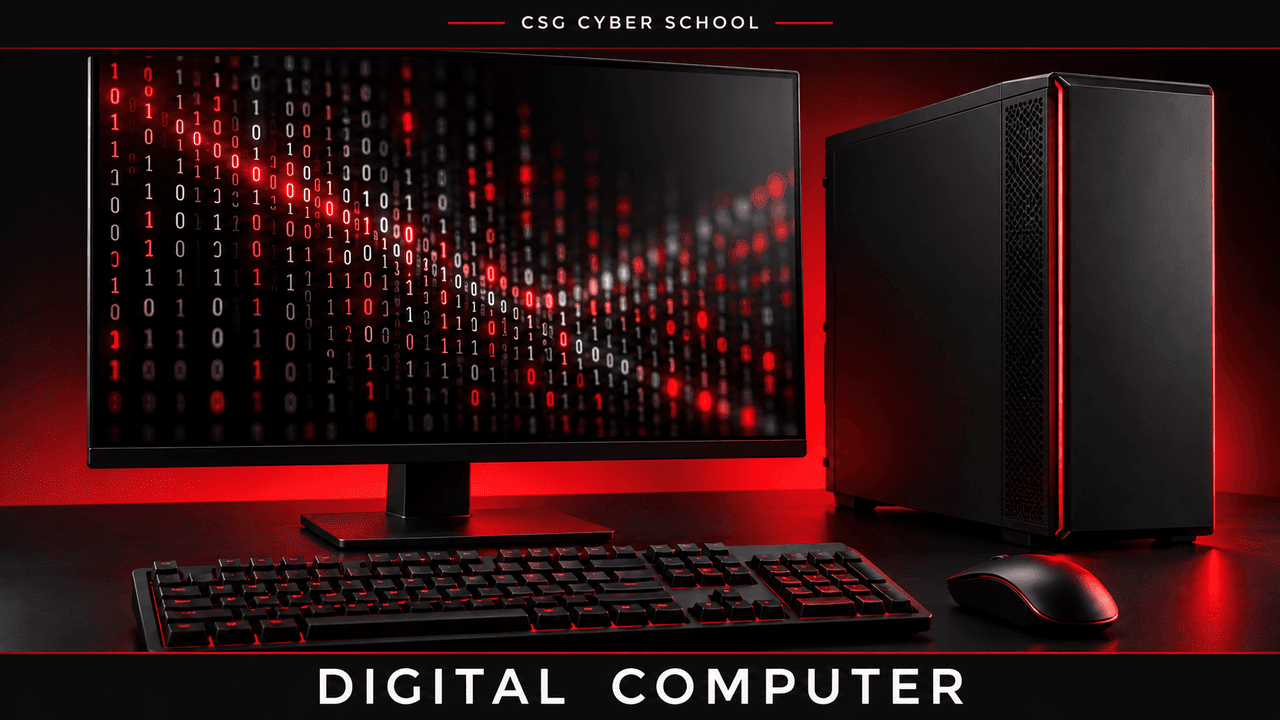
2. Digital Computer
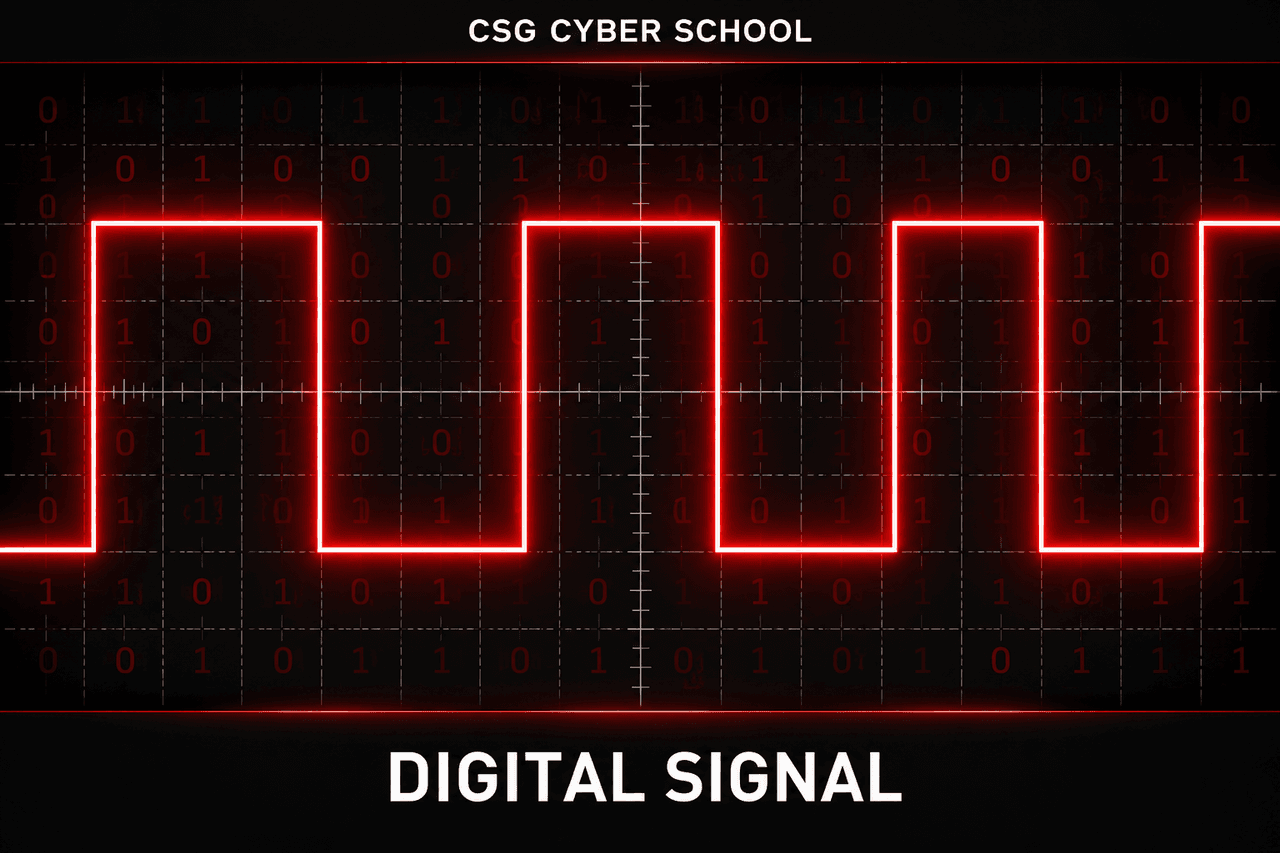
Digital computers are the common computers we use in everyday life. They process data in binary form (0s and 1s). Examples include smartphones, desktops, PCs, and laptops.
3. Hybrid Computer
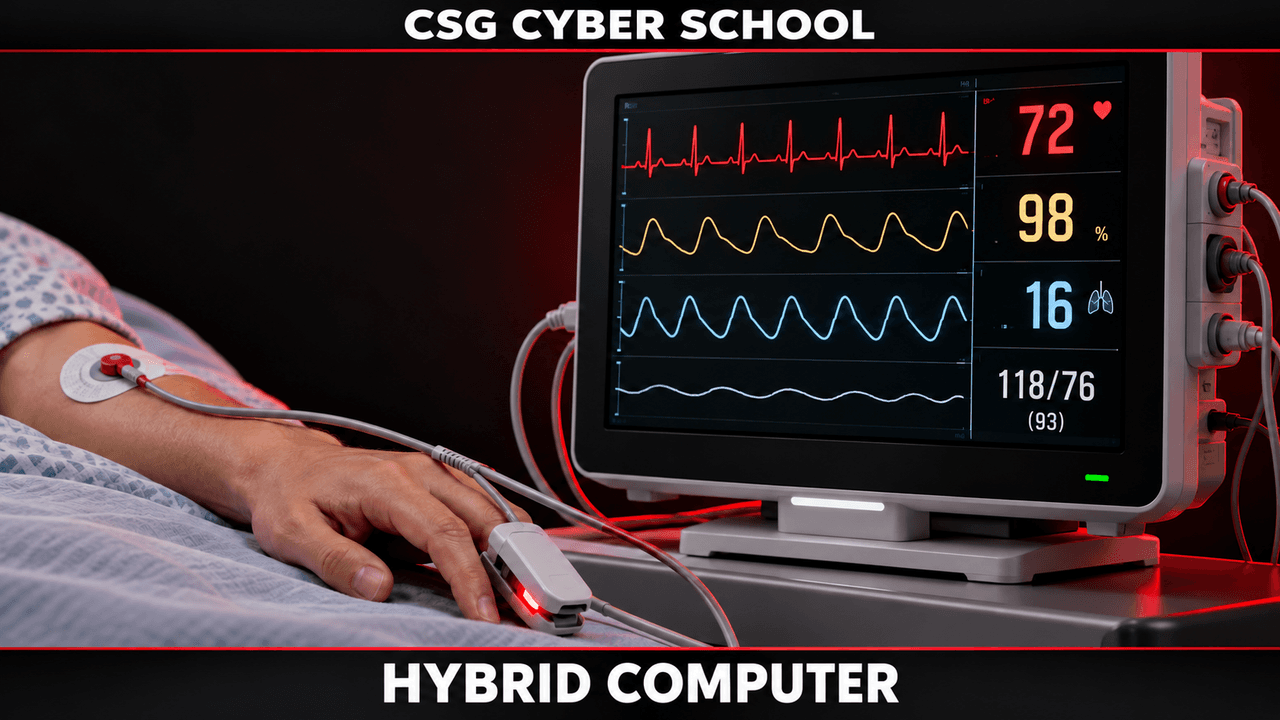
Hybrid computers combine analog and digital computing features. They can work with continuous physical signals and process data digitally. MRI scanners and ICU patient monitors use a combination of analog and digital technology.
Hybrid Computer
Classification of Computers by Size
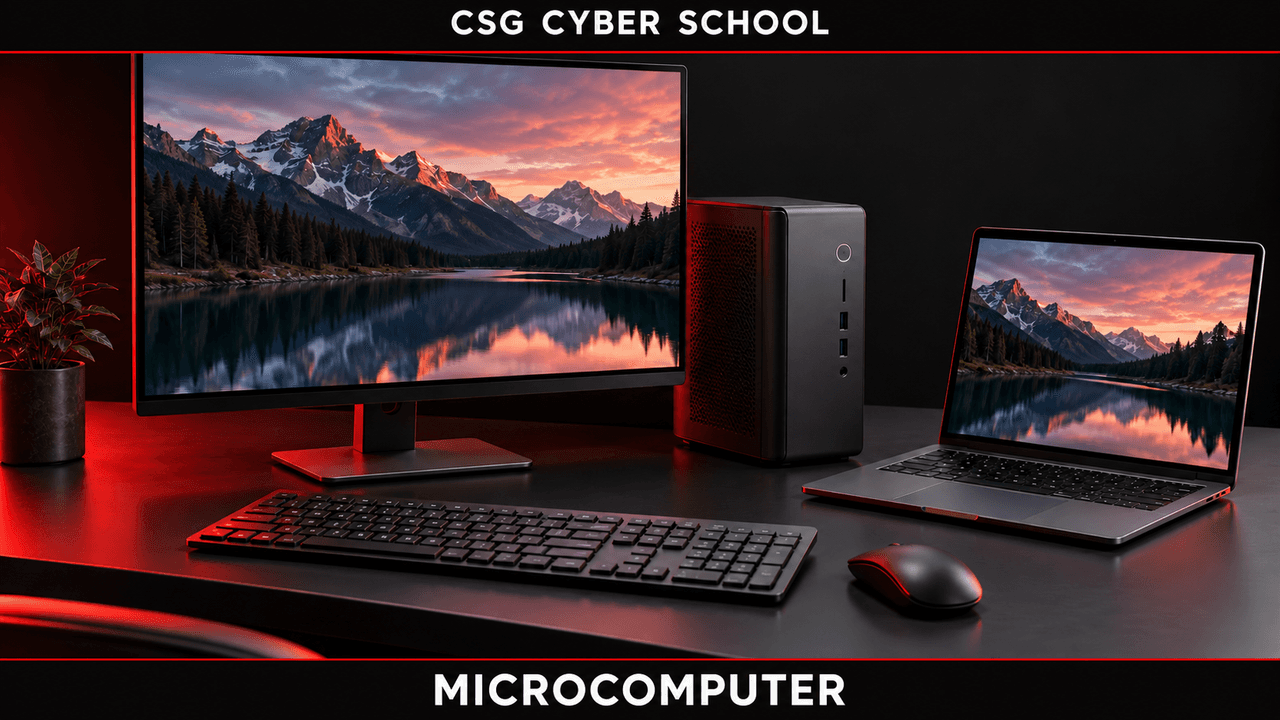
1. Microcomputer
Microcomputers are small computers designed mainly for personal use. Examples include desktop PCs, laptops, tablets, and smartphones.
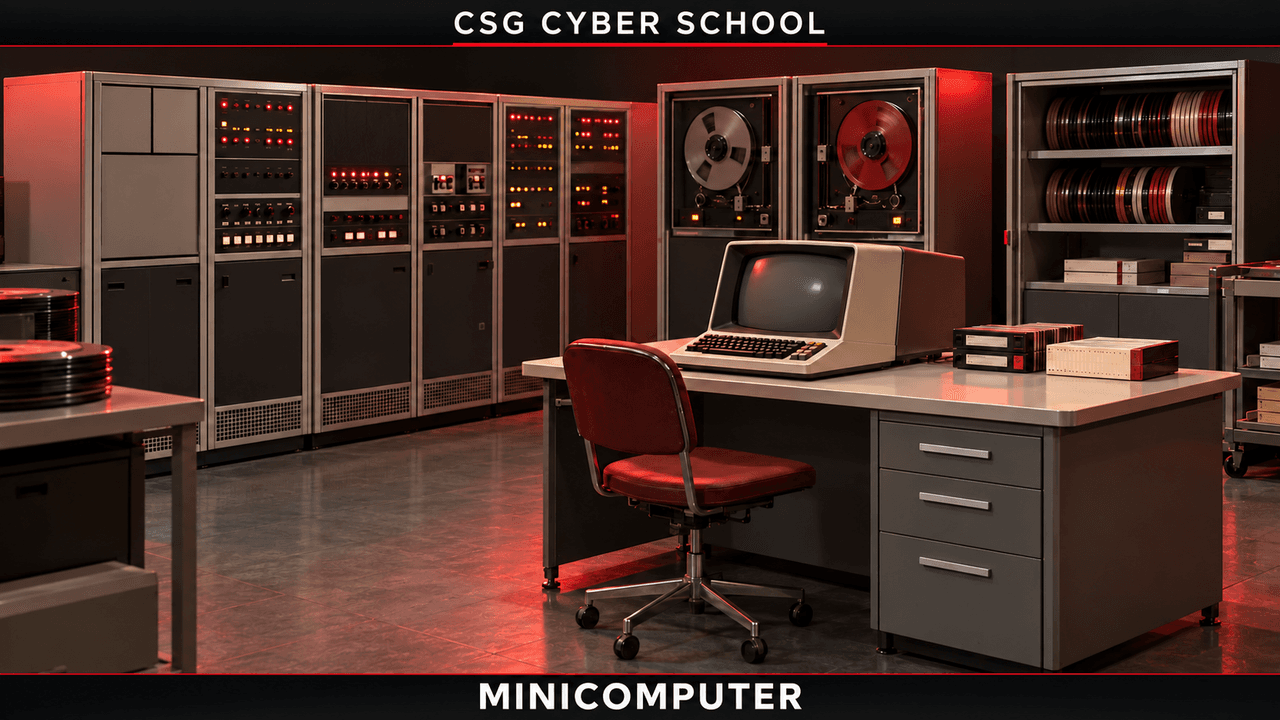
2. Minicomputer
Minicomputers are mid-sized computing systems that can support multiple users at the same time. They were commonly used in businesses and laboratories.
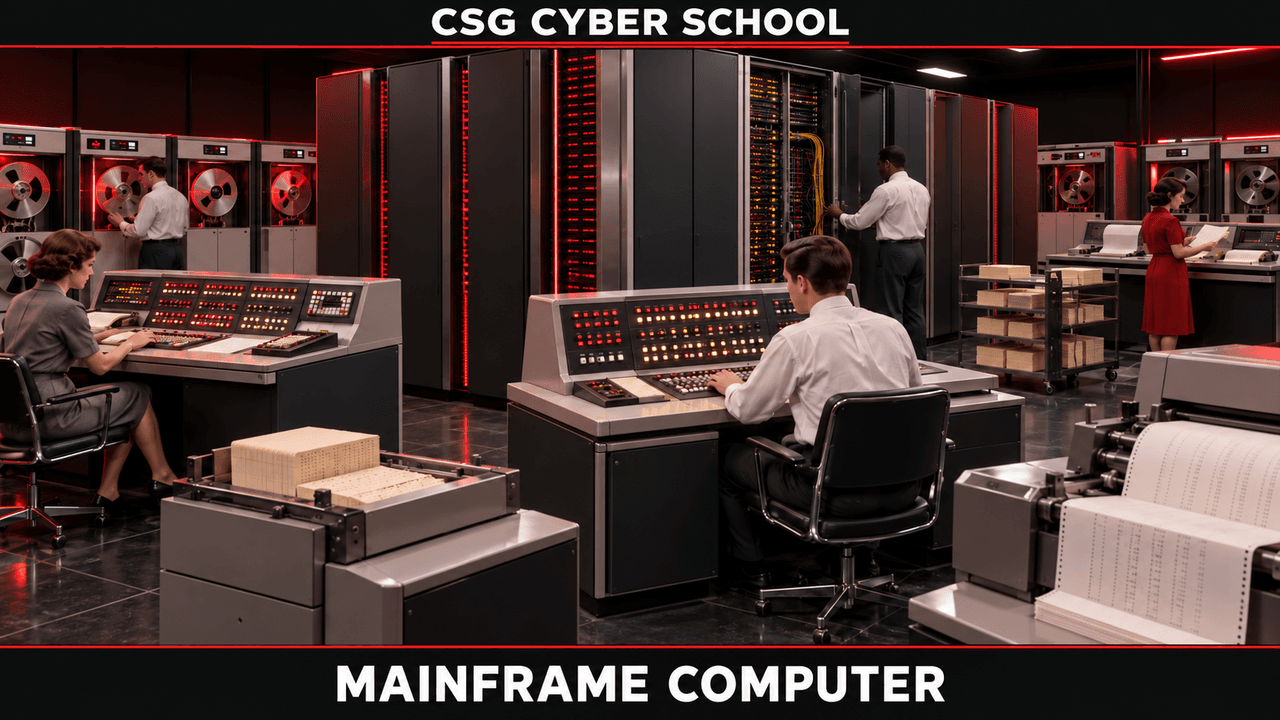
3. Mainframe Computer
Mainframe computers are powerful systems designed to handle large amounts of data and thousands of transactions. They are commonly used in banks, government organizations, and large companies.
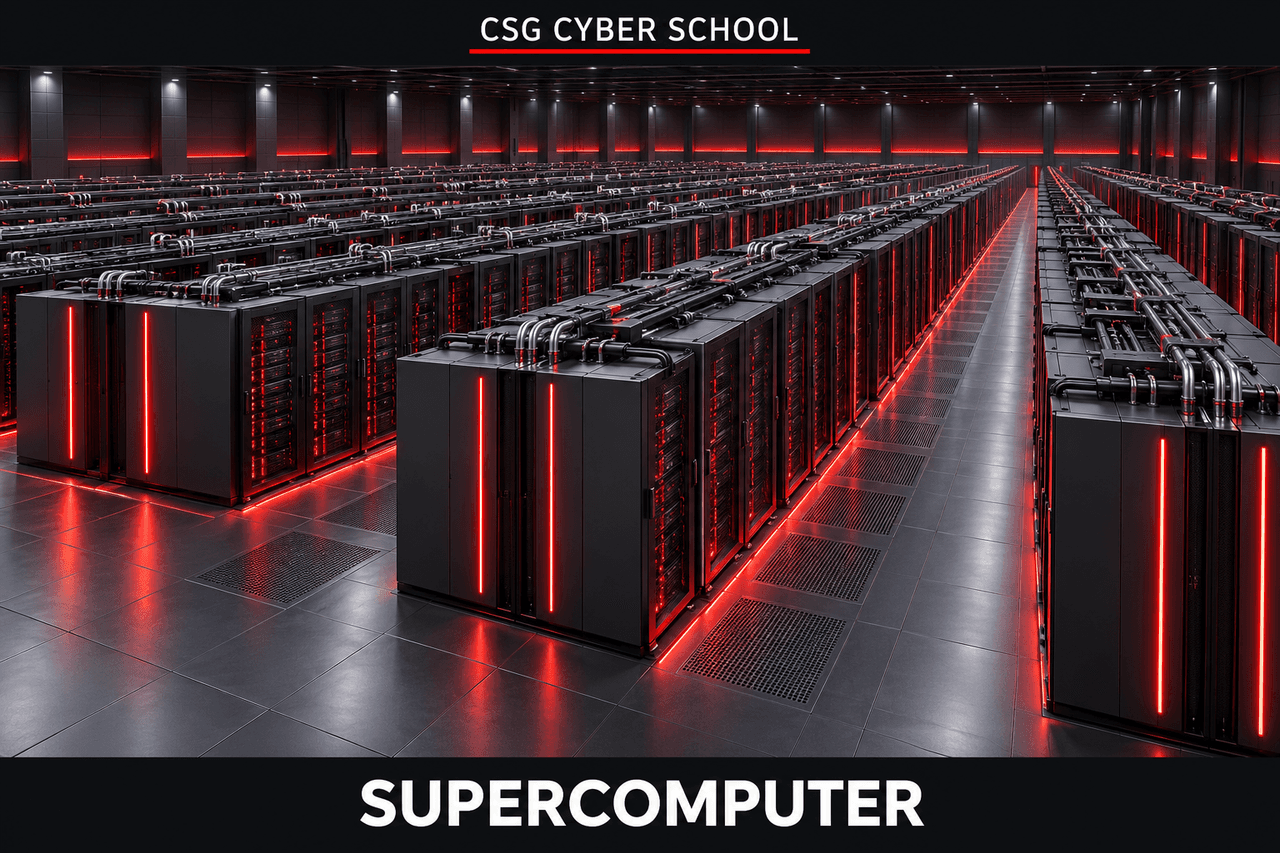
4. Supercomputer
Supercomputers are extremely powerful computers used for complex calculations and large-scale processing. They are used in AI research, weather forecasting, and scientific simulations.
Classification of Computers by Purpose
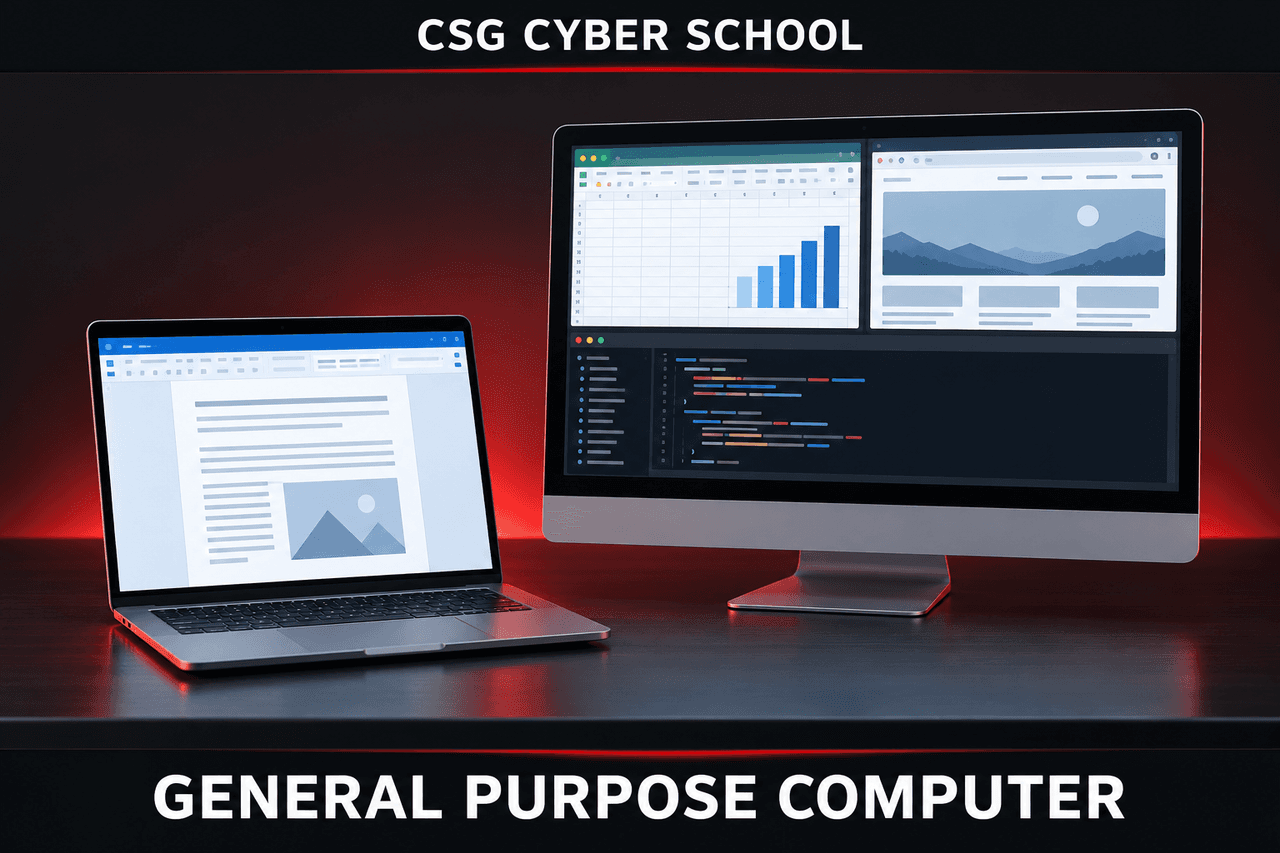
1. General-Purpose Computer
General-purpose computers are designed to perform many different tasks, such as browsing, studying, gaming, and programming. Examples include PCs, laptops, and smartphones.
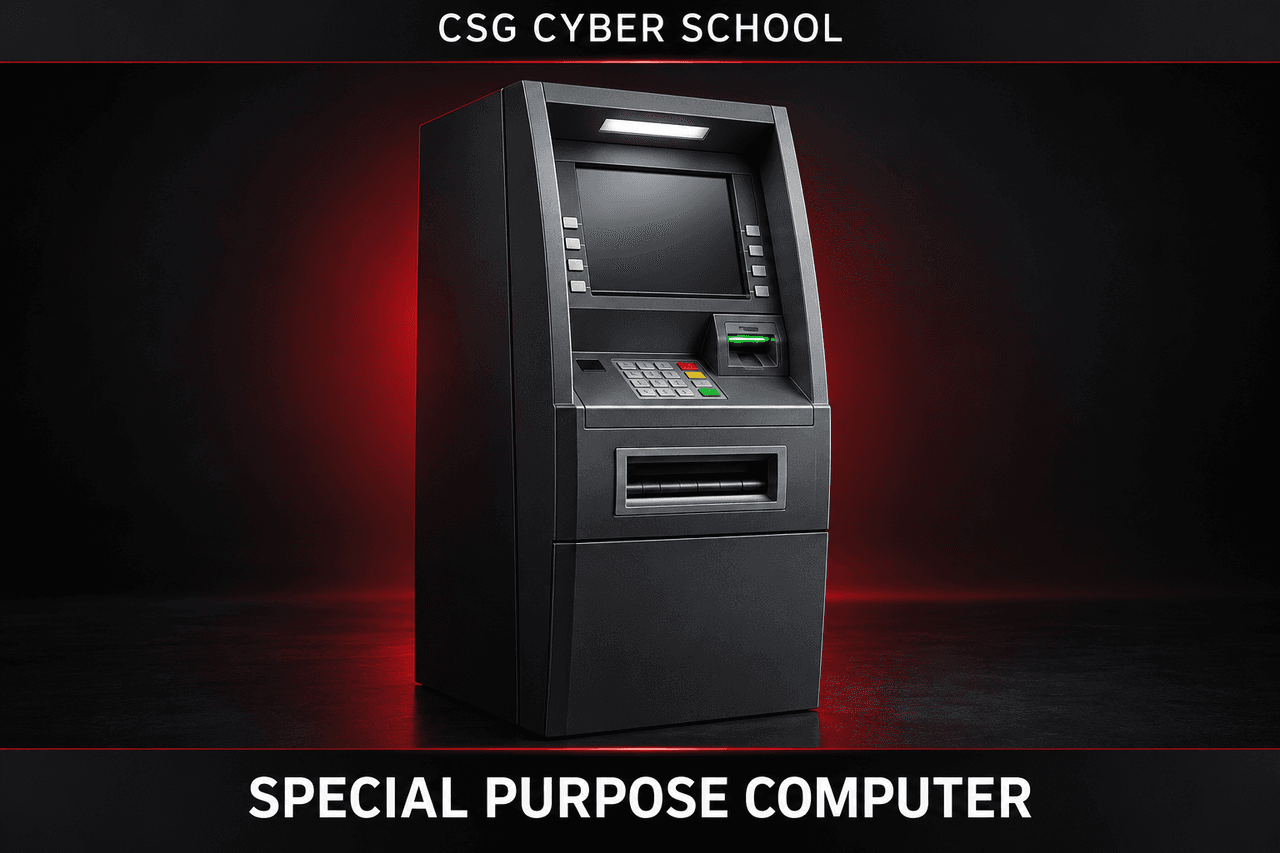
2. Special-Purpose Computer
Special-purpose computers are designed to perform a specific task. Examples include ATMs, MRI scanners, and CT scanners.
Classification of Computers — Topic Exam
History and Evolution of Computers
- 17th Century: Mechanical calculators like the Pascaline and Stepped Reckoner were developed.
- 18th Century: Mechanical calculating machines were further improved.
- 19th Century: Early mechanical computers and punched-card systems were developed.
- 20th Century: Minicomputers, microcomputers, GUI, and the World Wide Web (WWW) emerged.
- 21st Century: Smartphones, tablets, cloud computing, and modern AI became widely used.
History and Evolution — Topic Exam
Characteristics of a Computer System
- Speed: Computers can execute millions of instructions per second and complete tasks in milliseconds or less.
- Accuracy: Computers provide highly accurate results when the data and instructions are correct.
- Diligence: Computers can work continuously with the same speed, consistency, and accuracy without getting tired.
- Versatility: Computers support internet connectivity, media handling, hardware compatibility, customization, and various other tasks.
- Automation: Computers can automatically perform repetitive tasks using programs without requiring manual effort every time.
- Storage: Computers allow us to store data, files, and programs permanently for future use.
- Data Management and Analytics: Computers help us organize, manage, analyze, and process large amounts of data.
- Connectivity: Computers can connect and communicate with other devices and systems through networks.
- Multitasking: Computers can run multiple programs and handle different tasks at the same time.
- Security and Privacy: Computers support security features such as passwords, biometric authentication, and encryption to protect data.
System Characteristics — Topic Exam
Generations of Computers
1. First Generation (1940–1956)
First-generation computers used vacuum tubes and worked with binary instructions. Examples: ENIAC and EDVAC.
Vacuum tubes were used for processing.

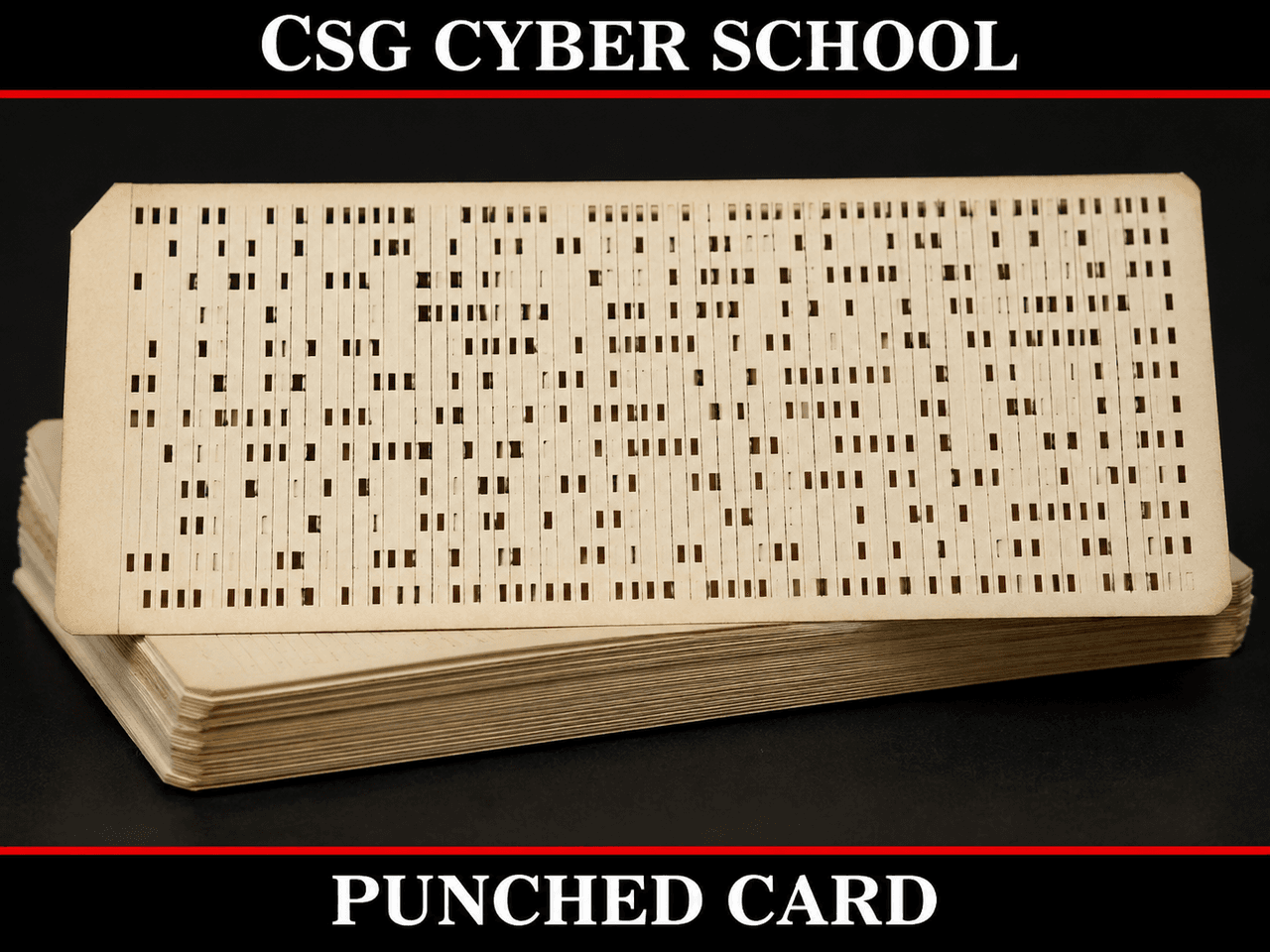
Punched cards were used for input and output.
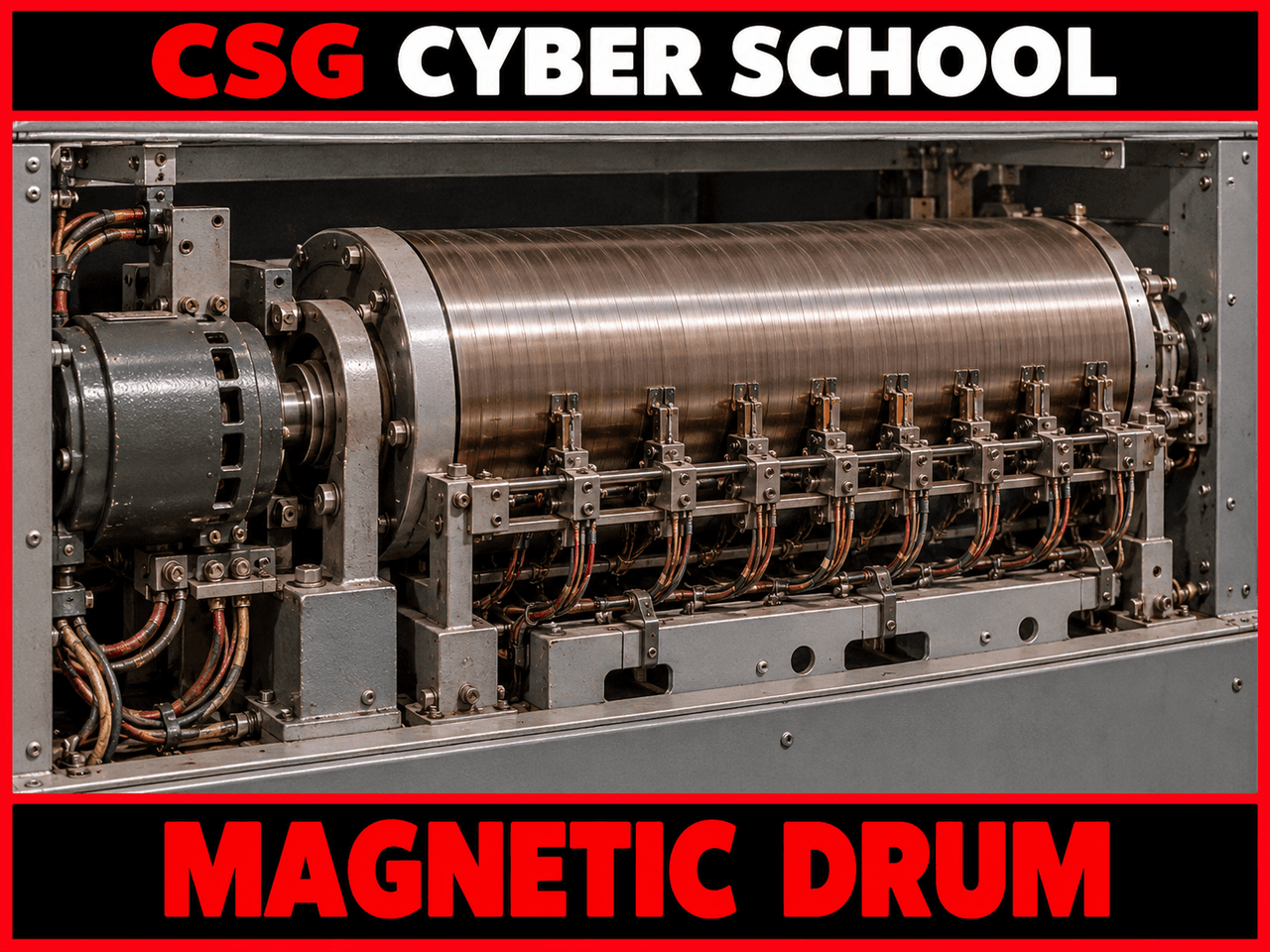
Magnetic drums were used for memory and storage.
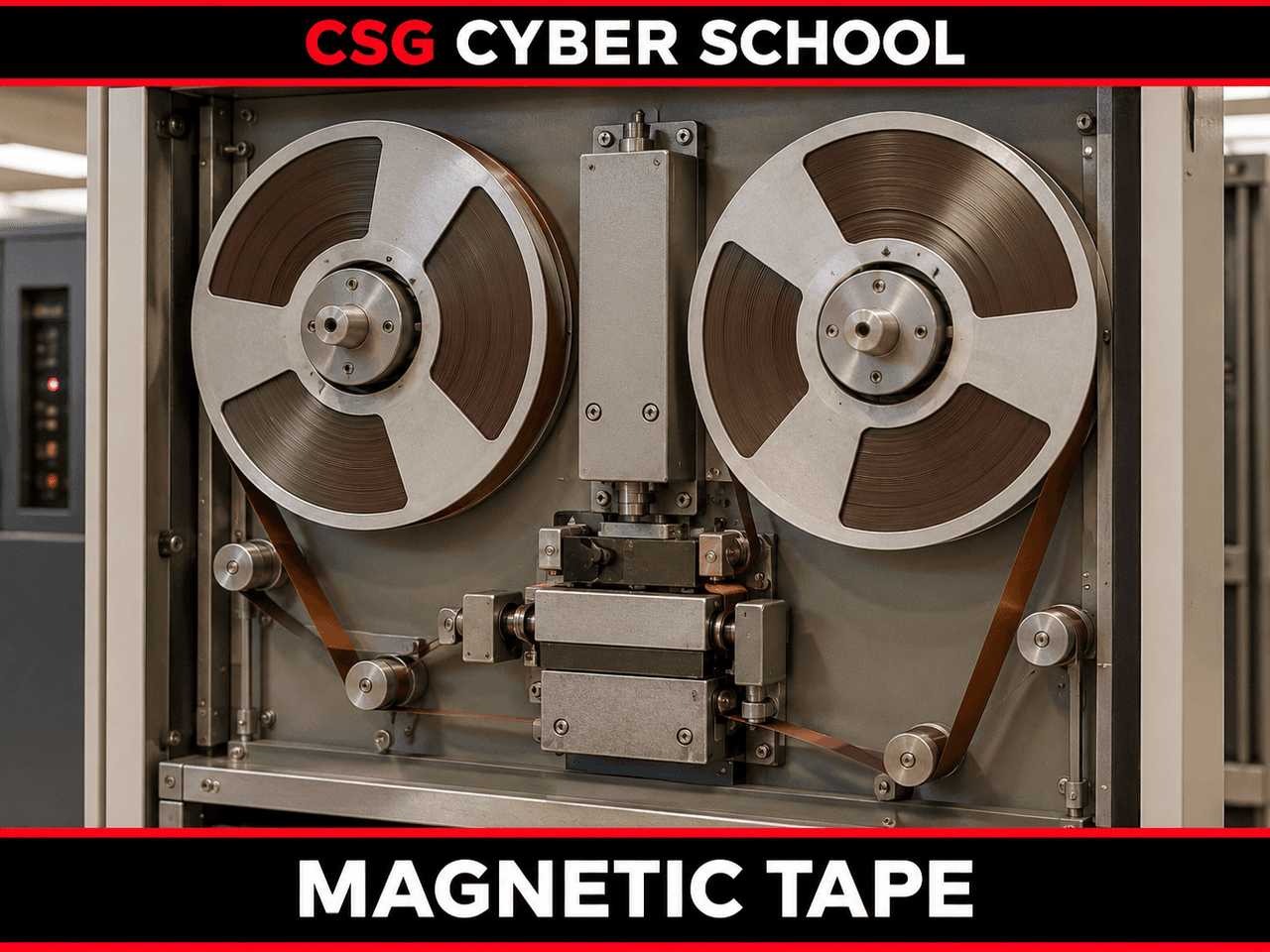
Magnetic tapes were used for data storage.
2. Second Generation (1956–1963)
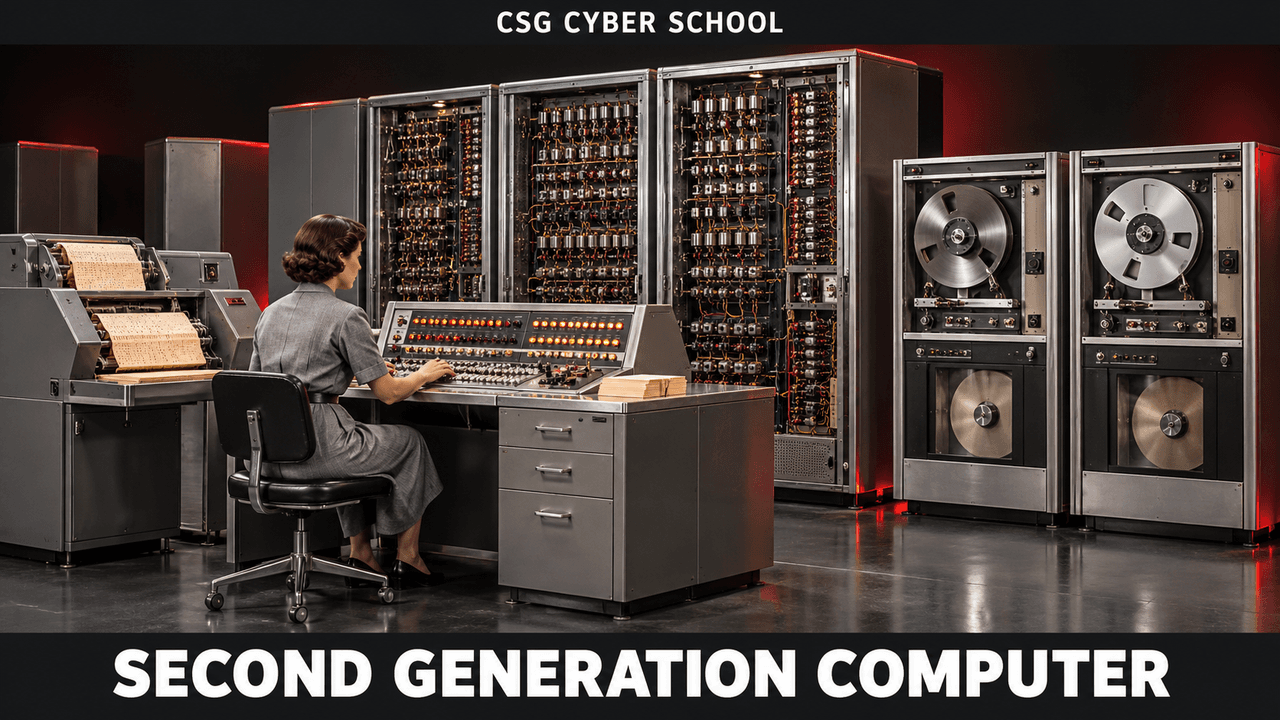
Second-generation computers used transistors instead of vacuum tubes. Punched cards and magnetic tapes were still used. They were used for business, scientific research, and government applications. Examples: UNIVAC systems, IBM 1401, and IBM 7090.
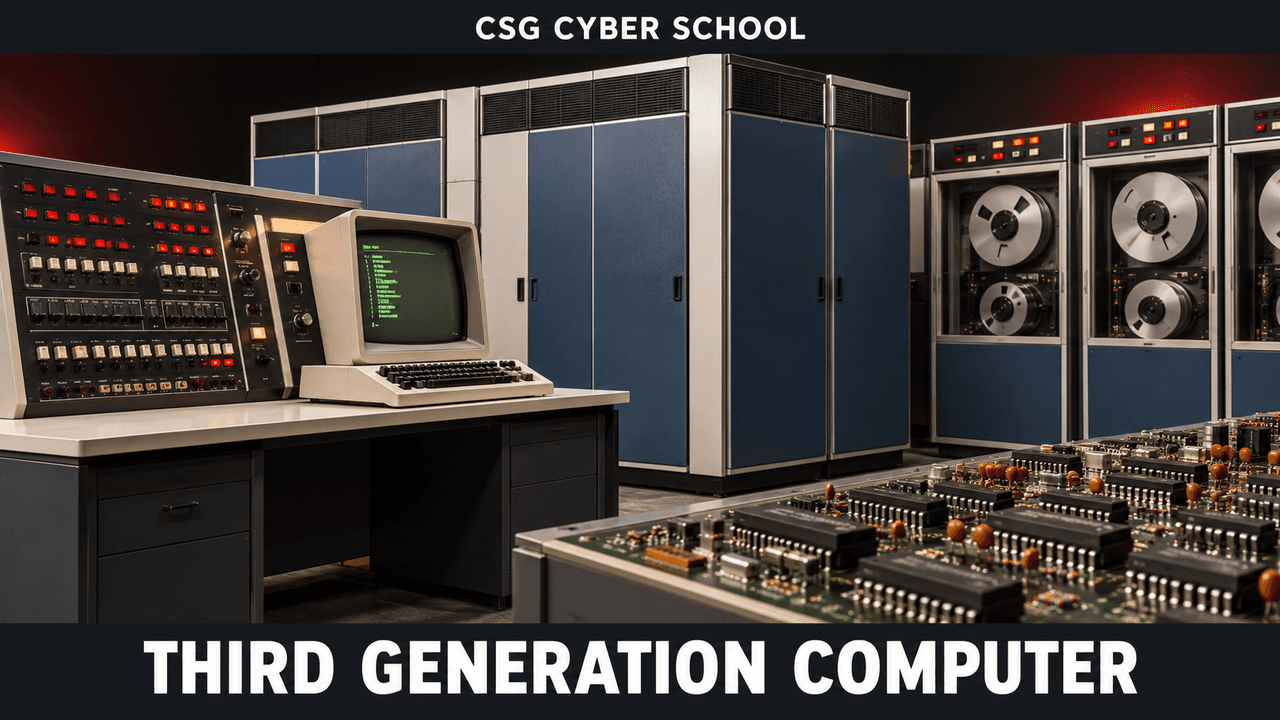
3. Third Generation (1964–1971)
Third-generation computers used integrated circuits (ICs) and magnetic tapes for storage. Keyboards, monitors, and printers became common for input and output. They were mainly used for commercial purposes. Examples: IBM 360, IBM 370, and UNIVAC systems.
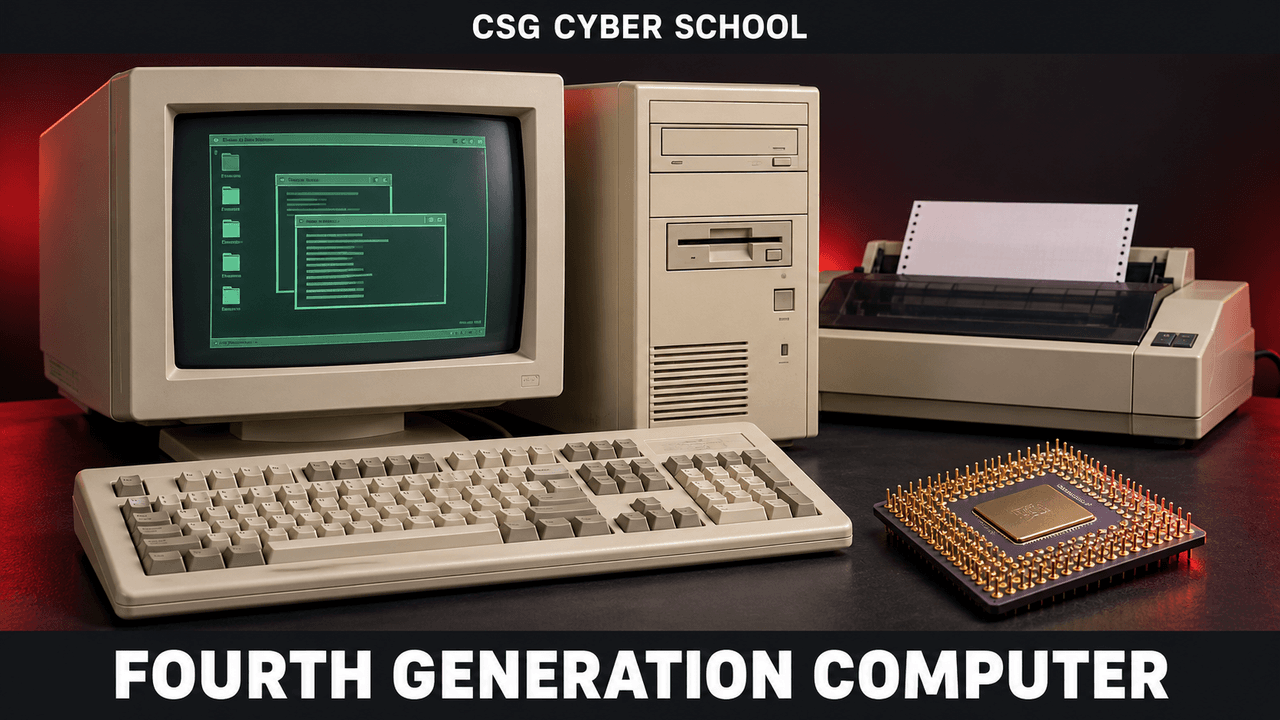
4. Fourth Generation (1972–2010)
Fourth-generation computers used microprocessors and semiconductor memory (RAM and ROM). Keyboards, monitors, printers, and scanners became common, and personal computers became widely available.
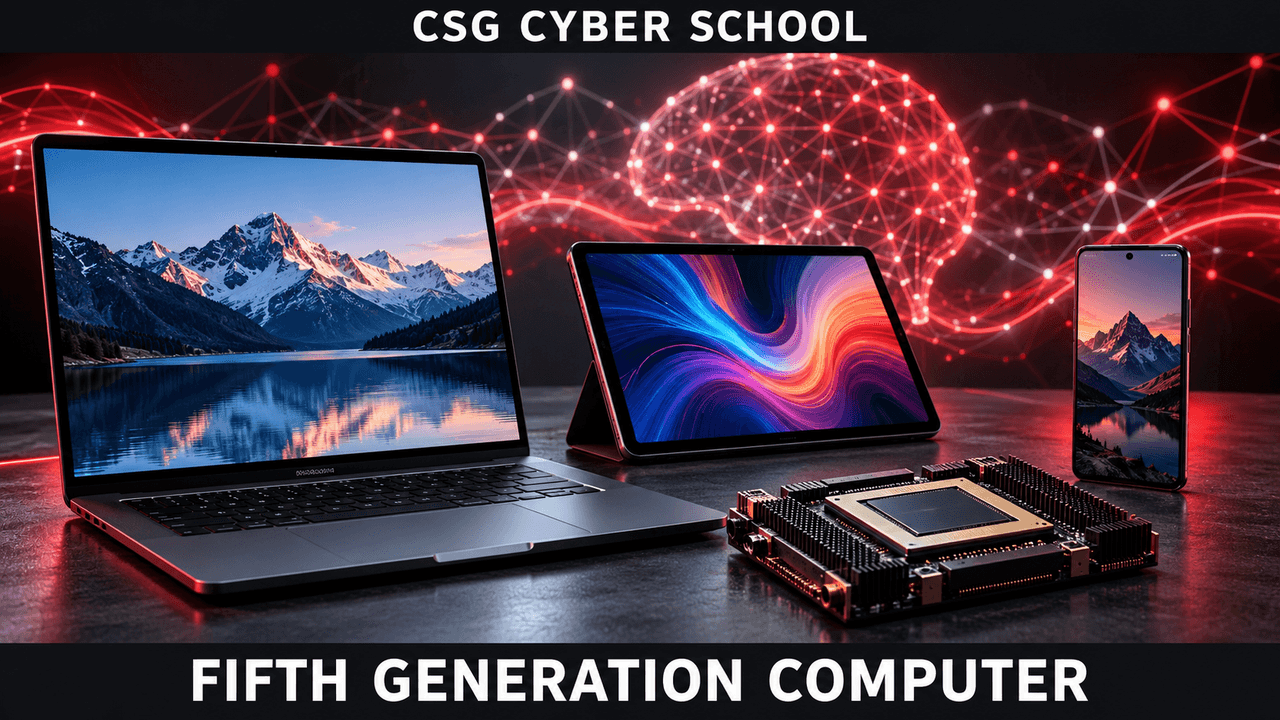
5. Fifth Generation (2010–Present)
Fifth-generation computing focuses on Artificial Intelligence (AI), Ultra-Large-Scale Integration (ULSI), nanotechnology, and emerging quantum computing. Modern devices include touchscreen laptops, tablets, and smartphones.
Generations of Computers — Topic Exam
Components of a Computer
A computer mainly works through three components: Input, Processing, and Output.
1. Input Devices
The computer starts working when we enter data or give instructions through input devices.
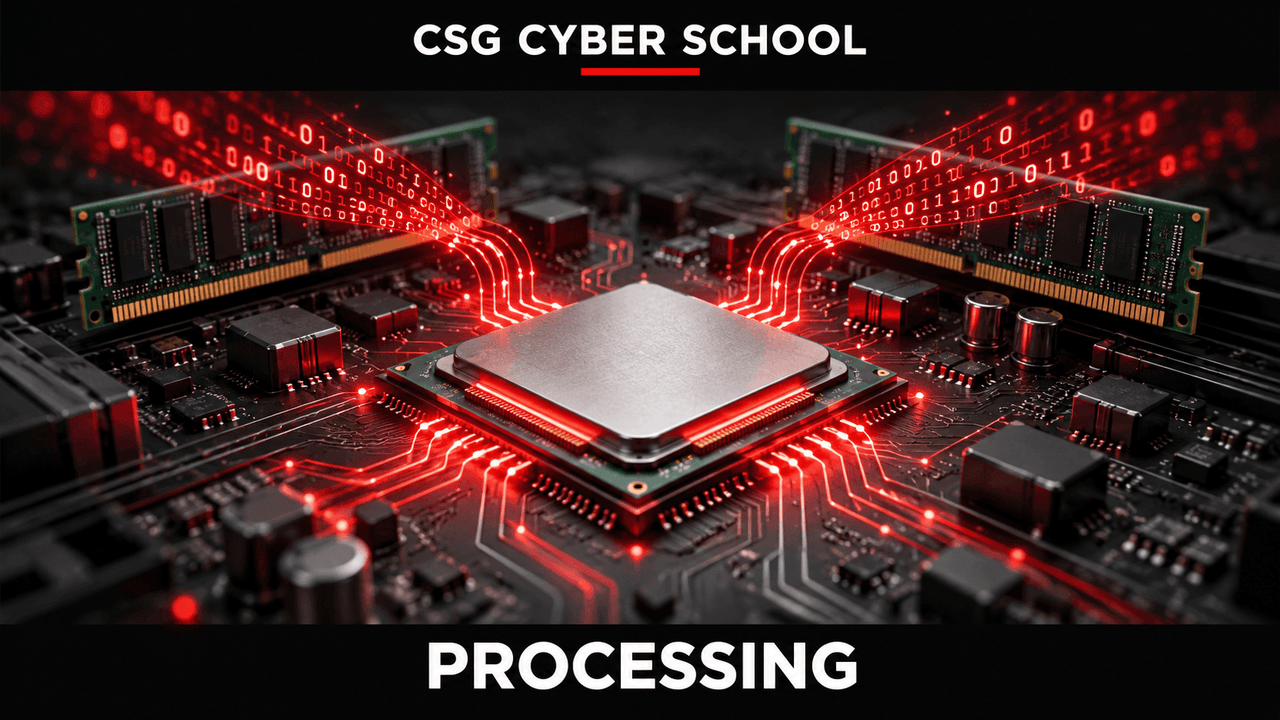
2. Processing
After receiving input, the CPU processes the instructions with the help of RAM and ROM to produce results.
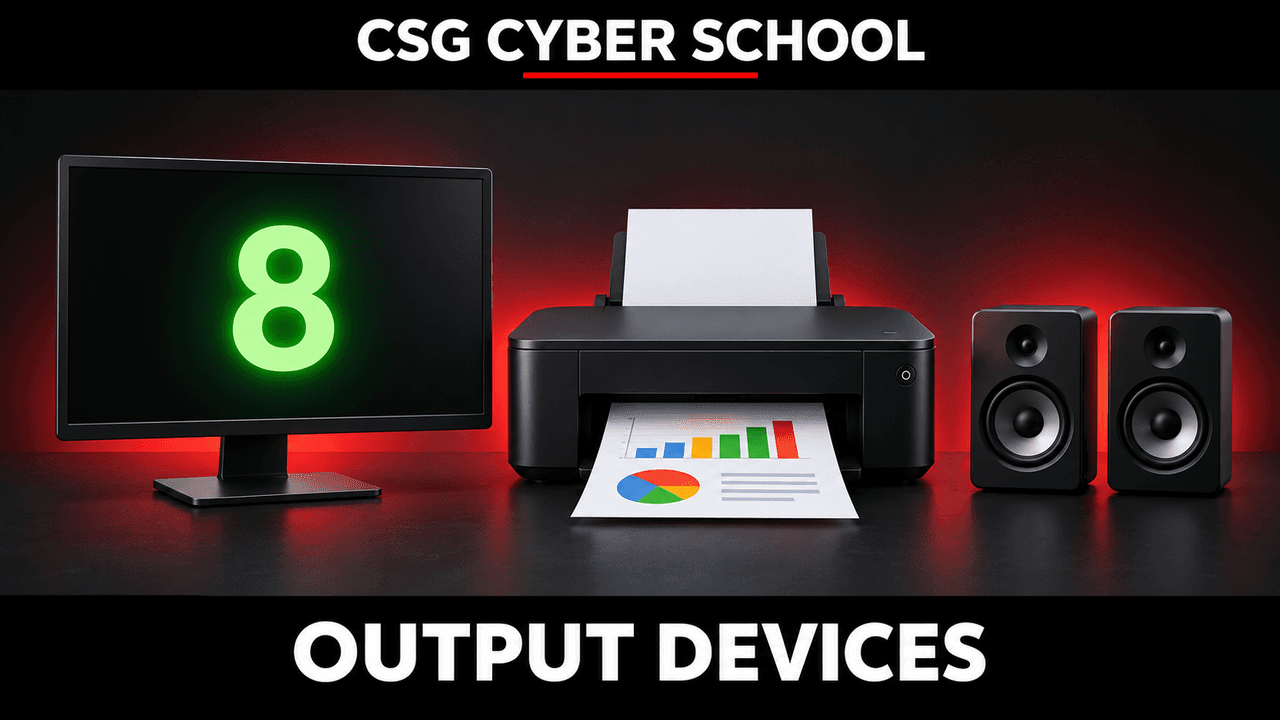
3. Output Devices
After processing is completed, the final result is displayed through output devices.
Input, Processing, and Output Diagram
Input Devices
Processing
CPU · RAM · ROM
Output Devices
Example: Addition (5 + 15)
- Input: We type 5 + 15 using the keyboard and press Enter. This instruction is given to the computer as input.
- Processing: The input goes to the CPU, which performs the calculation using RAM. ROM contains the computer's basic startup instructions.
- Output: After processing, the result (20) is displayed on the screen. This entire process is completed within milliseconds.
CPU and Memory Communication
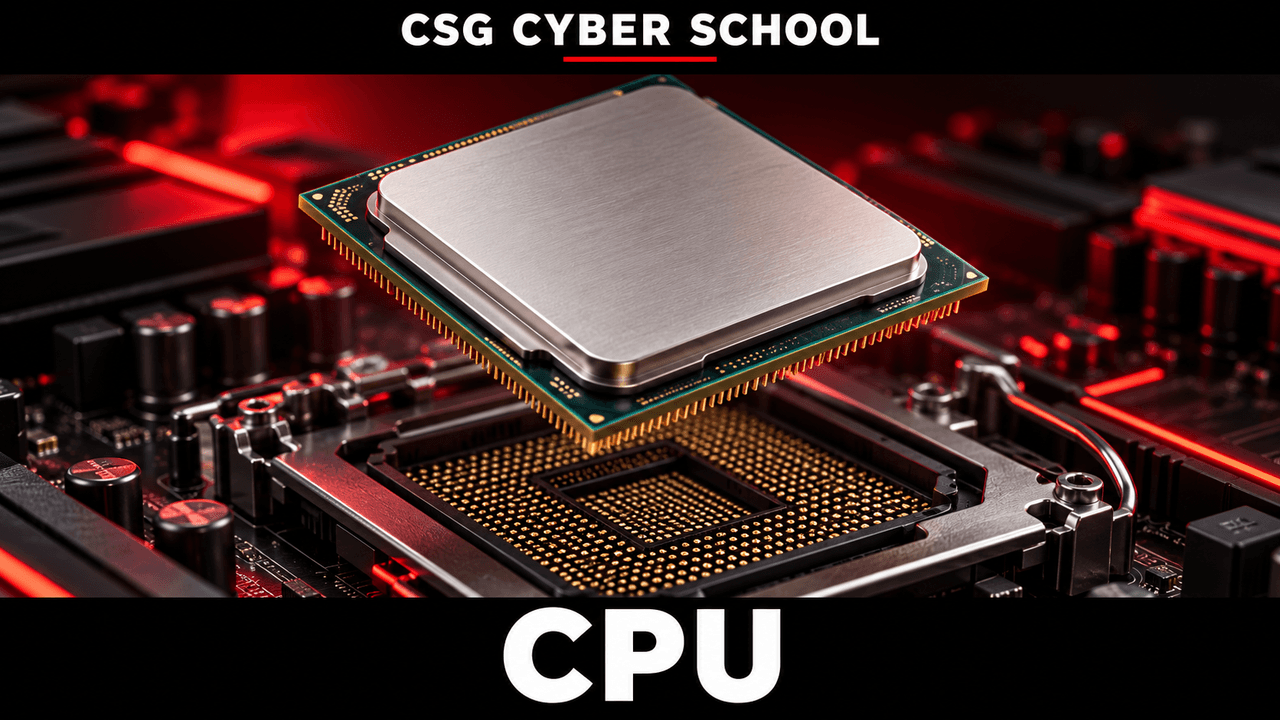
CPU in Detail
The CPU works in several different phases. First, it fetches an instruction, then understands (decodes) it, executes it, and finally handles the result, such as displaying or saving it.

1. Instruction Fetch
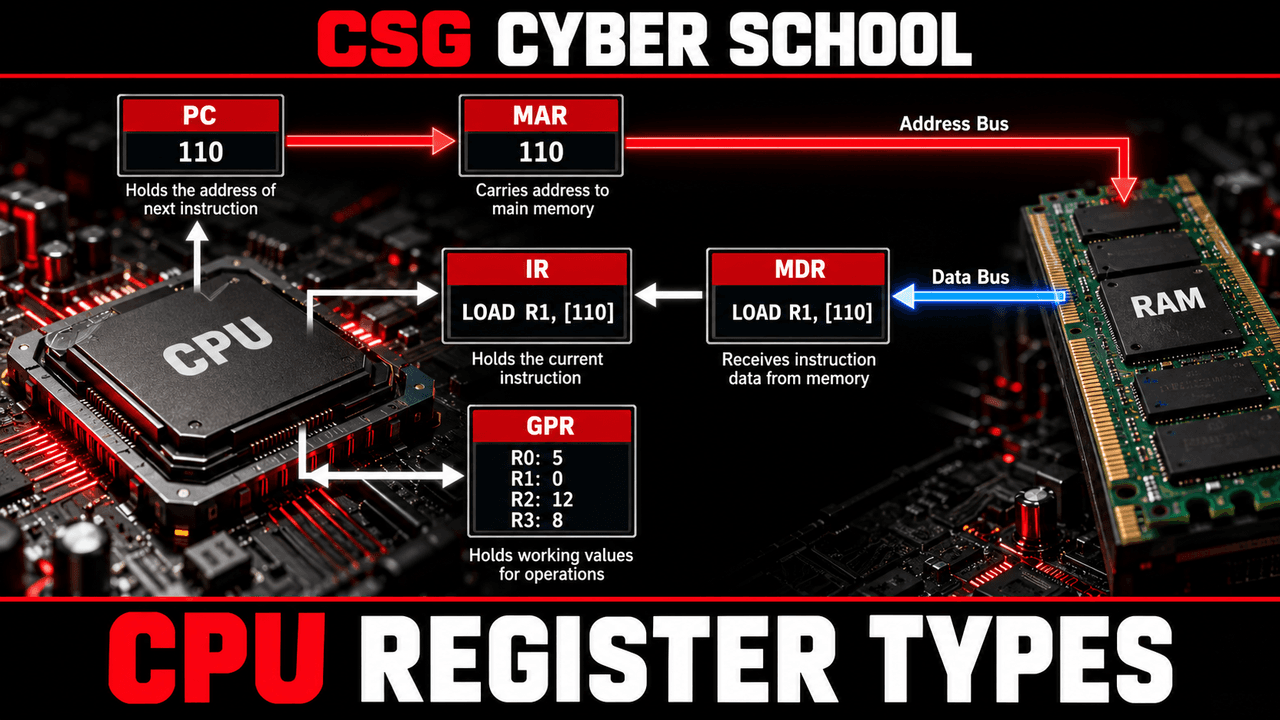
The CPU has a Program Counter (PC), which stores the memory address of the next instruction. For example, suppose the next instruction is stored at memory address 110.
The Control Unit (CU) uses this address and sends it to the Memory Address Register (MAR). The Control Unit then sends a read signal to RAM to read the instruction stored at address 110.
RAM reads the instruction from address 110 and sends it through the Data Bus to the Memory Data Register (MDR).
The Memory Data Register (MDR) works like a temporary gate. The instruction enters the MDR and then moves to the Instruction Register (IR), where it is held for the next phase.
This entire process is called Instruction Fetch.
2. Instruction Decode
After an instruction is fetched, the CPU understands what work needs to be done, which registers will be used, and where the result should be stored. This stage is called Instruction Decoding.
3. Instruction Execution
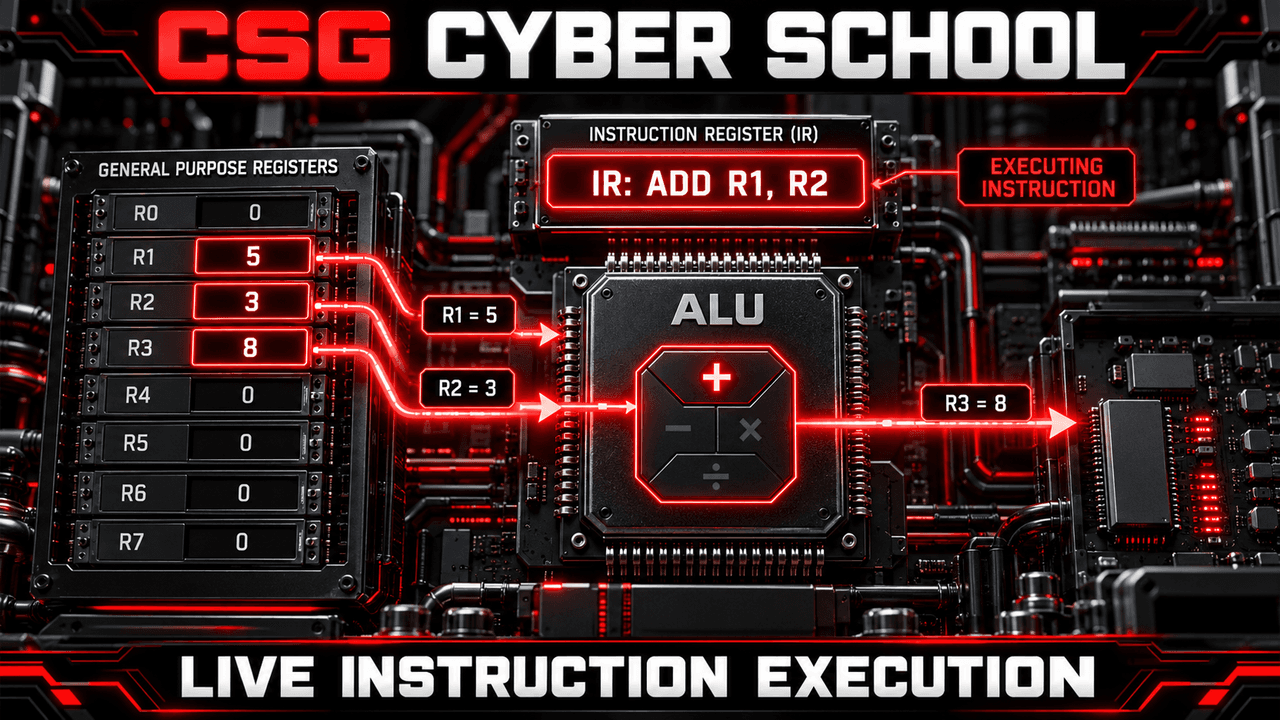
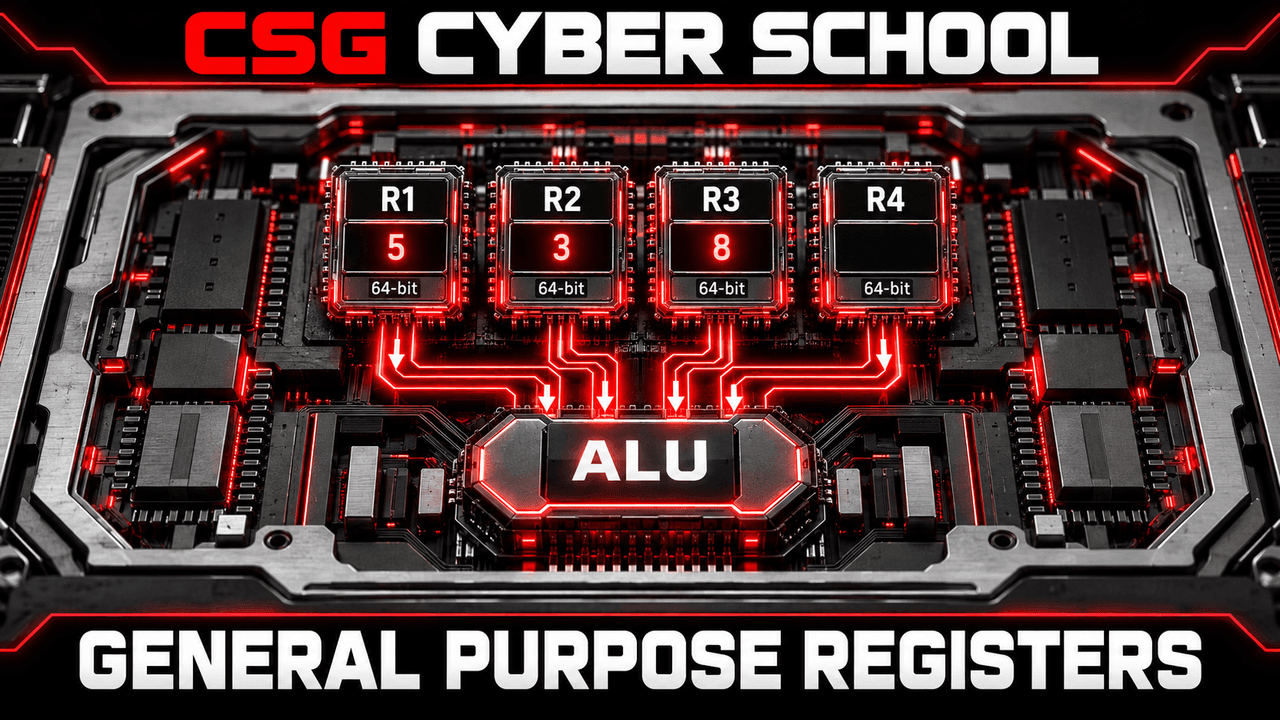
During execution, the CPU performs the work identified during decoding. For example, to add 5 and 3, it takes the values from two registers and sends them to the Arithmetic Logic Unit (ALU). The ALU adds them, and the result, 8, is stored in a third register. Execution can also involve reading or writing data.
4. Control Flow Management
Suppose instructions at addresses 101 to 104 load 8 and 3, add them, and store the result. At address 105, there is an instruction to JUMP to address 188. Normally, the CPU would continue to addresses 106, 107, and 108. But because of the jump, the Program Counter (PC) points to address 188 next. Managing this change in the instruction sequence is called Control Flow Management.

5. Exception Handling
Exception handling is used when the CPU faces an abnormal situation while a program is running. A predefined exception handler can try to solve the problem and continue, or report an error and stop the program.
- Divide by Zero: Dividing by zero raises an exception. If it is not handled, the program may stop with an error.
- Missing Memory Page: A page-fault handler may load the required page from storage into RAM. If the memory access is invalid, an error may occur.
- Read/Write Permission: If a program tries to access protected memory without permission, the system can deny the access and terminate the program.

6. Pipeline Control
Pipeline control allows the CPU to work on different stages of different instructions at the same time. For example, the CPU may fetch one instruction, decode another, and execute a third. Pipeline control coordinates these stages so the work happens faster and in the correct order.

7. Synchronization
Synchronization keeps dependent tasks in the correct order, so a task does not start before the work it depends on is ready. For example, while preparing vegetables, we first cut them, then wash them, and finally cook them. In computers, synchronization similarly coordinates tasks and access to shared data.

Arithmetic Logic Unit (ALU)
The Arithmetic Logic Unit (ALU) is the part of the CPU that performs arithmetic calculations, compares values, and checks logical conditions.
1. Arithmetic Operations
The ALU performs addition, subtraction, multiplication, and division. For example, when we calculate 5 + 7, the result is 12.

2. Comparison Operations
The ALU compares numbers to find which one is greater, smaller, or equal. For example, between 5 and 7, the statement 7 > 5 is true.

3. Logical Operations
The ALU also works with logic such as AND, OR, NOT, and XOR. For example, 1 OR 0 = 1, while 1 AND 0 = 0.

Components of a Computer — Topic Exam
Memory Unit
A Memory Unit stores values, data, and instructions in different numbered locations called memory addresses.
Think of it as a cupboard with many numbered spaces. We can read values from spaces 4 and 5, add them according to an instruction, and store the result in space 6.
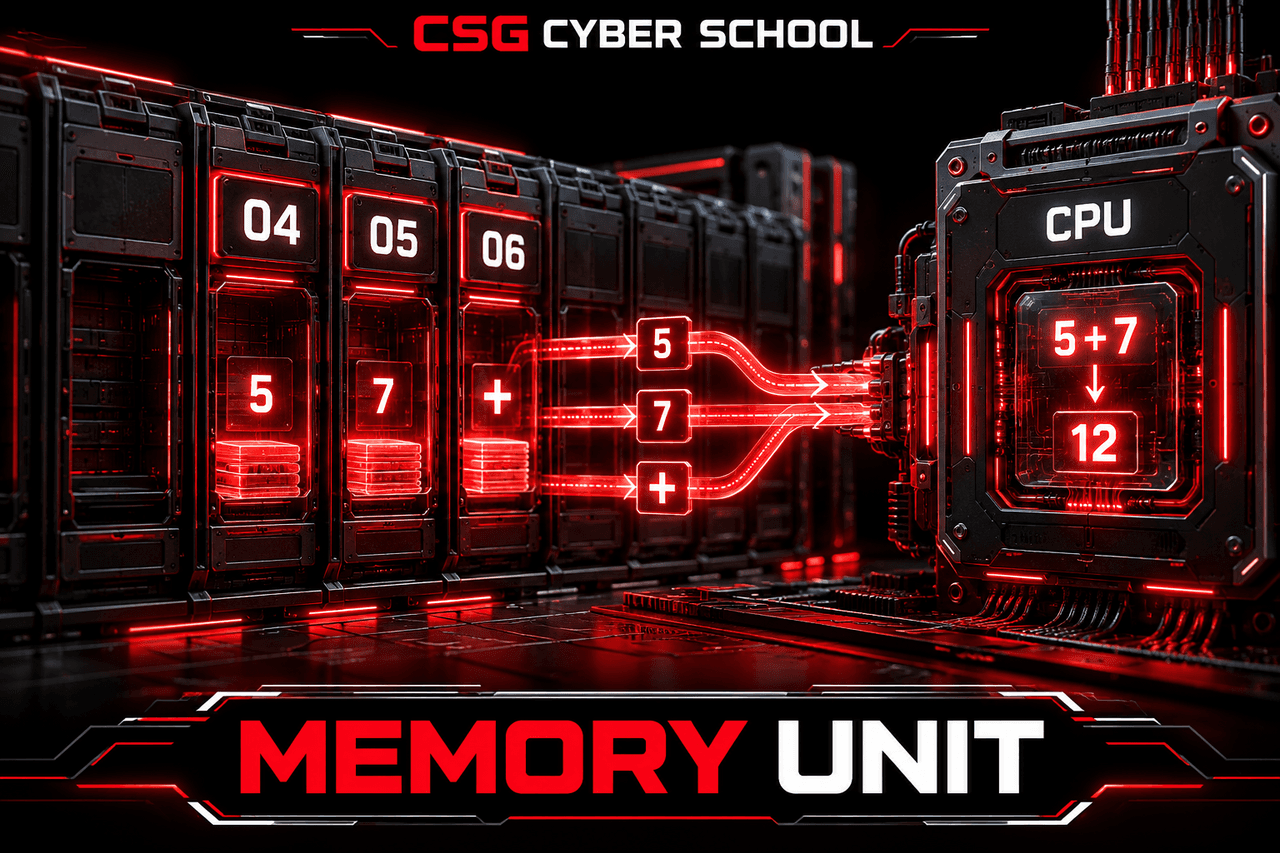
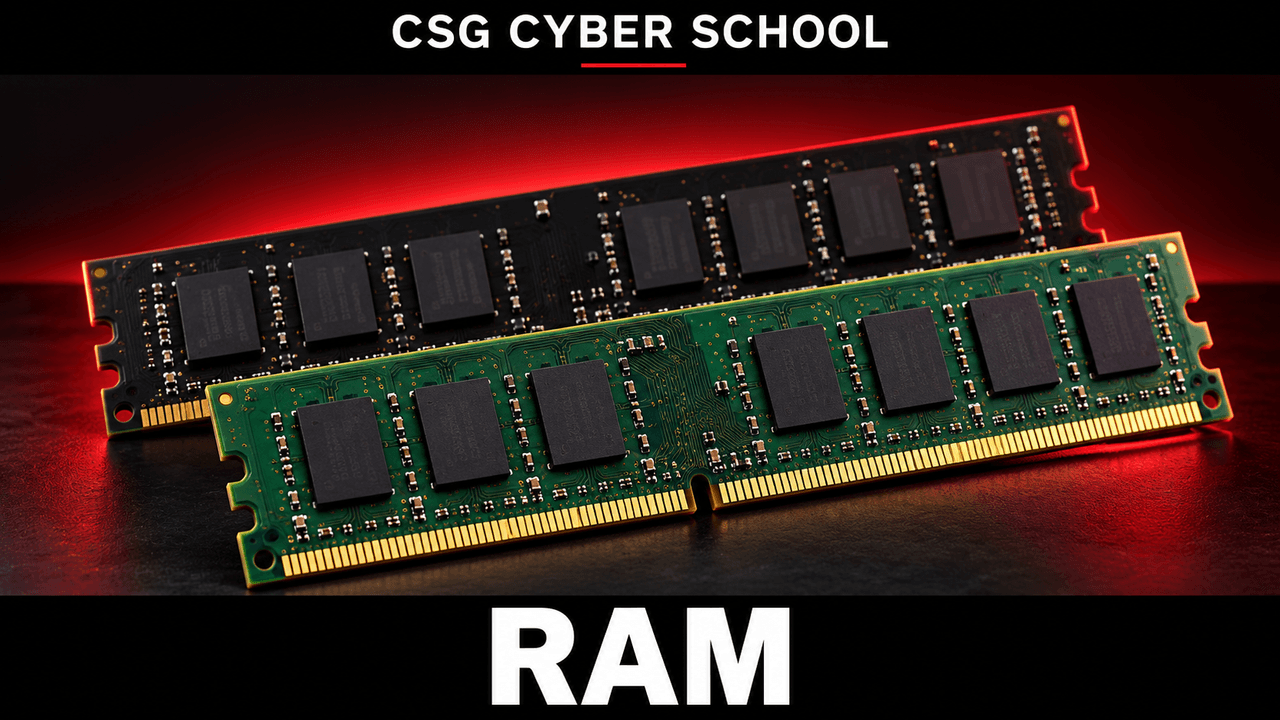
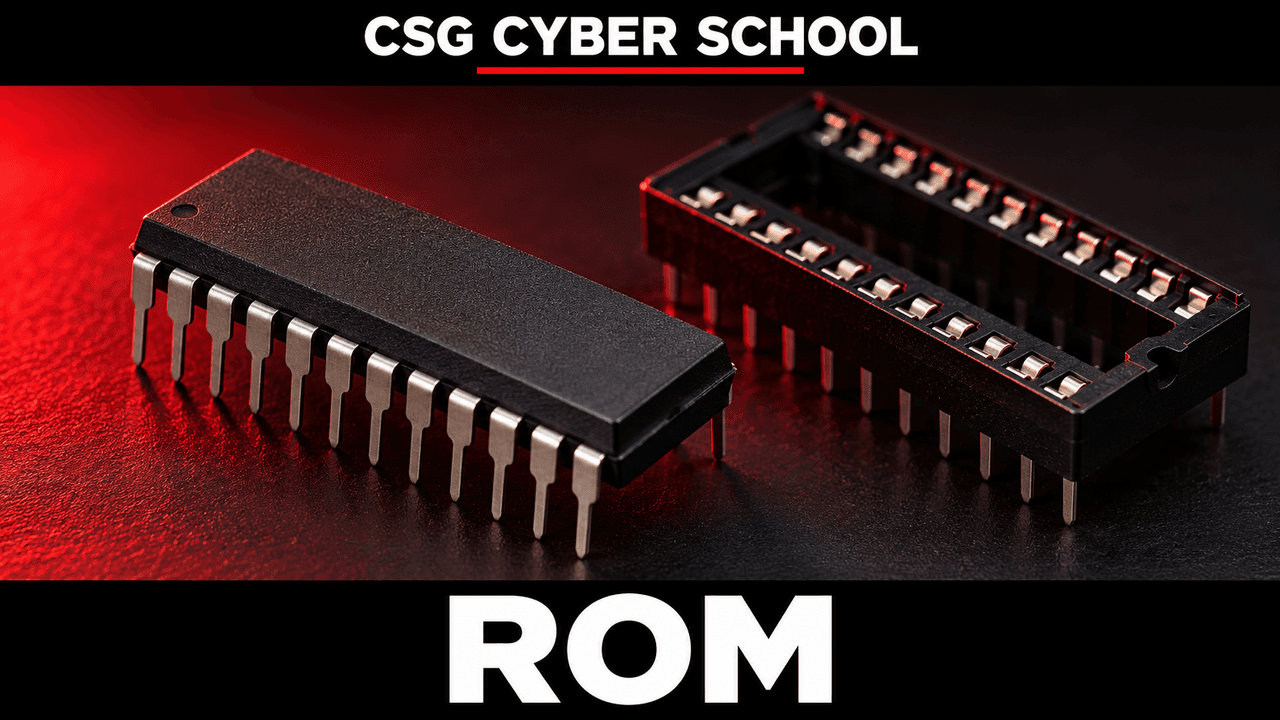
Two important types of memory we study here are Random Access Memory (RAM) and Read Only Memory (ROM).
Random Access Memory (RAM)
RAM is the computer's temporary working memory. The CPU can directly access any memory location by its address. RAM is fast, but its contents are normally lost when power is switched off.
1. SRAM (Static RAM)
SRAM is very fast and more expensive. It is commonly used to make cache memory inside or near the CPU. It usually has much smaller capacity than main RAM.

2. DRAM (Dynamic RAM)
DRAM is commonly used as a computer's main memory in RAM modules. It is cheaper and typically slower than SRAM, but can hold much more data.

Read Only Memory (ROM)
ROM is non-volatile memory, meaning it keeps its stored information without power. Computers commonly store their BIOS/UEFI firmware in a non-volatile flash memory chip. The CPU runs that firmware when the computer starts.


How BIOS/UEFI Starts the Computer
When a computer powers on, the CPU starts running firmware stored in its firmware chip. That firmware checks and initializes essential hardware, then loads the bootloader from a device such as an SSD. The bootloader starts the Operating System.

Types of ROM
1. Mask ROM
Mask ROM is programmed by the manufacturer while making the chip. Its contents cannot normally be changed, like some old game cartridges.

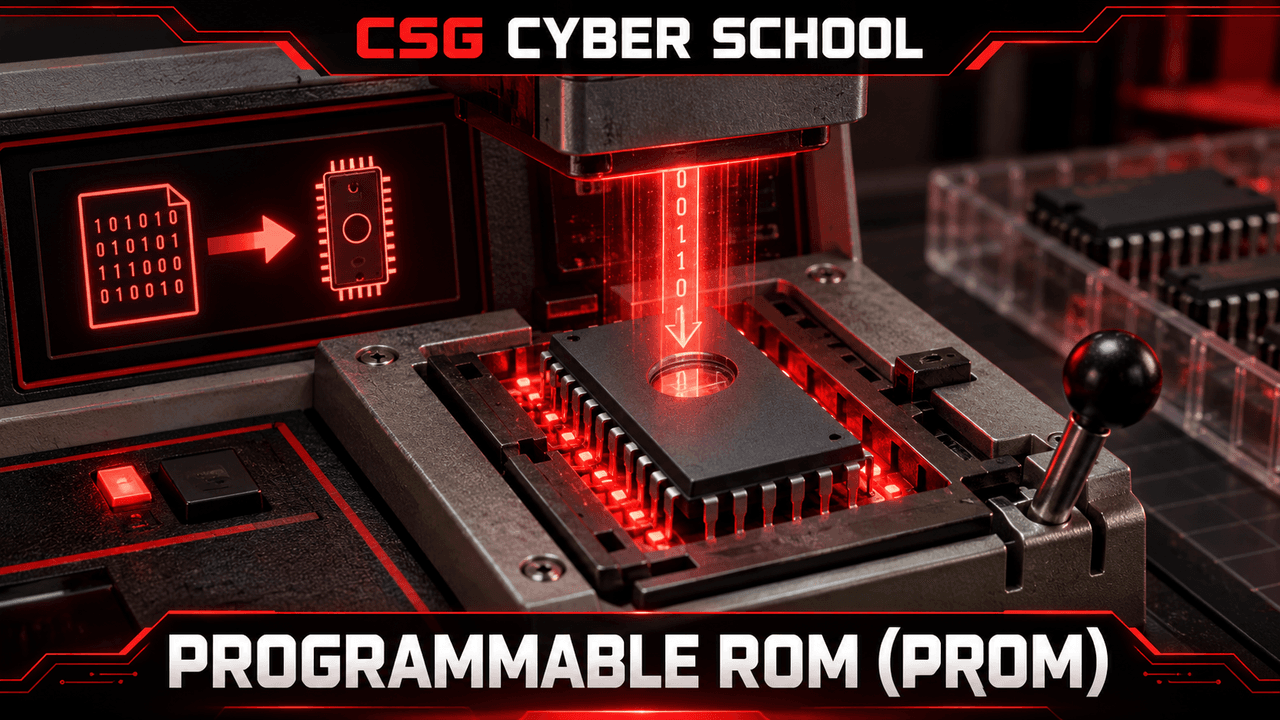
2. PROM (Programmable ROM)
PROM comes unprogrammed. We can write data into it one time; afterward, it cannot be rewritten normally.
3. EPROM (Erasable Programmable ROM)
EPROM can be erased using ultraviolet (UV) light through the chip's window, and then programmed again. It supports a limited number of erase and write cycles.

4. EEPROM (Electrically Erasable Programmable ROM)
EEPROM can be erased and rewritten using electricity, without UV light. One use is saving small settings such as device or television configuration.

Computer Storage
Storage keeps files, photos, text, videos, software, and other data for long-term use, even when the computer is turned off.
Examples include SSD, HDD, and DVD. Storage devices usually provide much larger capacity than RAM, but are slower for the CPU to access.

Units of Computer Memory
Computer data starts with bits, which represent 0 or 1. Bigger amounts of data are measured in bytes and larger units.
| Unit | Value |
|---|---|
| Bit | 0 or 1 |
| Nibble | 4 bits |
| Byte | 8 bits |
| Kilobyte (KB)* | 1,024 bytes |
| Megabyte (MB)* | 1,024 KB |
| Gigabyte (GB)* | 1,024 MB |
| Terabyte (TB)* | 1,024 GB |
| Petabyte (PB)* | 1,024 TB |

*The 1,024-based values are commonly taught using these names. Technically, the binary unit names are KiB, MiB, GiB, TiB, and PiB.
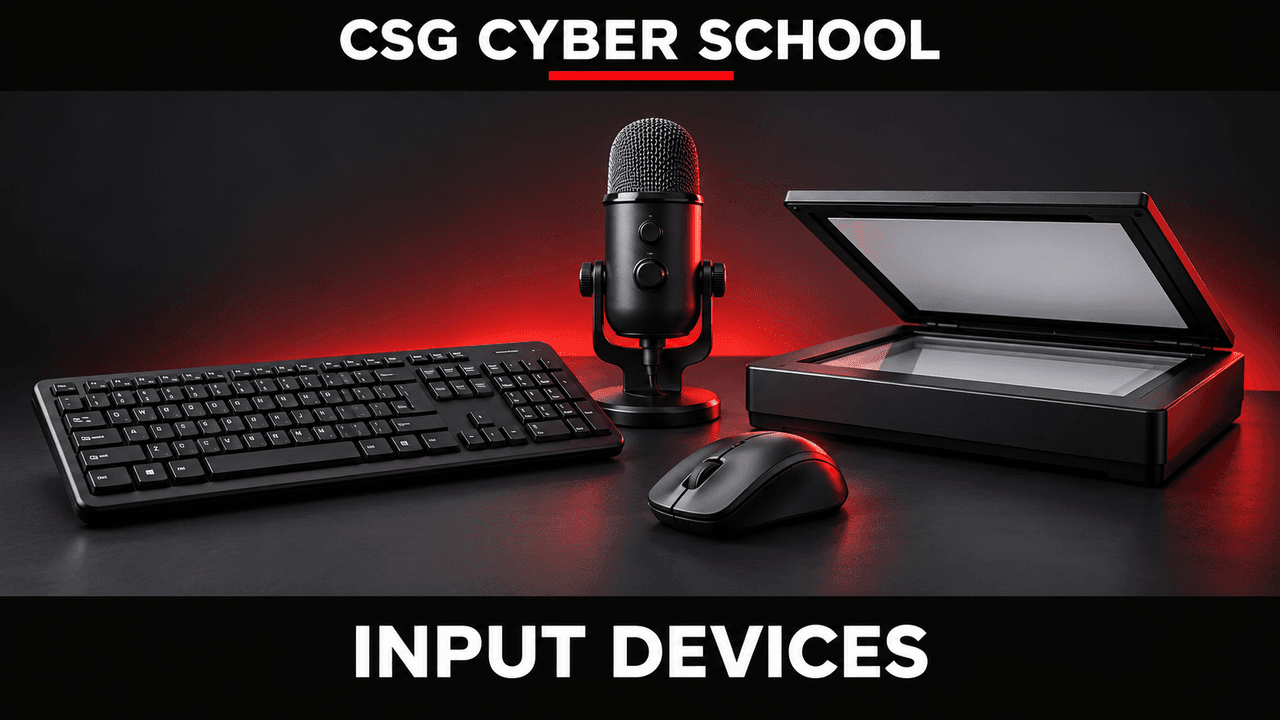
Input Devices
Input devices are hardware we use to give instructions, commands, and data to a computer.
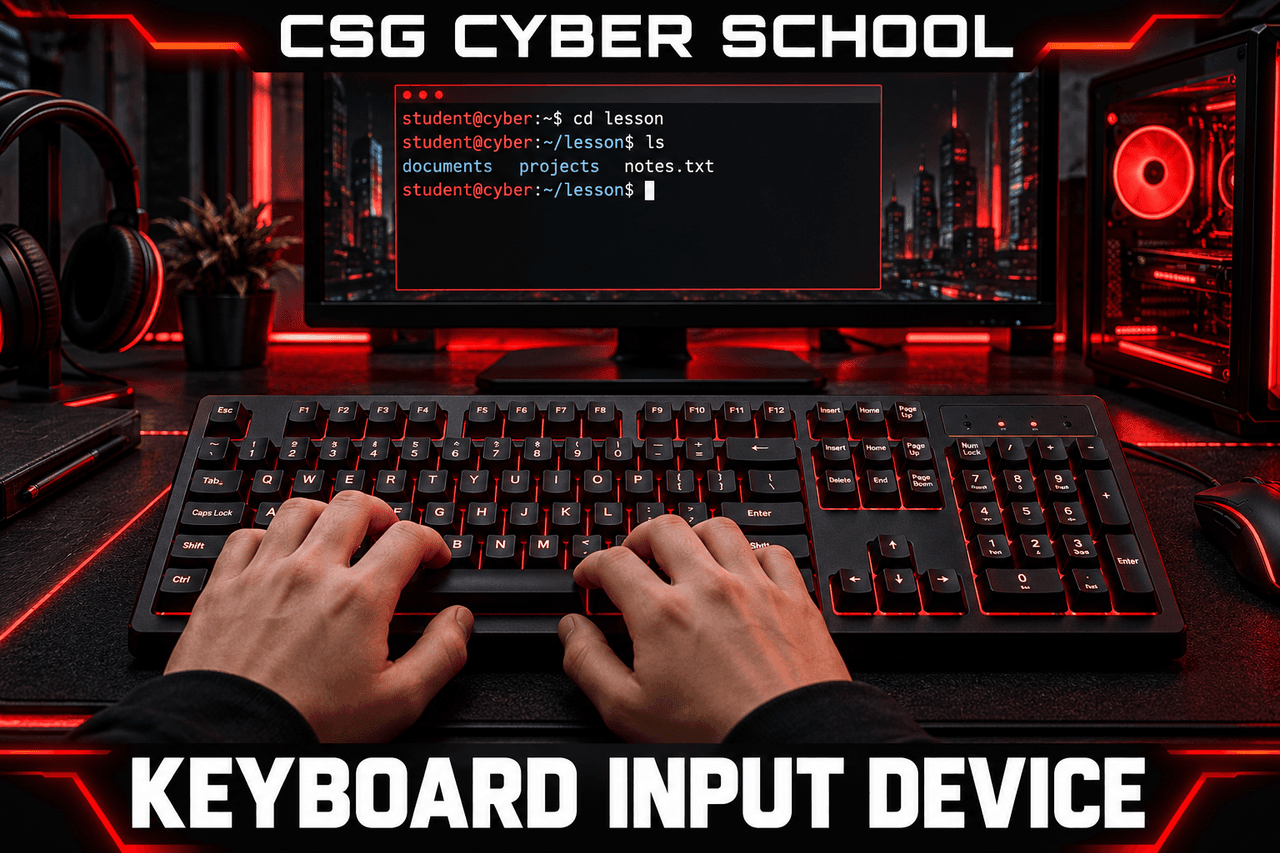
1. Keyboard
We use a keyboard to type letters, numbers, instructions, and commands into a computer.
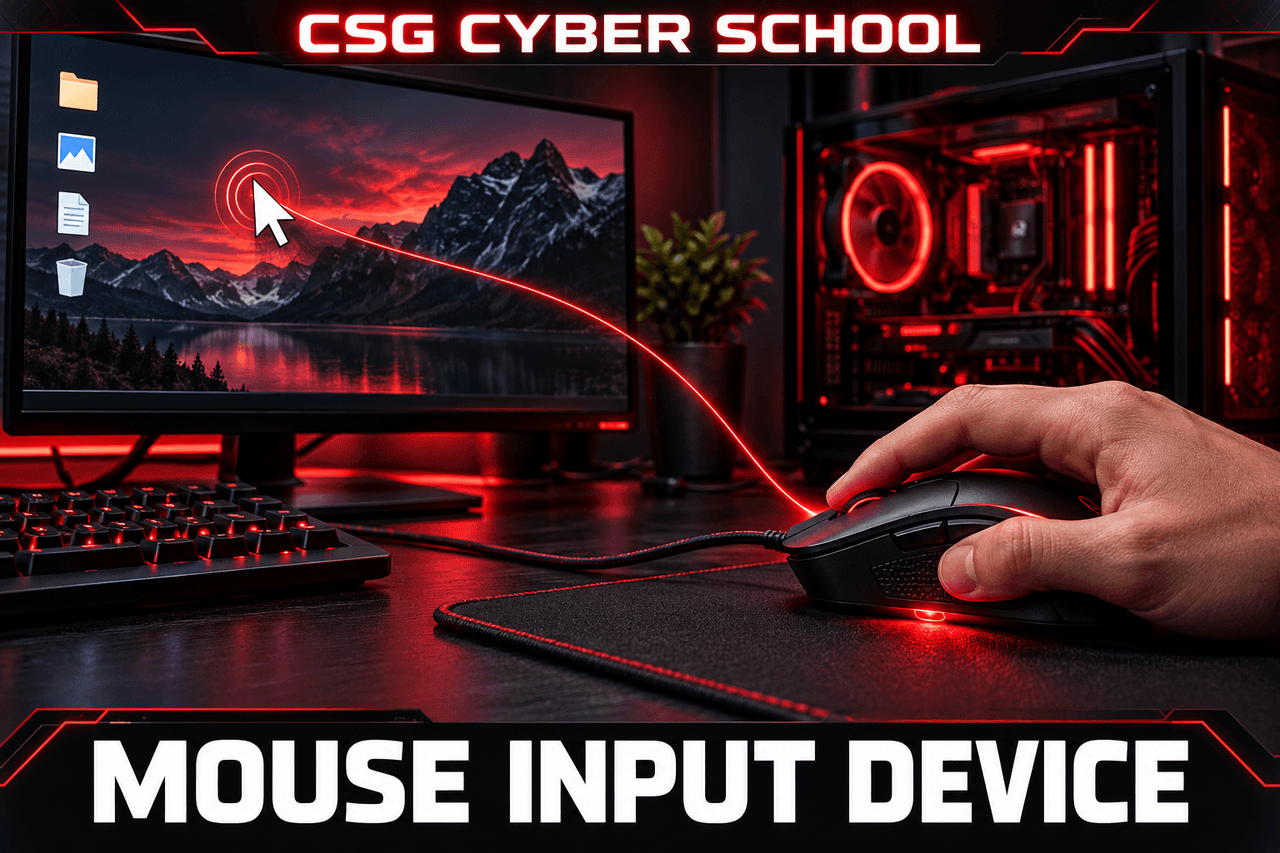
2. Mouse
A mouse moves the cursor on the screen. We click an item to select it or give a command.
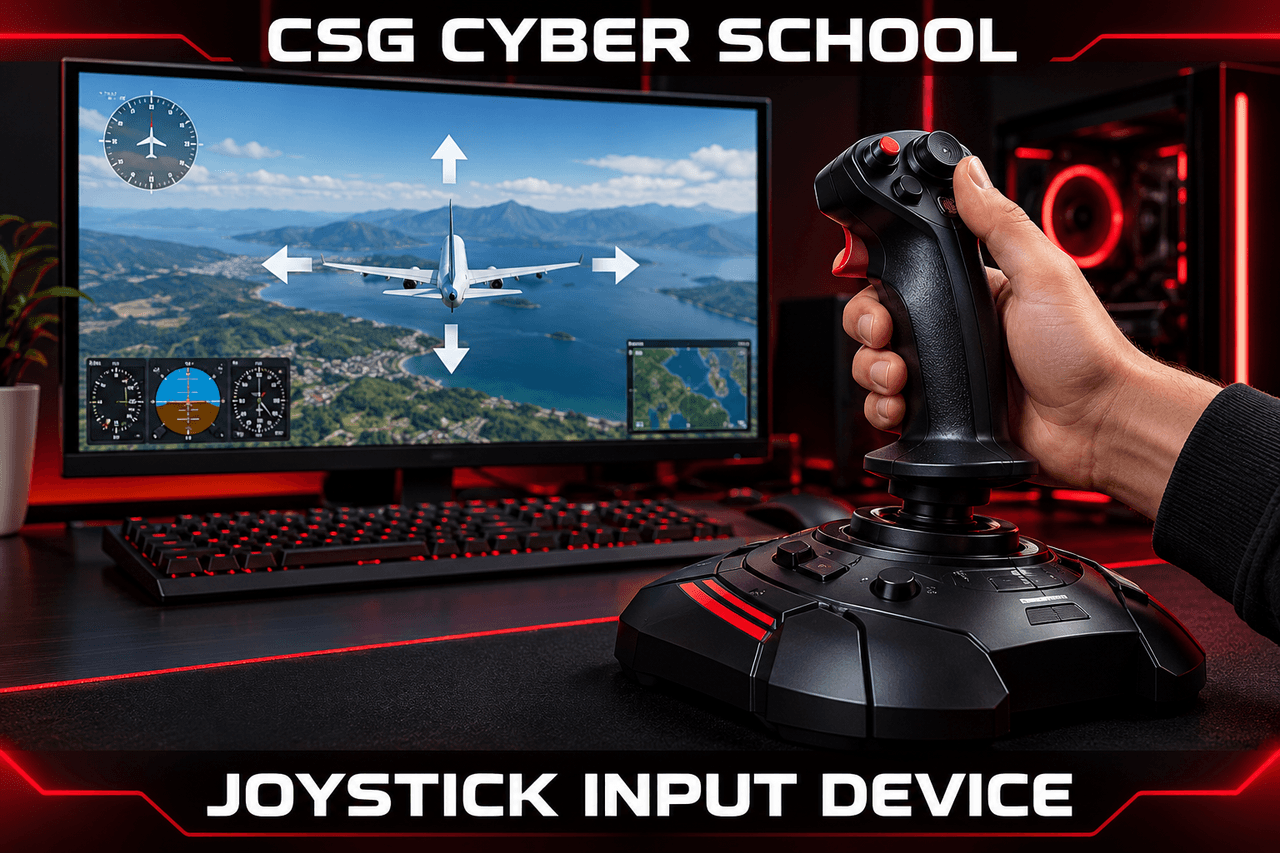
3. Joystick
A joystick is a handle used to control direction, such as moving an airplane up, down, left, or right in a flight game.
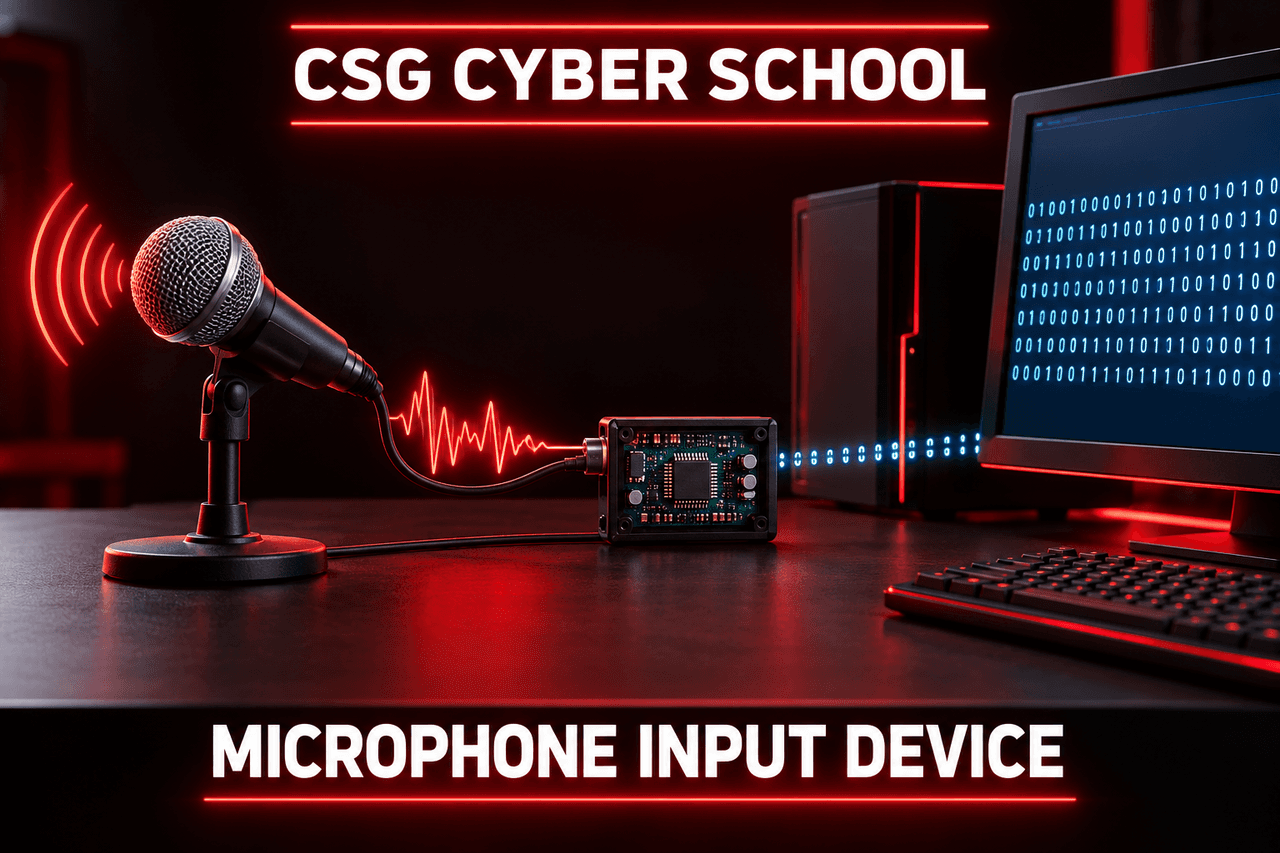
4. Microphone
A microphone converts our voice into an electrical audio signal. An ADC (Analog-to-Digital Converter) can convert this analog signal into digital data.
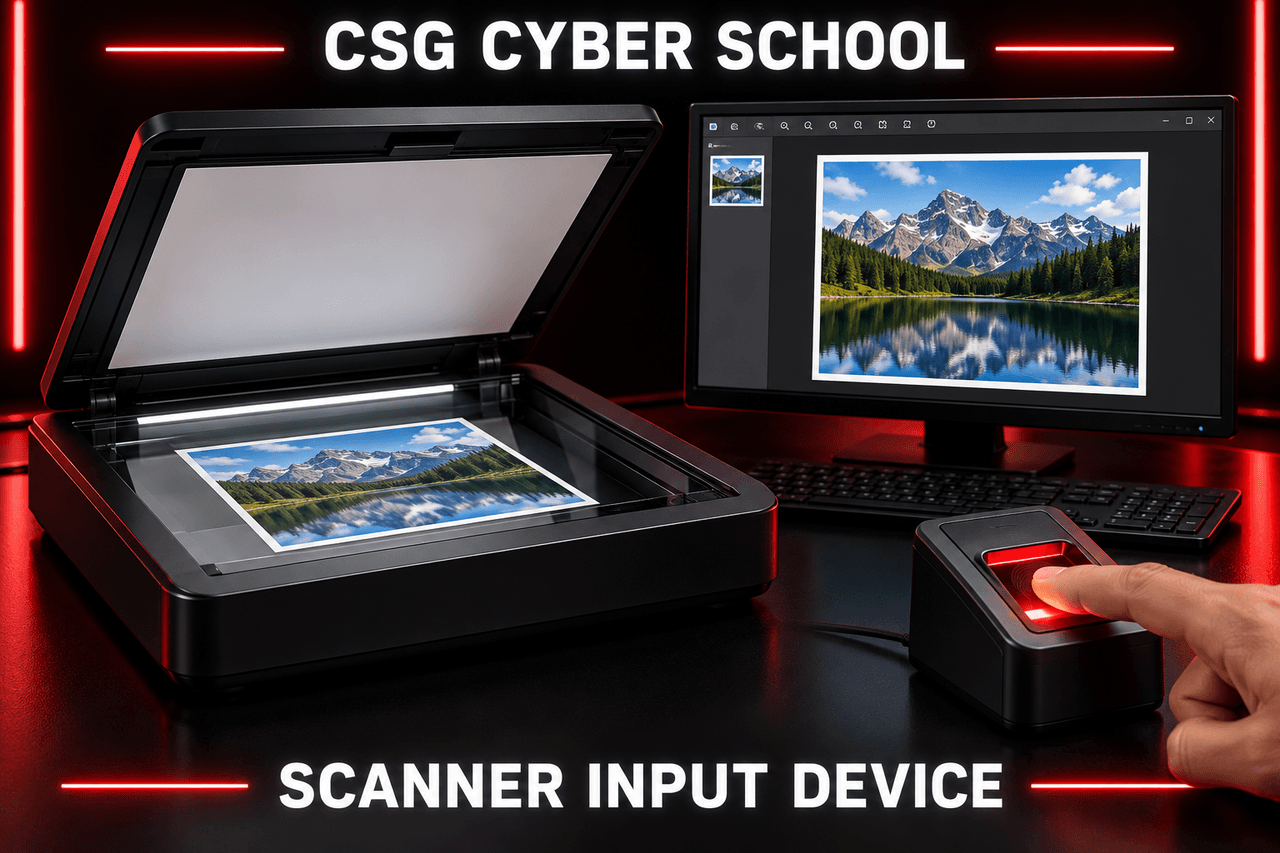
5. Scanner
A scanner captures a physical document, photograph, or other visible item and converts it into digital form, such as an image or PDF.
Output Devices
Output devices show or produce the results after a computer has processed information.
1. Monitor
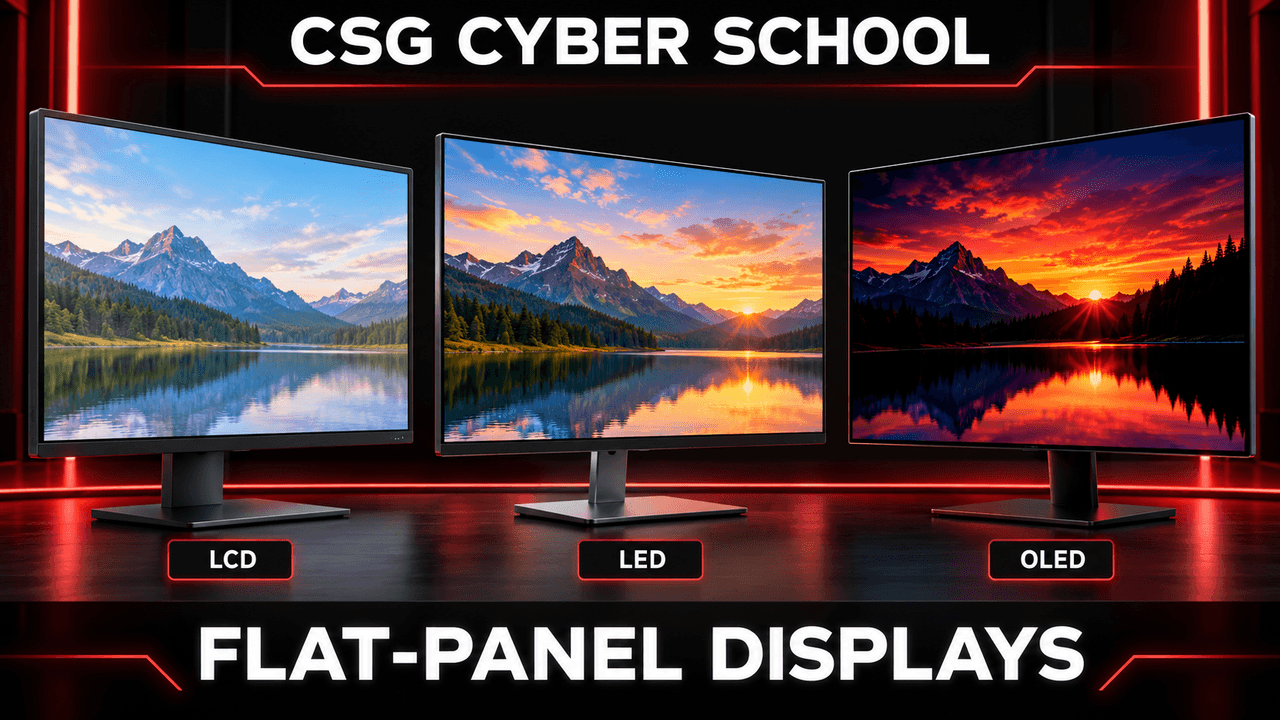
A monitor shows text, images, video, and other results on its screen. There are different monitor technologies.
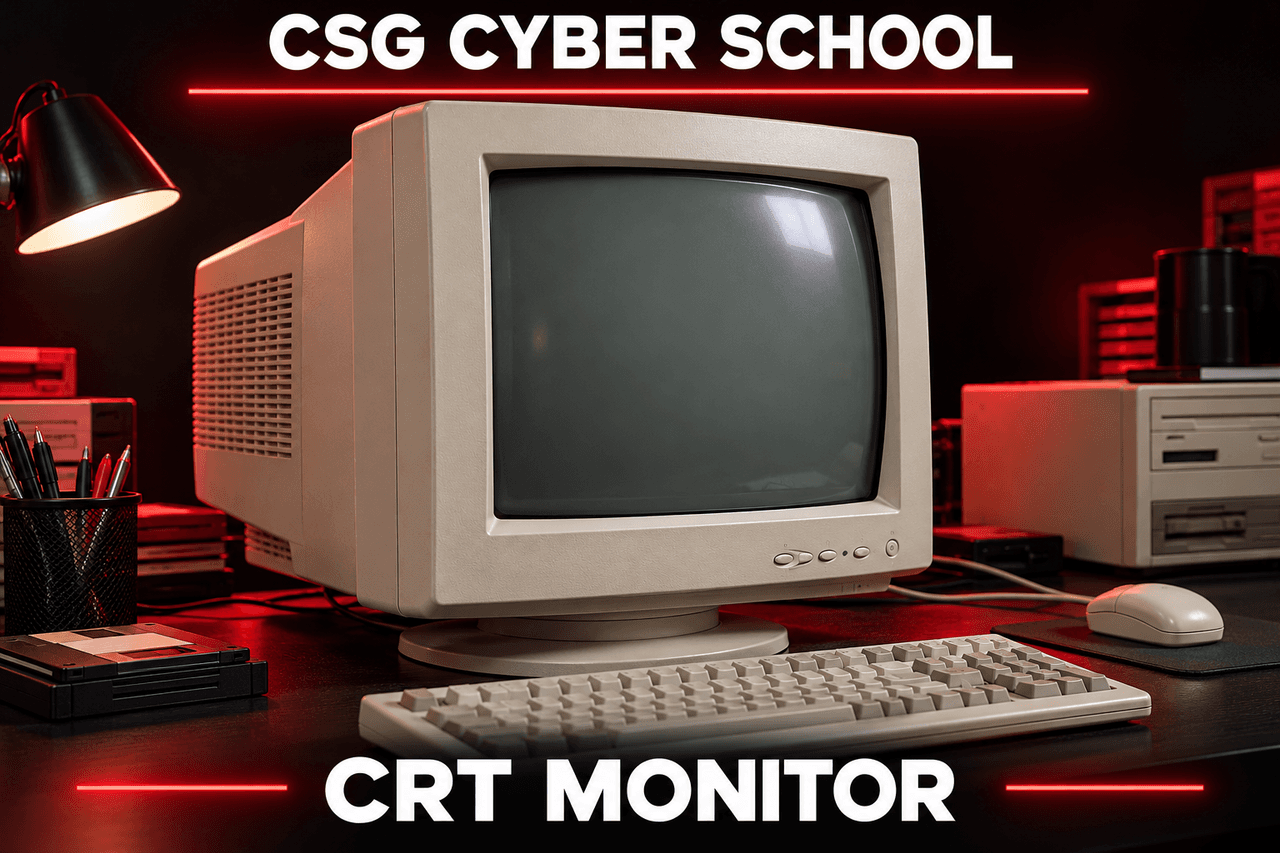
CRT Monitor
CRT monitors are older, bulky displays that use a cathode-ray tube.
Flat-Panel Monitors
LCD, LED-backlit LCD, and OLED displays are thinner and commonly used in modern devices.
2. Printer
A printer converts digital text or images into a physical printed copy. Printers can be classified as impact and non-impact.
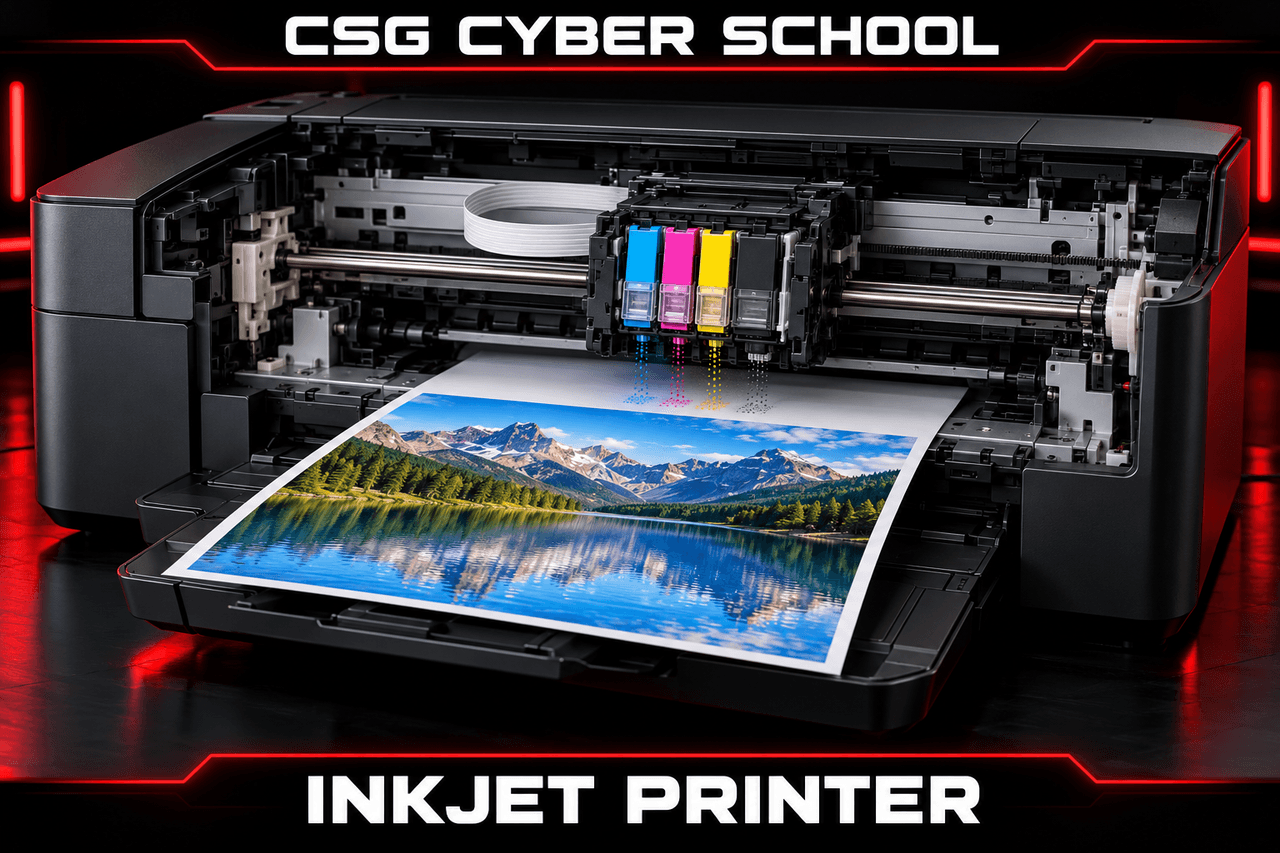
Inkjet Printer
An inkjet printer sprays tiny droplets of ink onto paper.
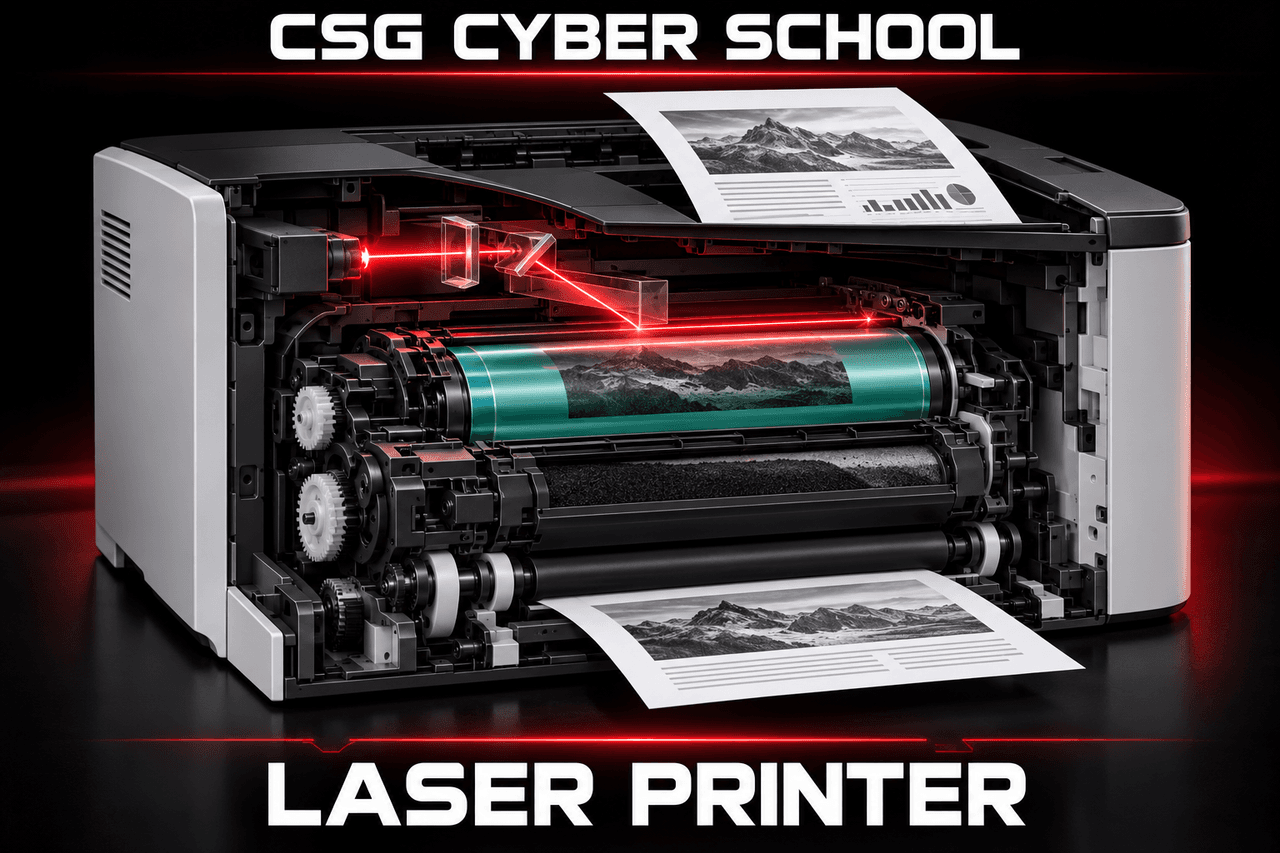
Laser Printer
A laser printer uses a laser, toner, and heat to print text or images.
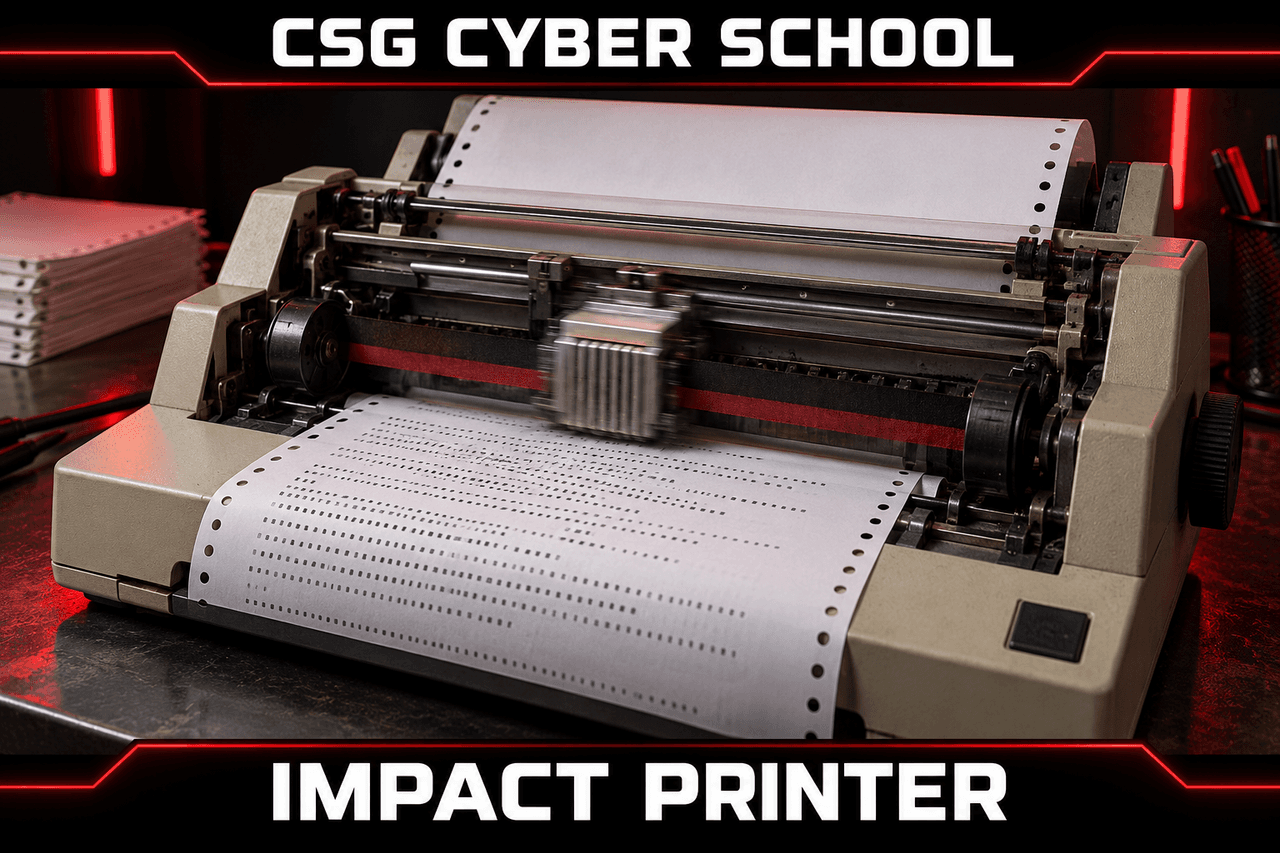
Impact Printer
An impact printer strikes an inked ribbon against paper. These printers make noise, like older dot-matrix printers.
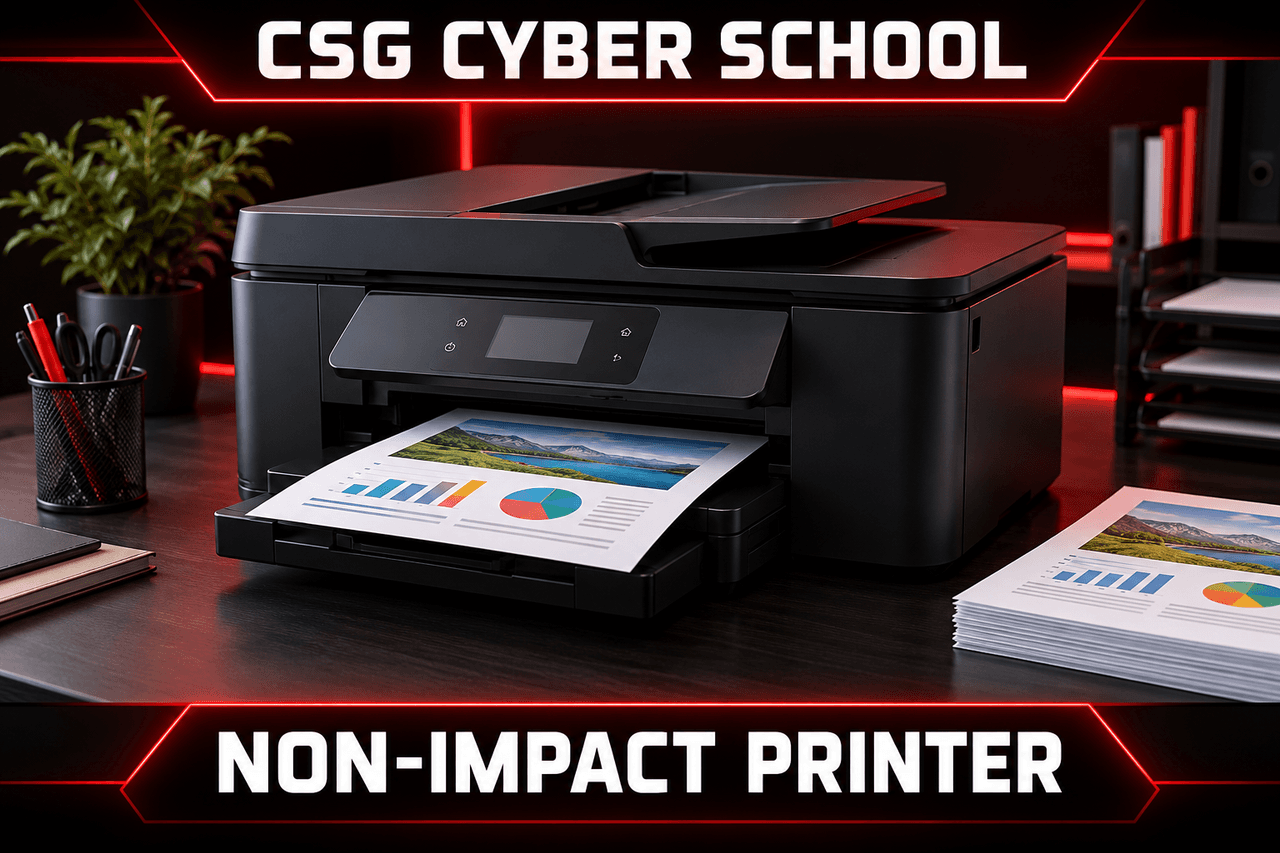
Non-Impact Printer
Non-impact printers print without striking the paper. Inkjet and laser printers are common examples used in homes and shops.
Memory in Detail
Computer memory stores data, values, addresses and instructions. It can be temporary or non-volatile.
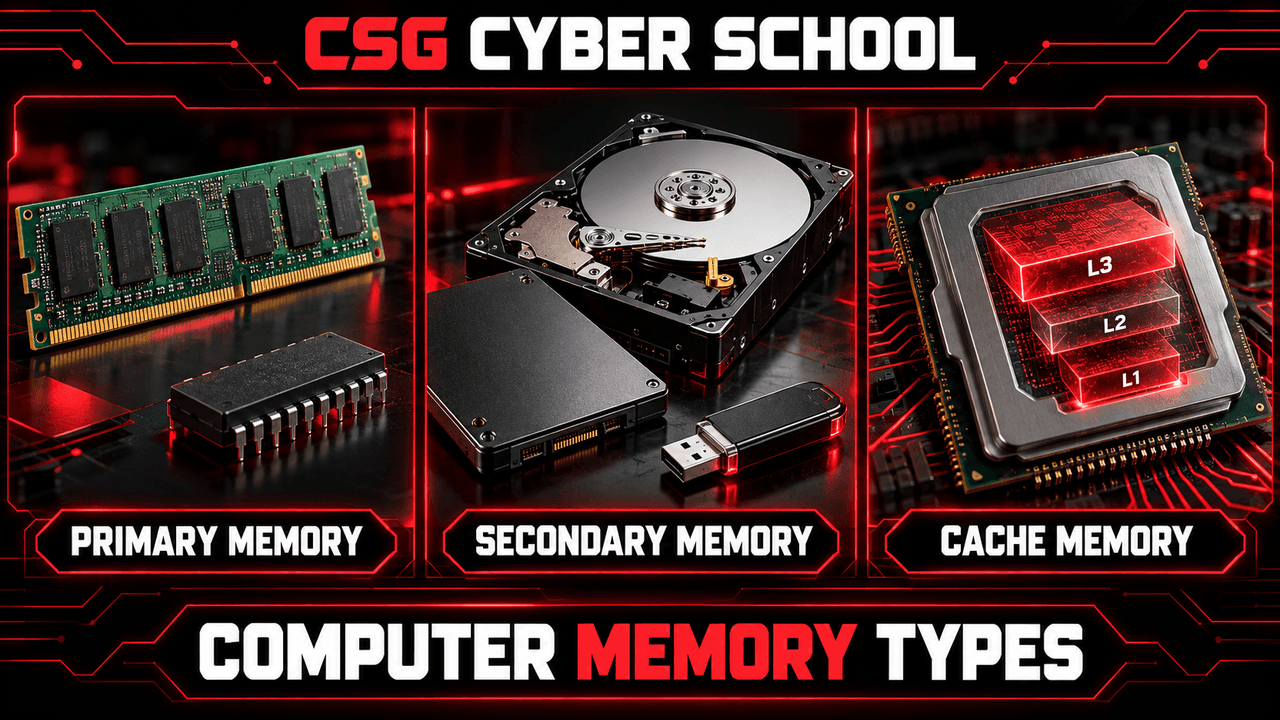
Three Main Types of Memory
- Primary Memory: RAM and ROM. RAM loses its data when power is off; ROM keeps its data.
- Secondary Memory: HDD, SSD and USB drives store data even after shutdown.
- Cache Memory: Very fast, small memory inside or close to the CPU.
Cache Memory
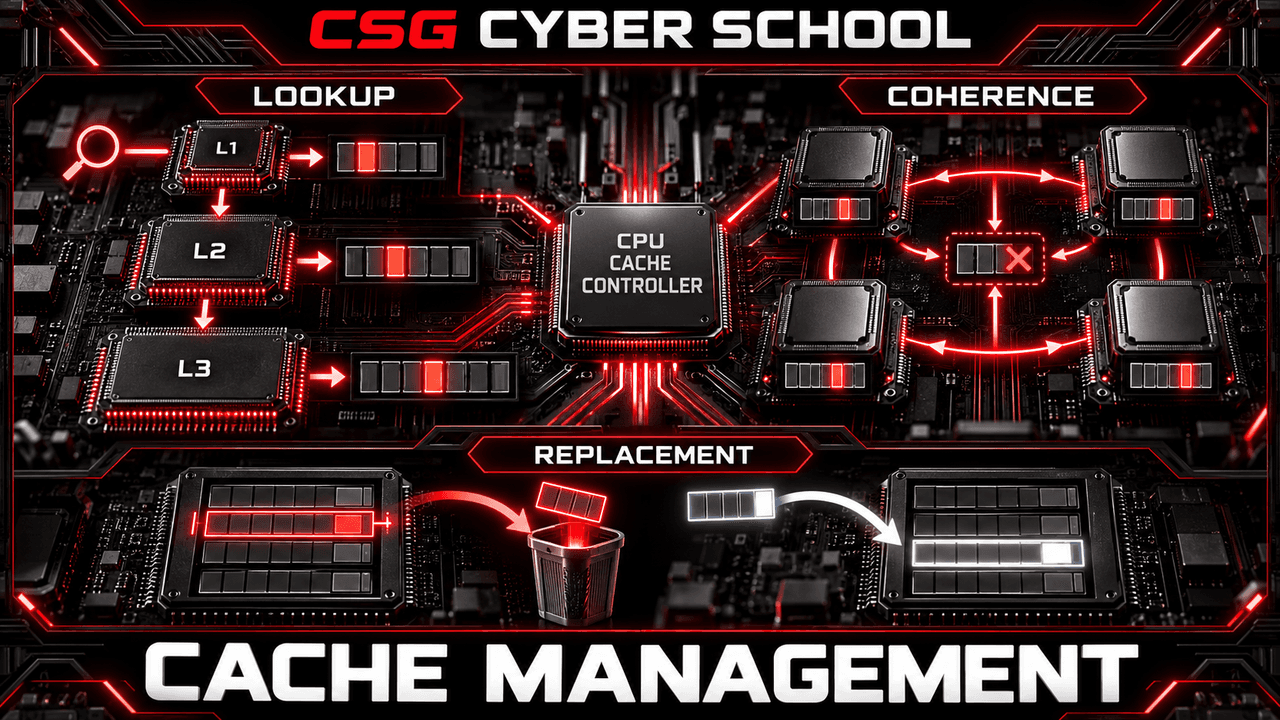
Cache keeps frequently needed data close to the CPU so it does not have to access slower main RAM every time. CPU caches are commonly built using SRAM.
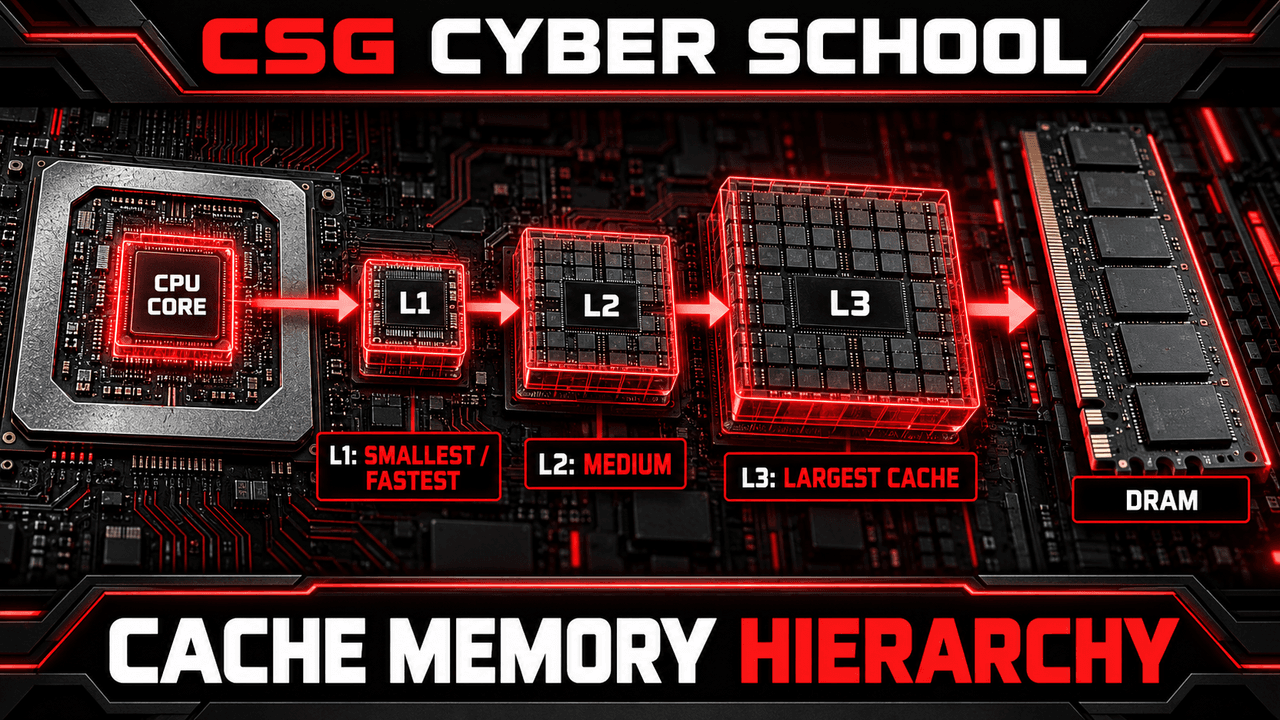
1. Cache Hierarchy: L1, L2 and L3
- L1: Closest to a CPU core; smallest and fastest.
- L2: Larger, but generally slower than L1.
- L3: Usually the largest cache level, but slower than L1 and L2. All are much faster than normal DRAM.
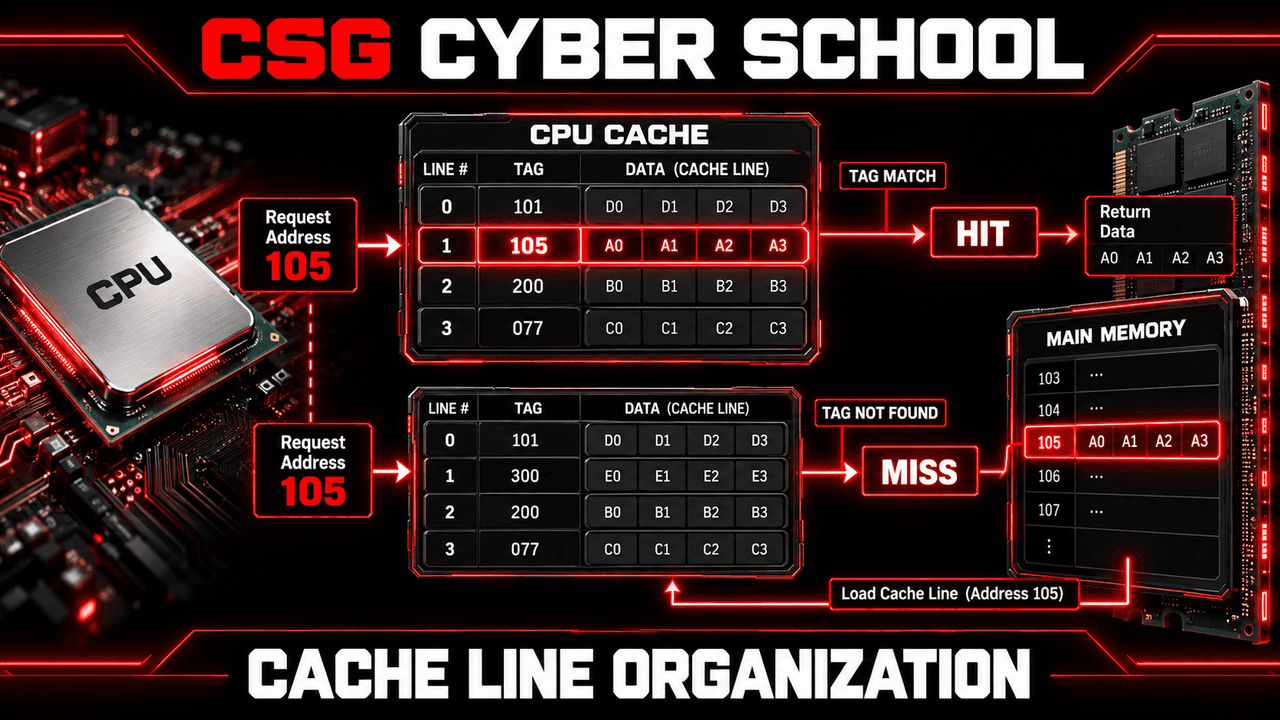
2. Cache Organization
Cache keeps data in small cache lines with address information. If the requested address matches a valid line, it is a cache hit; otherwise, it is a cache miss, and the CPU checks a lower cache level or RAM.
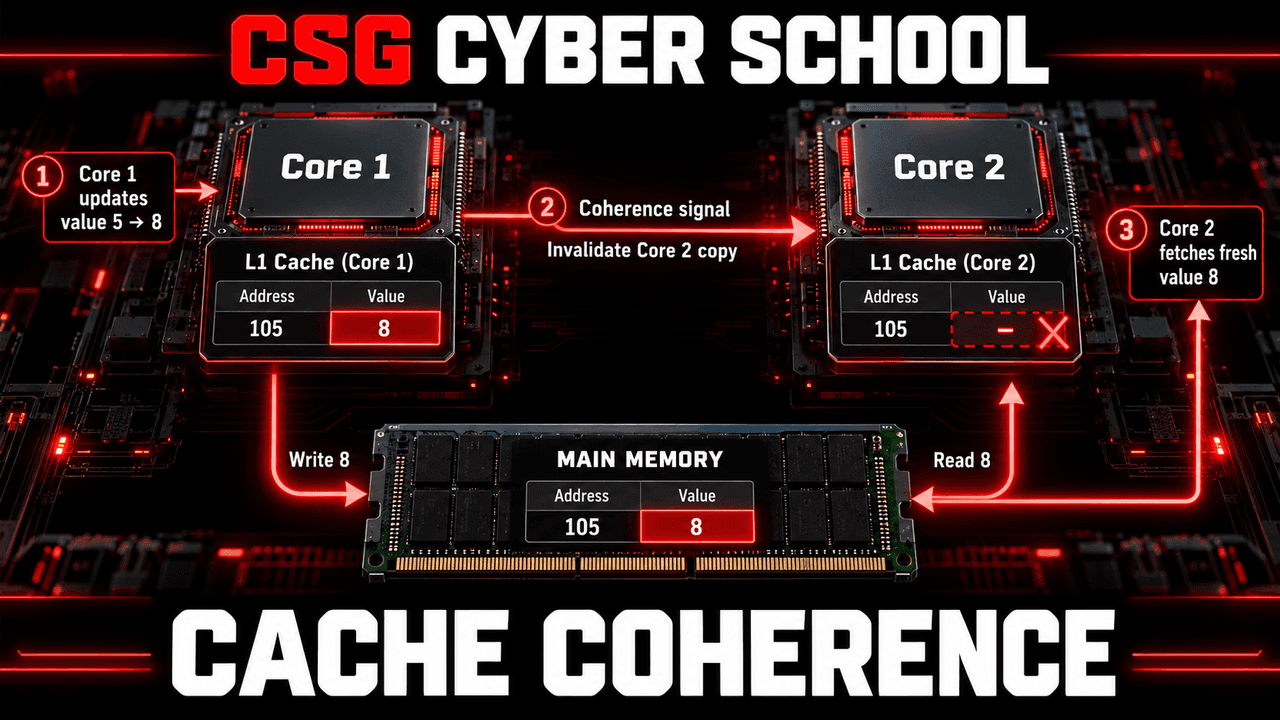
3. Cache Coherence
Two CPU cores may cache address 105 = 5. If one core changes it to 8, cache coherence prevents the other core from using an outdated value when it next needs the data.
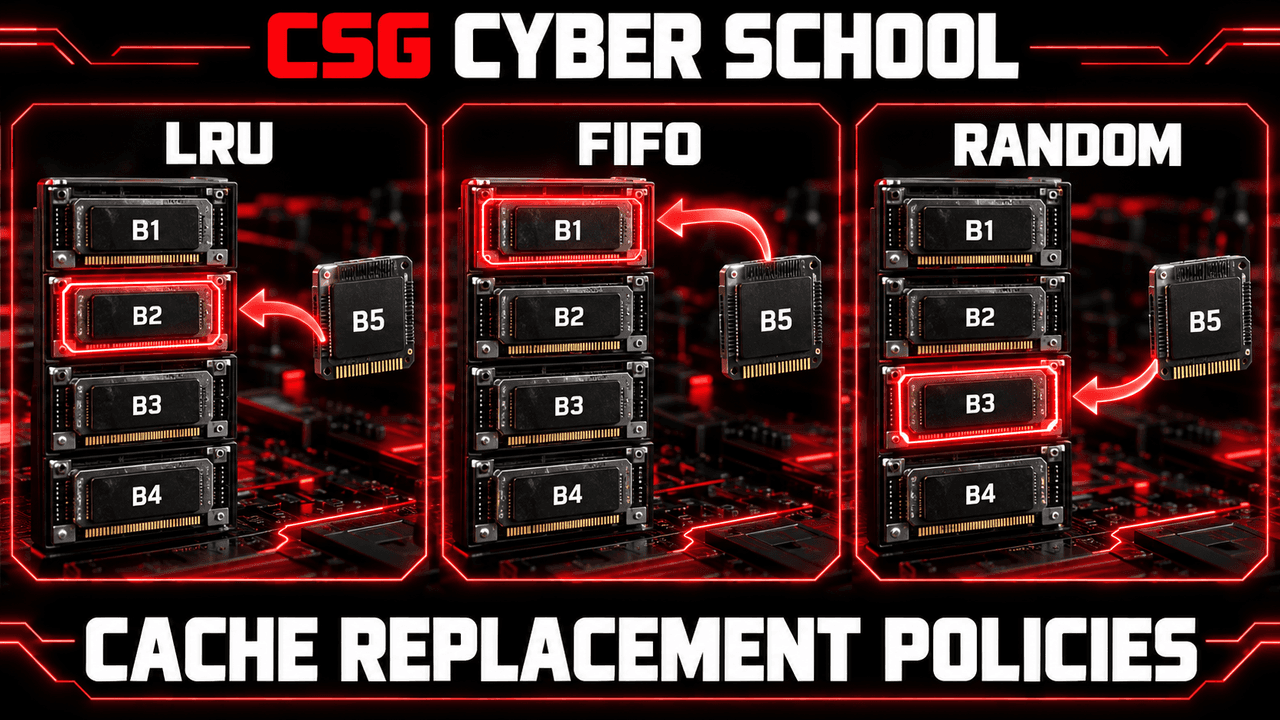
4. Cache Replacement Policies
When cache is full, some old data must make room for new data:
- LRU (Least Recently Used): Replace the item not used for the longest time.
- FIFO (First In, First Out): Replace the item that entered first.
- Random: Choose an item randomly for replacement.
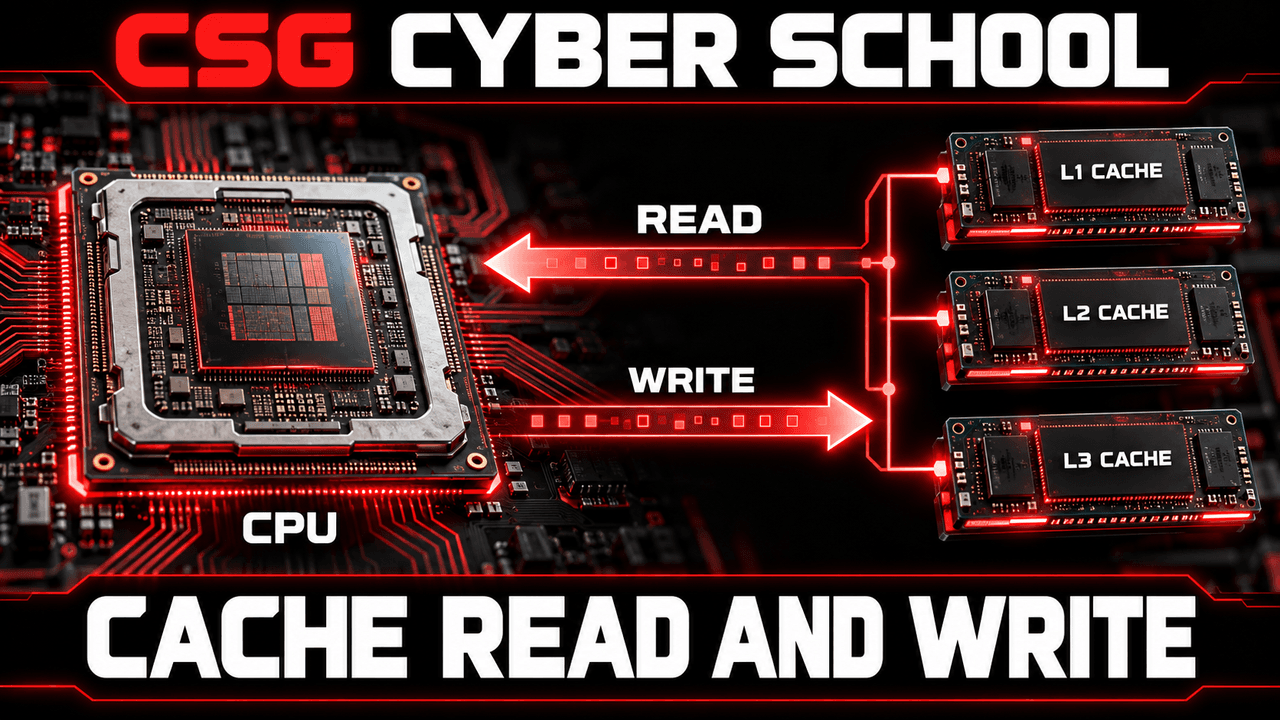
5. Cache Access
The CPU reads data from cache and writes updated data to cache as needed.
6. Cache Management
Cache management handles L1 → L2 → L3 lookups, replacement, and consistency between CPU cores.
Register Memory
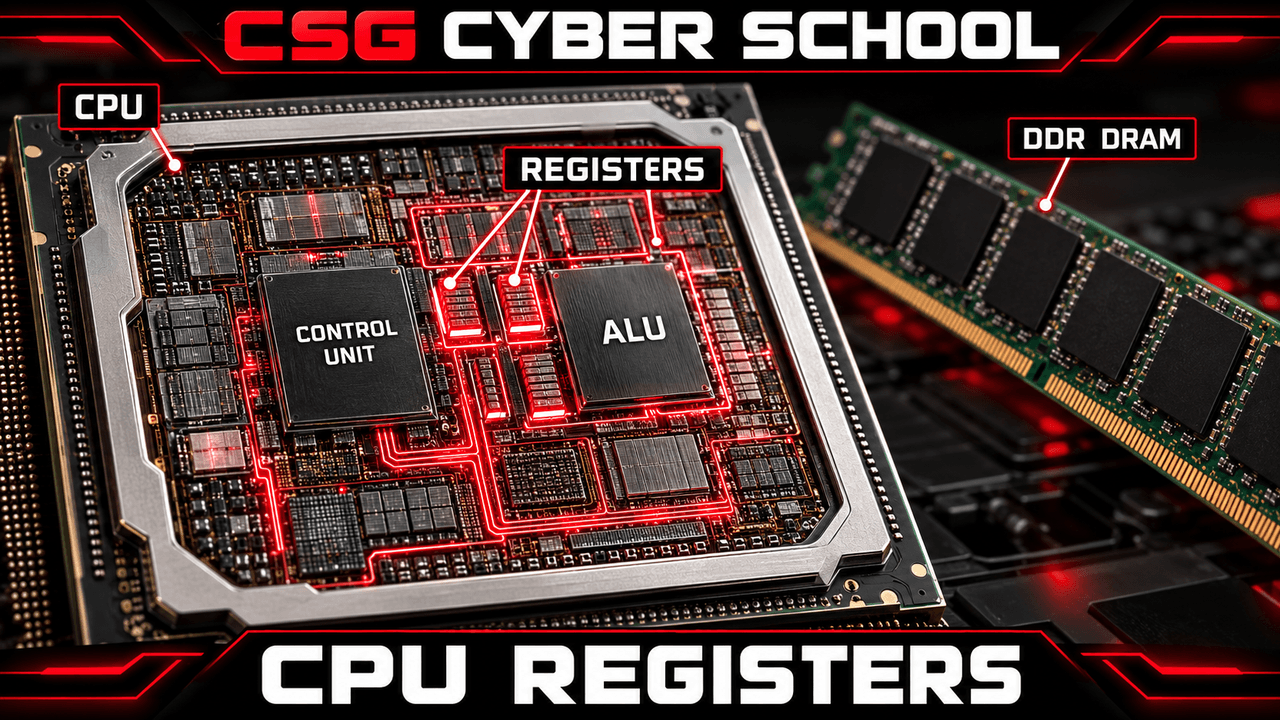
Registers are tiny, extremely fast storage locations inside the CPU. They hold the instructions, values and addresses being used in its current work.
What Registers Do
- Instruction Execution: Hold information needed for the current instruction.
- Temporary Data Storage: Keep values for immediate calculations.
- Addressing: Help identify where data comes from or goes.
Current Instruction and Data
While an instruction runs, registers hold its working values. For example, two registers can hold 5 and 3, while another receives the ALU result 8.
Types of CPU Registers
- PC (Program Counter): Holds the address of the next instruction. A jump can change it from address 105 to 188.
- IR (Instruction Register): Holds the current fetched instruction for decoding.
- MAR (Memory Address Register): Holds the memory address to read or write.
- MDR (Memory Data Register): Temporarily holds data coming from or going to memory.
- GPR (General-Purpose Register): Holds working data, operands, addresses or results temporarily.
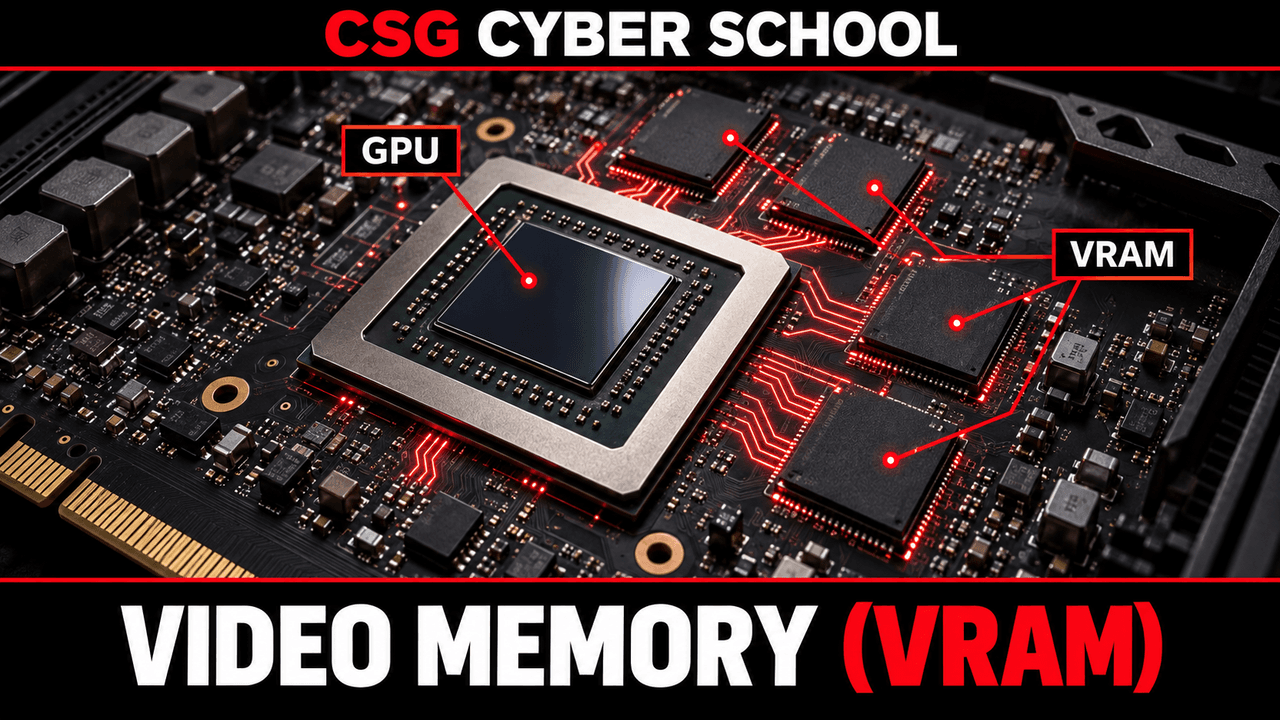
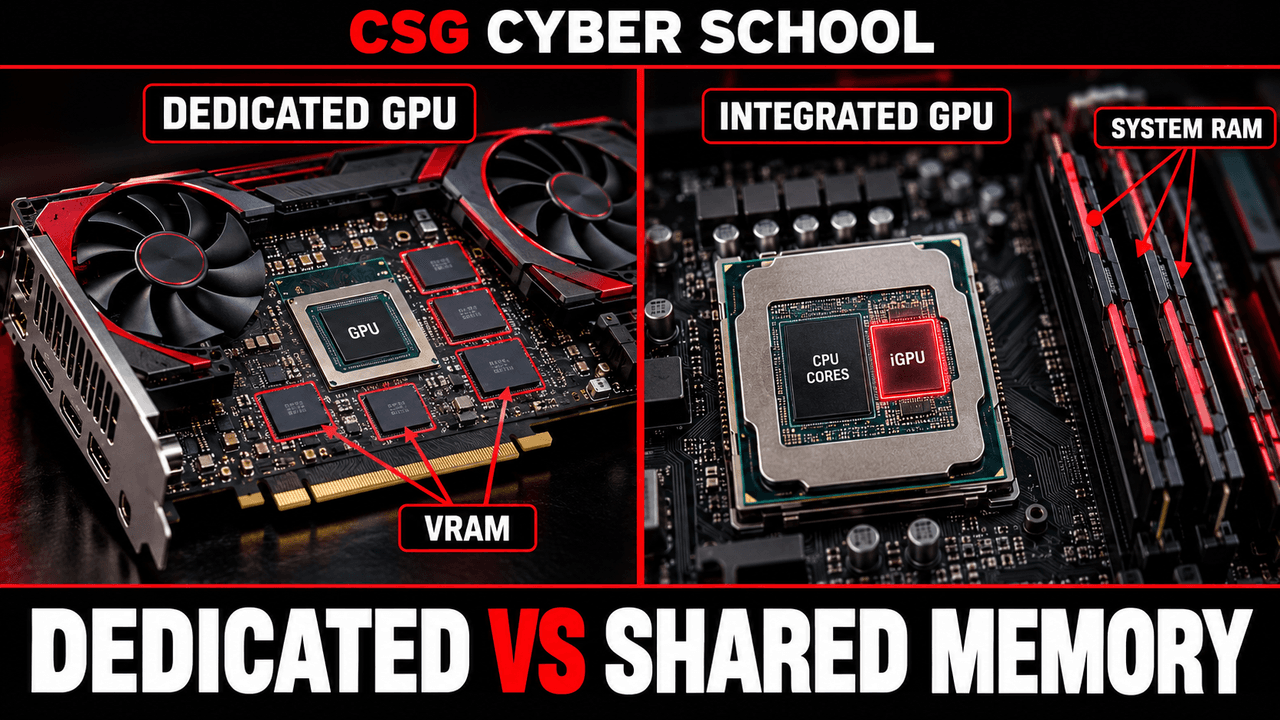
Video Random Access Memory (VRAM)
VRAM stores graphics data for the GPU. It is designed to move large amounts of visual data quickly.
1. GPU and VRAM
Graphics cards commonly have their own VRAM close to the GPU for images, frames and other graphics data.
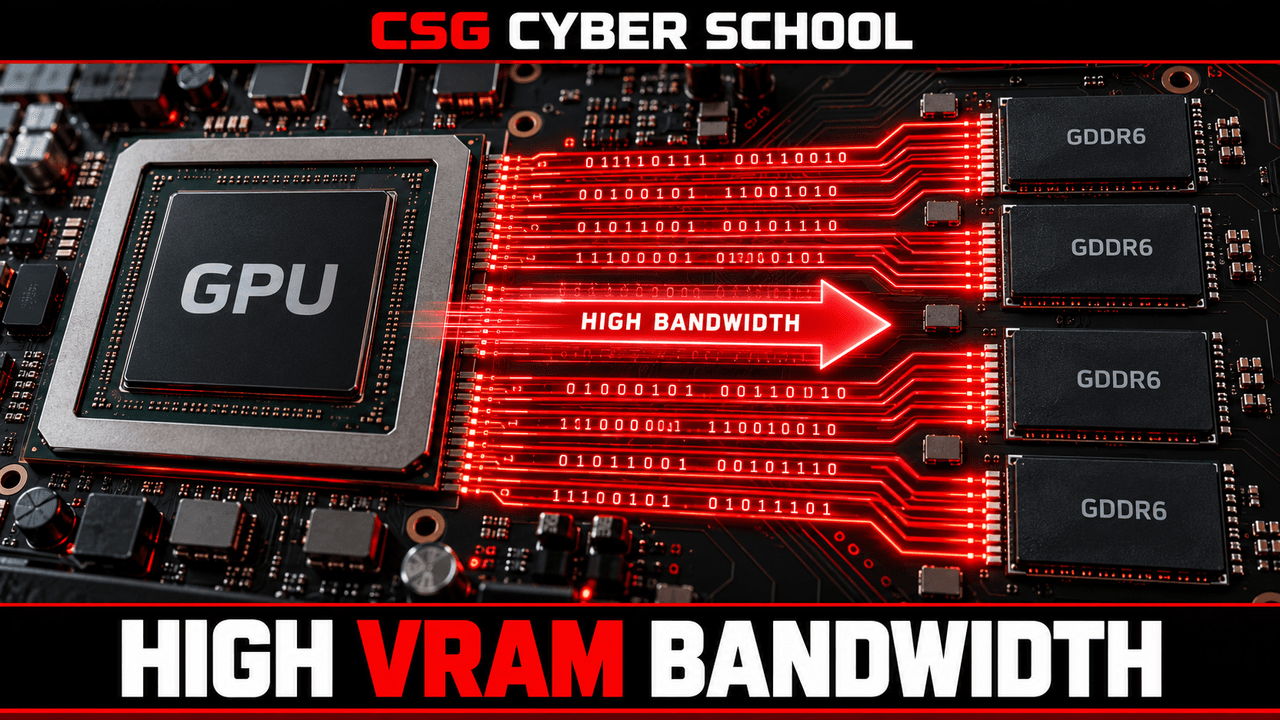
2. High Bandwidth
Bandwidth means how much data memory can transfer per second. Higher VRAM bandwidth helps a GPU receive graphics data faster.
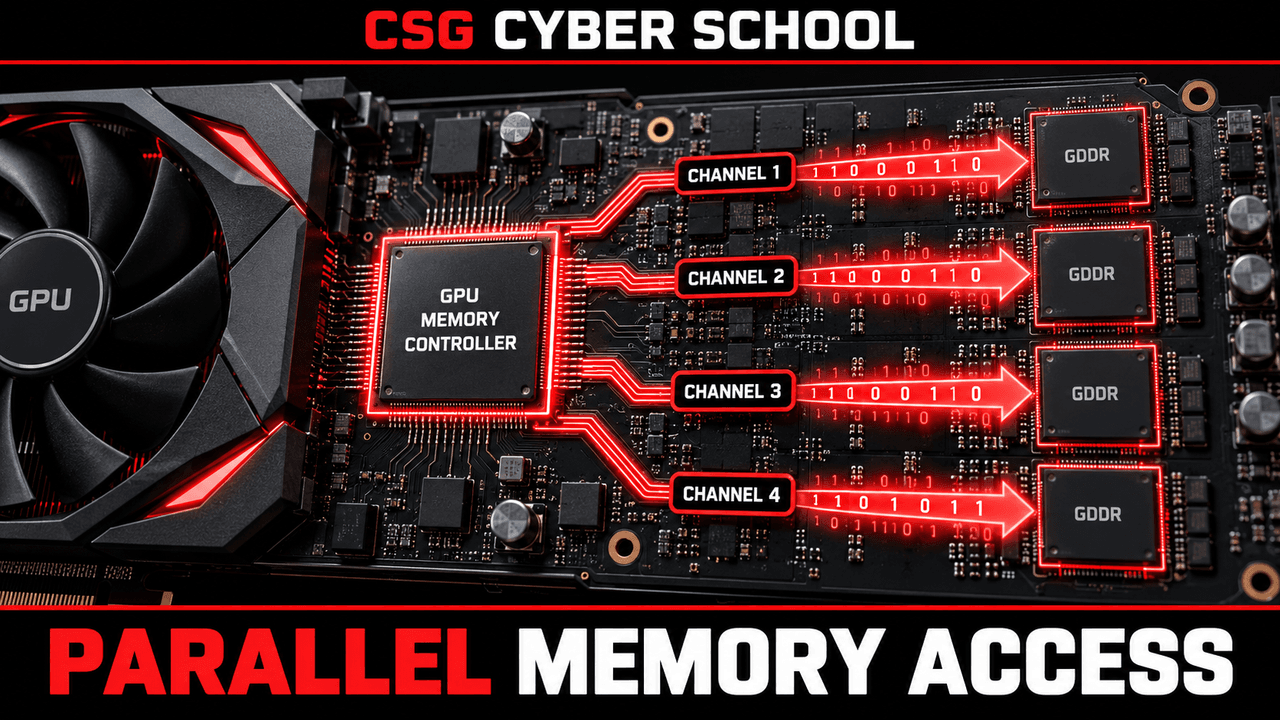
3. Parallel Access
Multiple memory channels can transfer data at the same time, helping the GPU handle large graphics workloads.
4. Specialized Design and Dedicated Memory
VRAM and its connections are designed for fast GPU access. A dedicated GPU uses its own VRAM, while an integrated GPU usually shares system RAM.
Primary and Secondary Storage
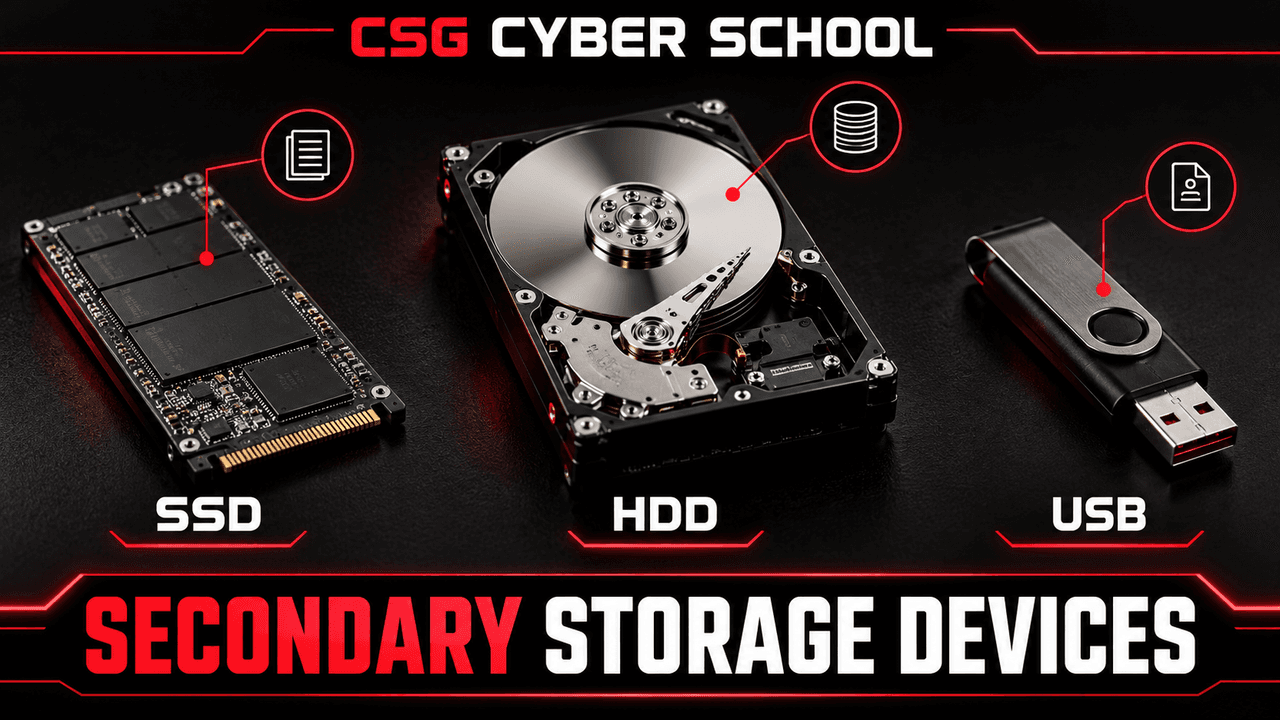
Primary memory includes RAM and ROM. Secondary storage includes HDD, SSD and USB devices. Secondary storage is non-volatile: data remains after power is off, until we delete or change it.
Secondary Storage Devices
SSD, HDD and USB drives save files, photos, videos and software for long-term use. They are generally slower for CPU access than RAM.
Hard Disk Drive (HDD)
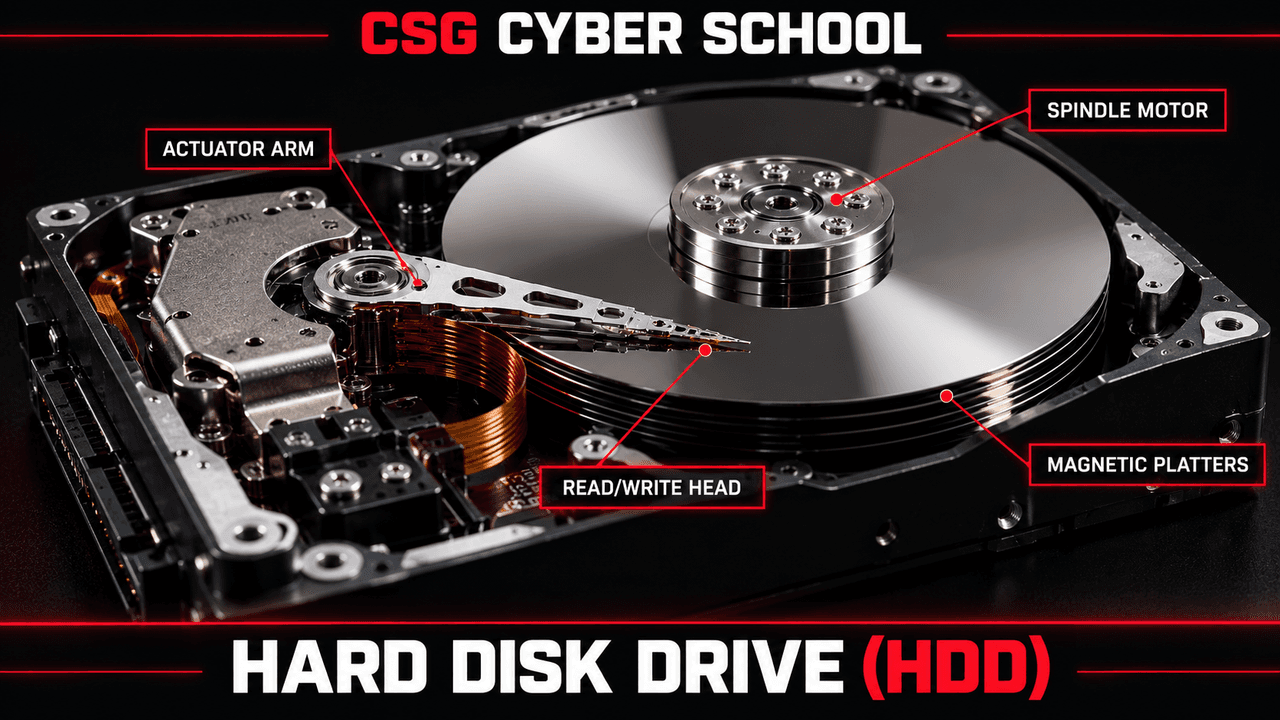
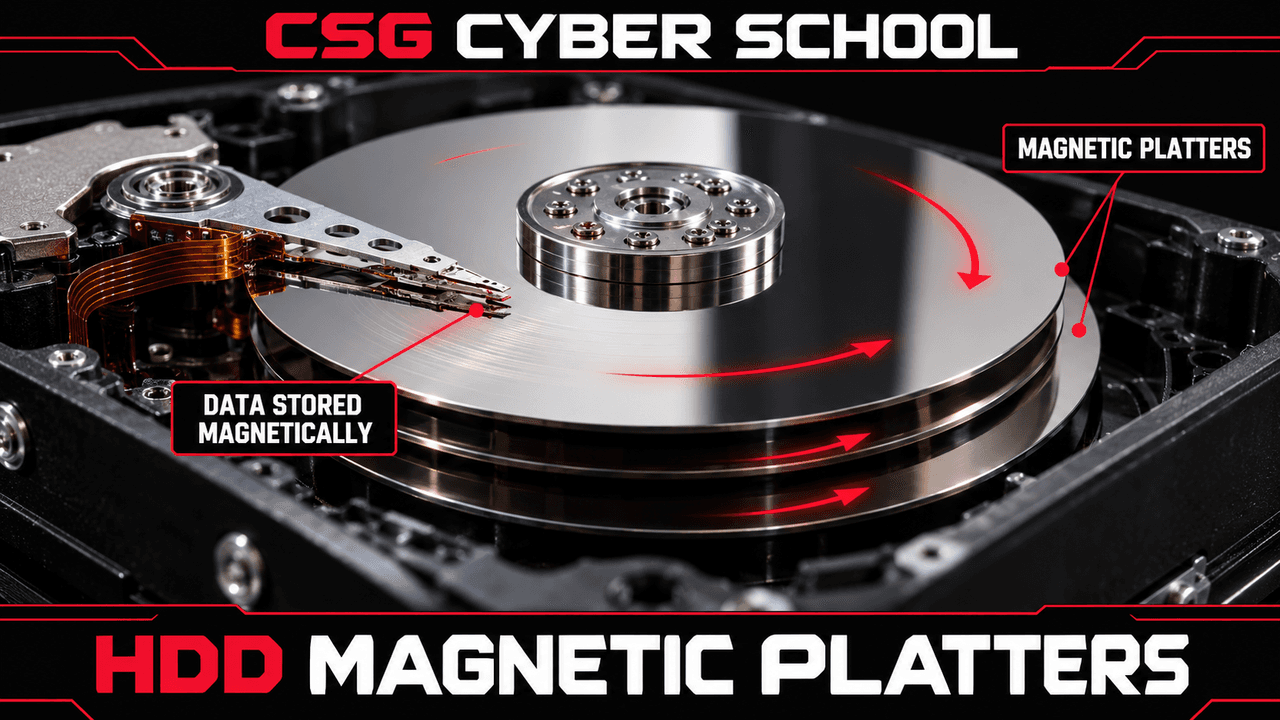
An HDD stores data magnetically on spinning disks called platters. A moving read/write head accesses the data.
How an HDD Works
The platters spin, the read/write head moves to the correct track, and the drive reads or writes magnetic data.
1. Magnetic Platters
These spinning disks have magnetic surfaces where the data is actually stored.
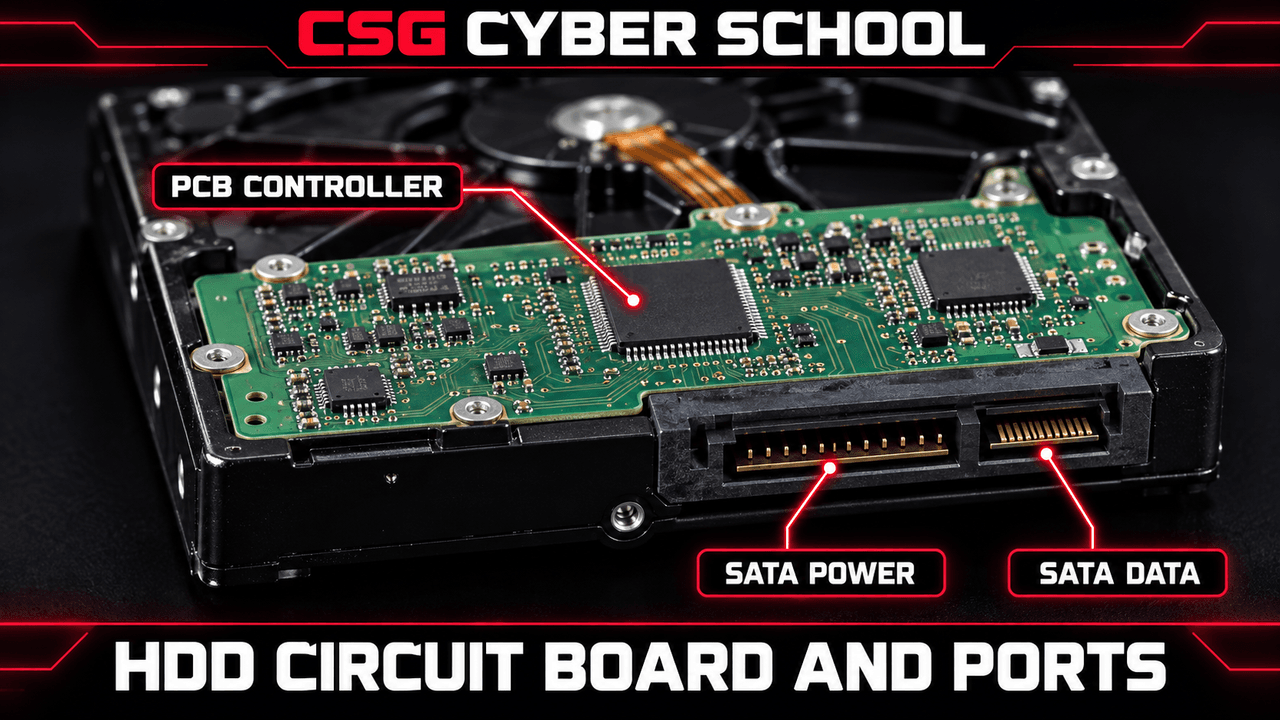
2. Circuit Board and Connectors
- Circuit Board (PCB): Controls the HDD electronics and data transfer.
- Power Connector: Supplies electricity to the drive.
- Data Connector: Transfers data between the HDD and computer.
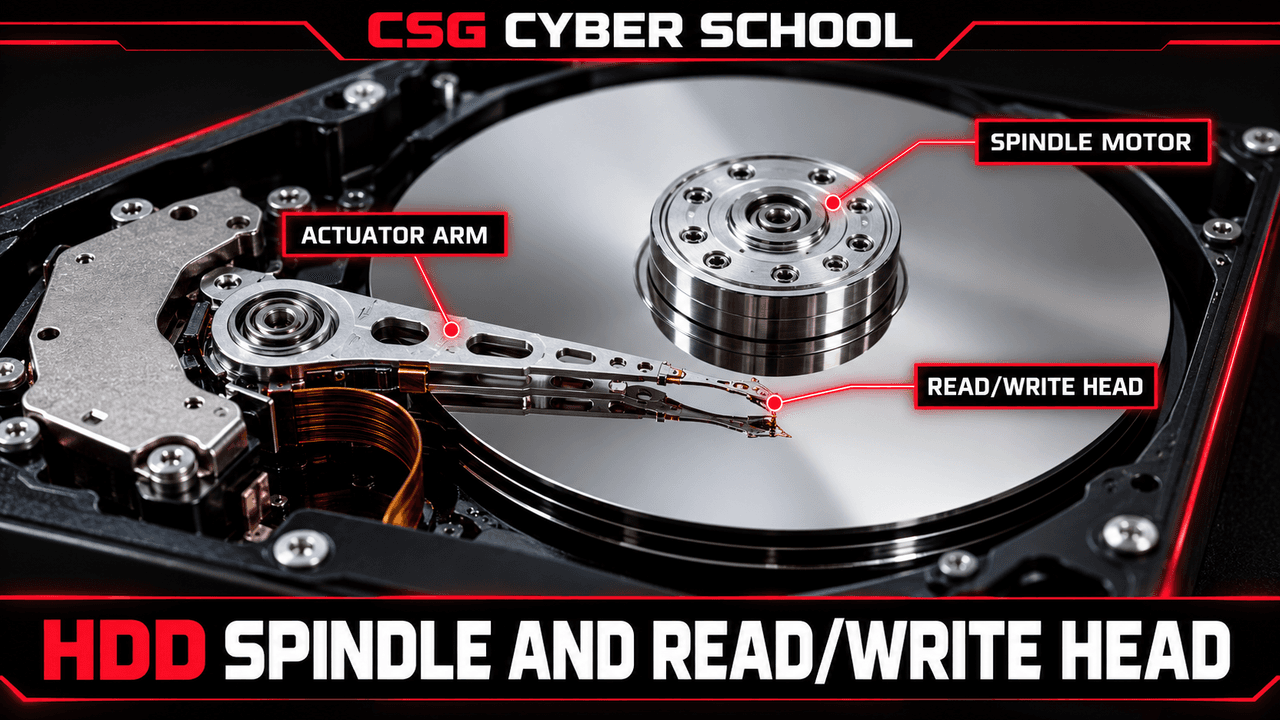
3. Spindle and Read/Write Head
The spindle motor spins the platters. The tiny read/write head sits on the actuator arm and reads or changes the magnetic data.
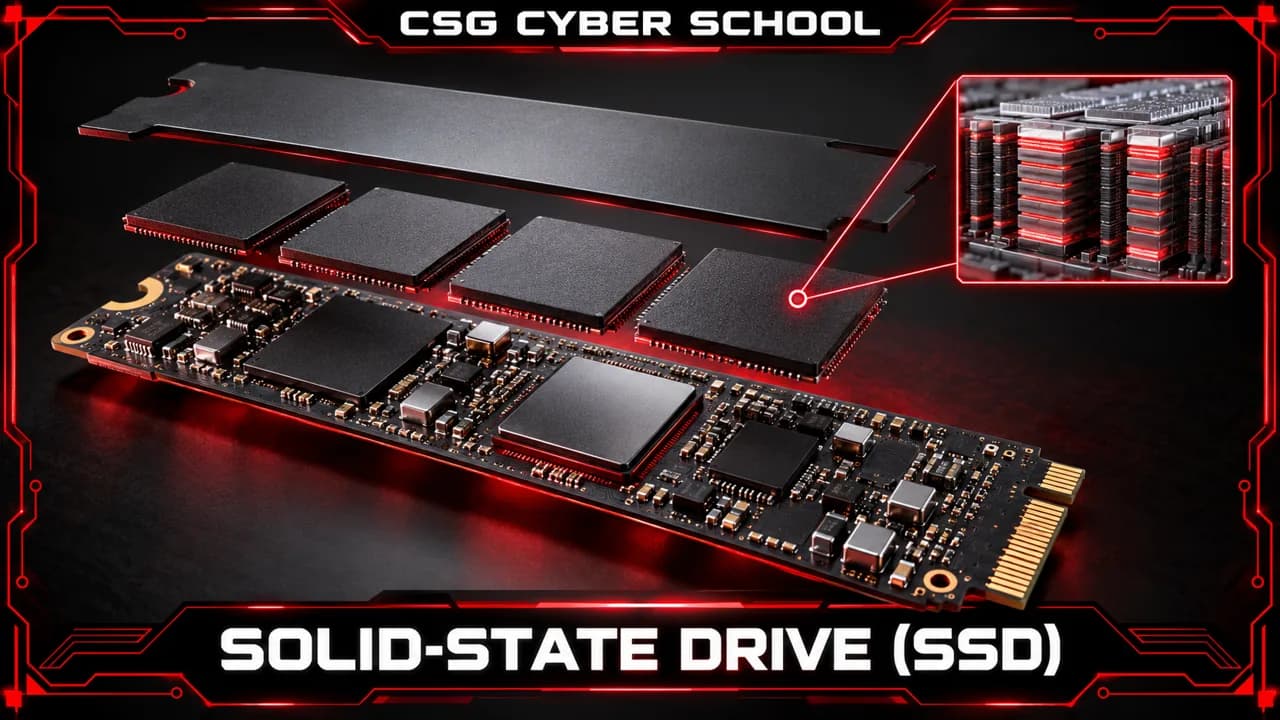
Solid-State Drive (SSD)
An SSD stores data electronically, usually in NAND flash chips. Memory cells represent one or more bits and retain data without power. A controller manages reading, writing and wear across the flash memory.
There are no spinning platters or moving heads, so SSDs usually access data faster than HDDs. They still have a limited write endurance and need backups.
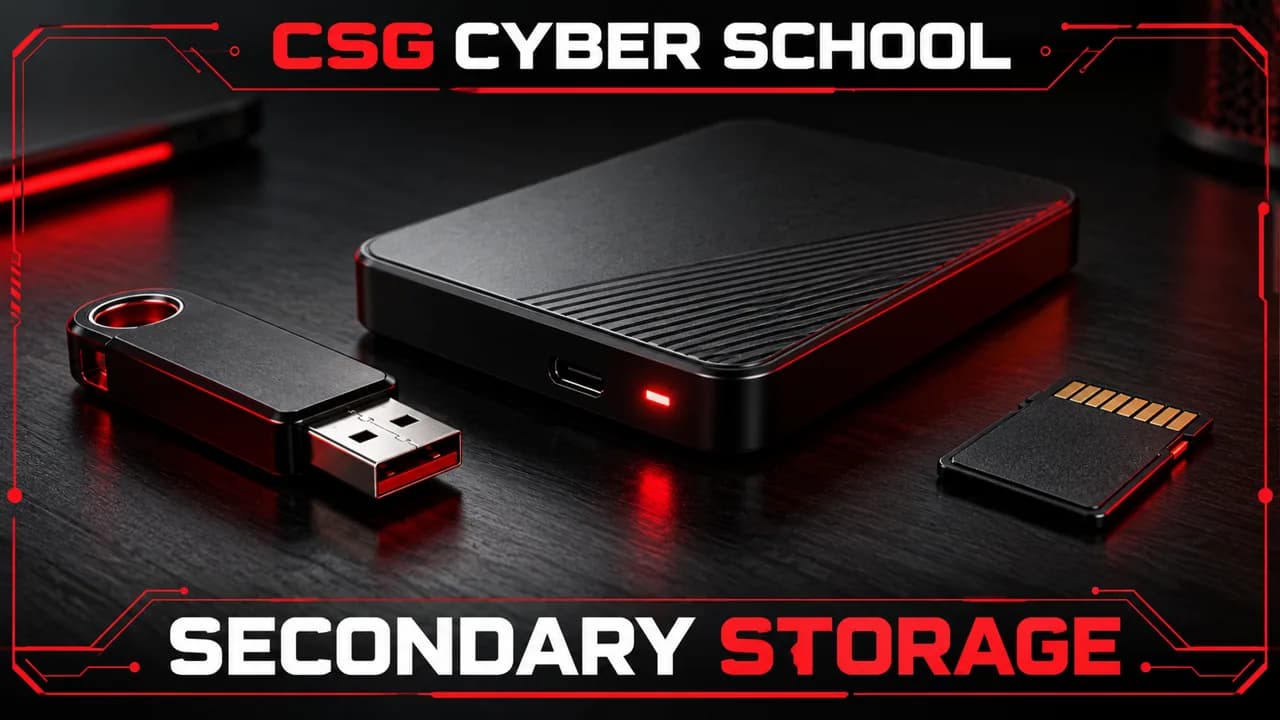
Secondary and Long-Term Storage
Secondary storage keeps files after the computer shuts down. HDDs, SSDs, USB pen drives and memory cards are common examples. ‘Long-term’ does not mean permanent: devices can fail, so keep another copy of important files.
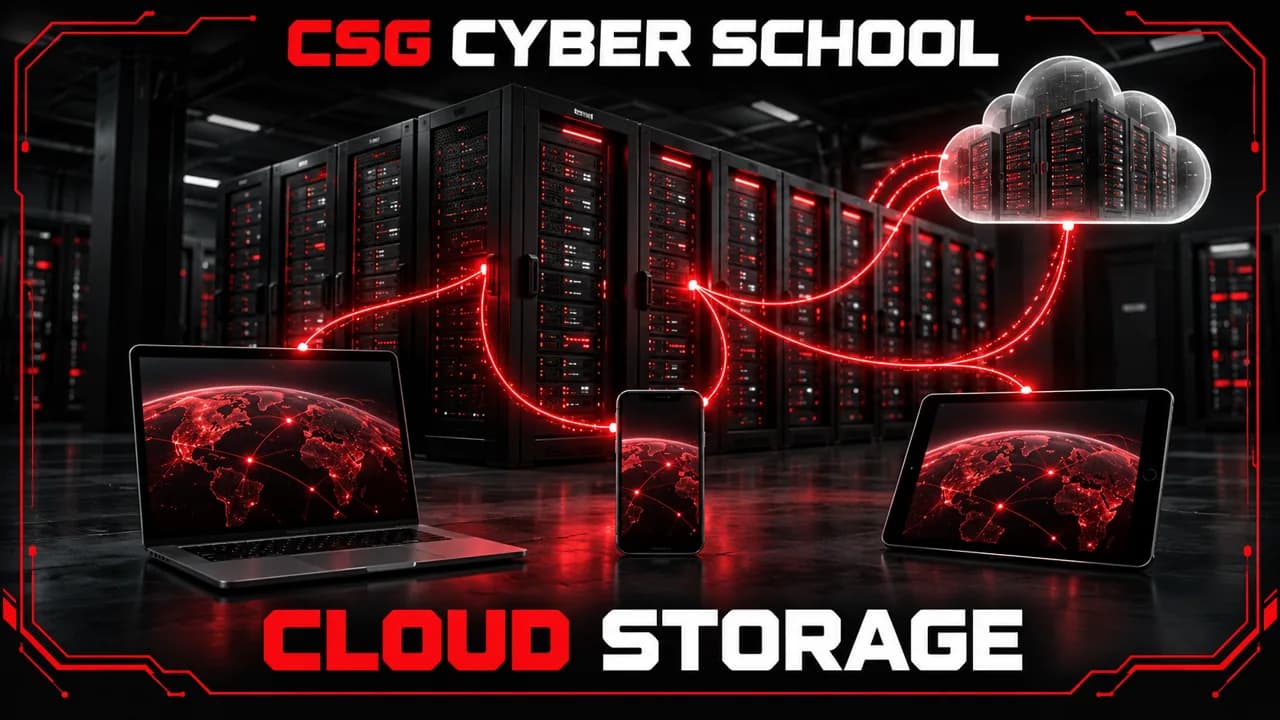
Cloud Storage
Cloud storage keeps data on remote servers accessed over a network. It can support syncing, sharing and backups across devices. Your account permissions decide who can read or change a file; syncing alone is not always a separate backup.
Memory in Detail — Topic Exam
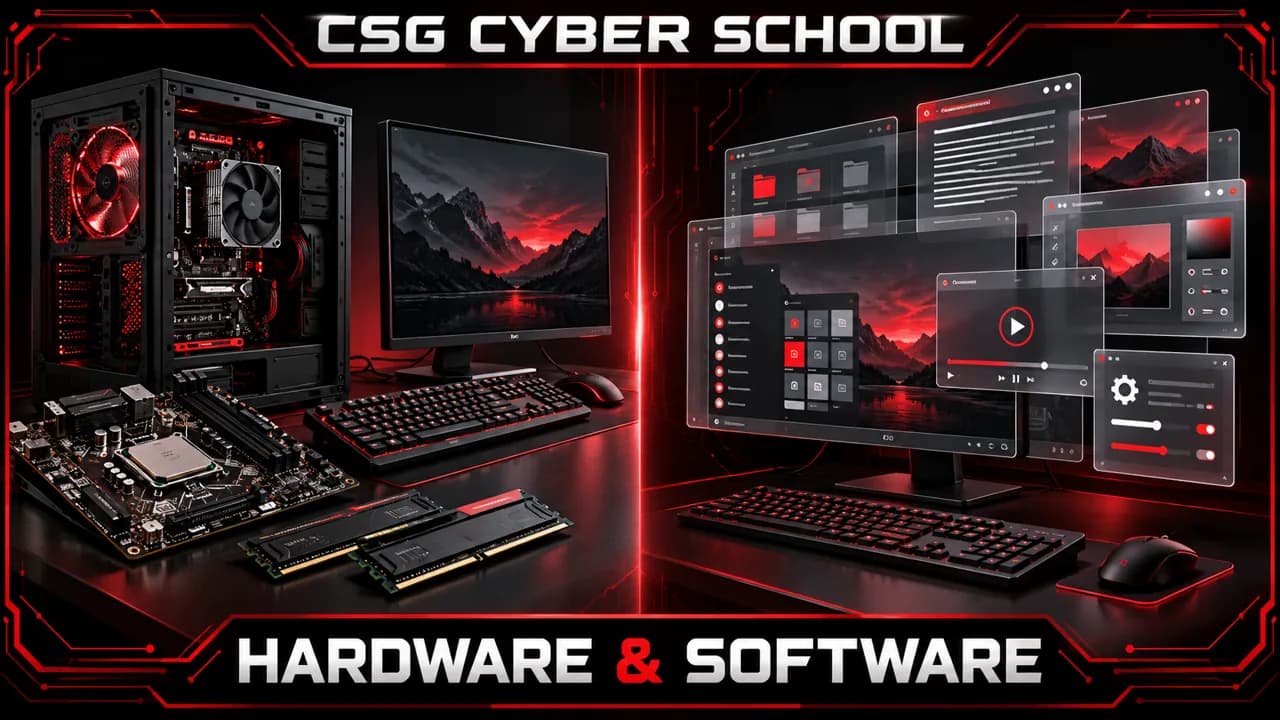
Hardware and Software
Hardware is the physical equipment: input and output devices, storage, motherboard, CPU and RAM. Software is the set of programs and instructions that runs on that equipment.
- System software: operating systems and drivers manage hardware and provide services for programs.
- Application software: browsers, editors and other programs help users perform tasks.
Hardware and Software — Topic Exam
Internet and Intranet
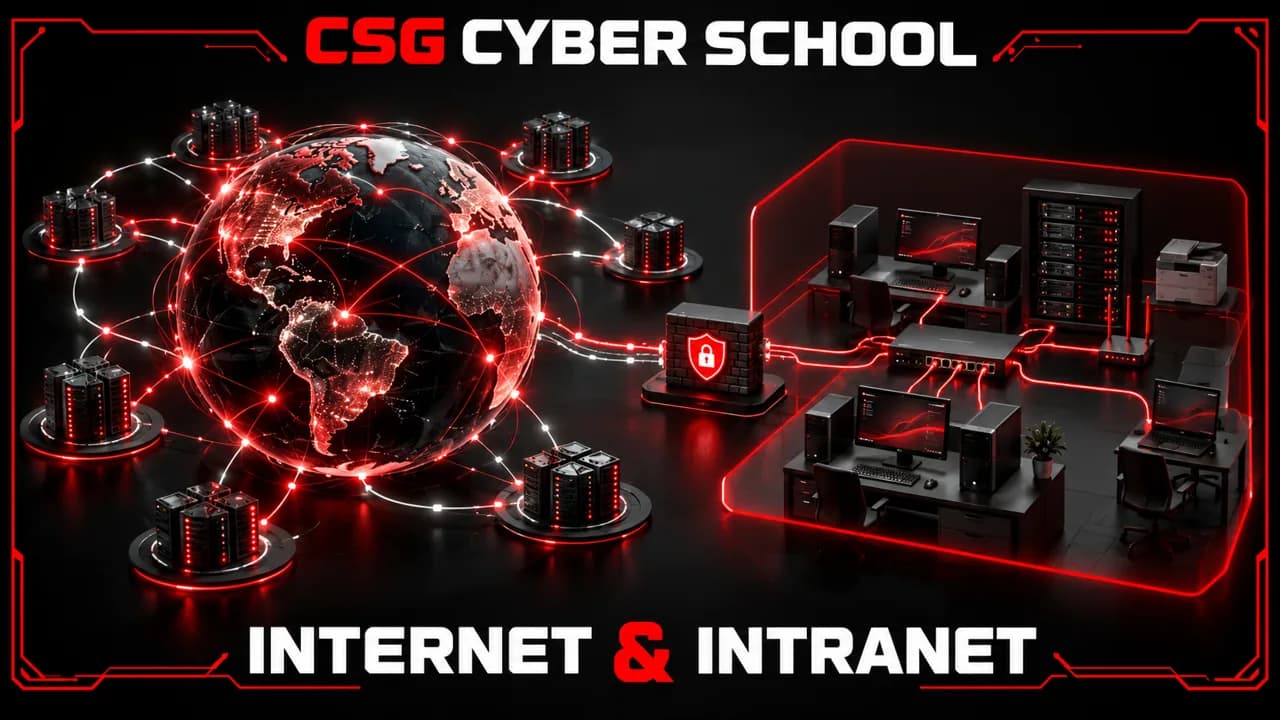
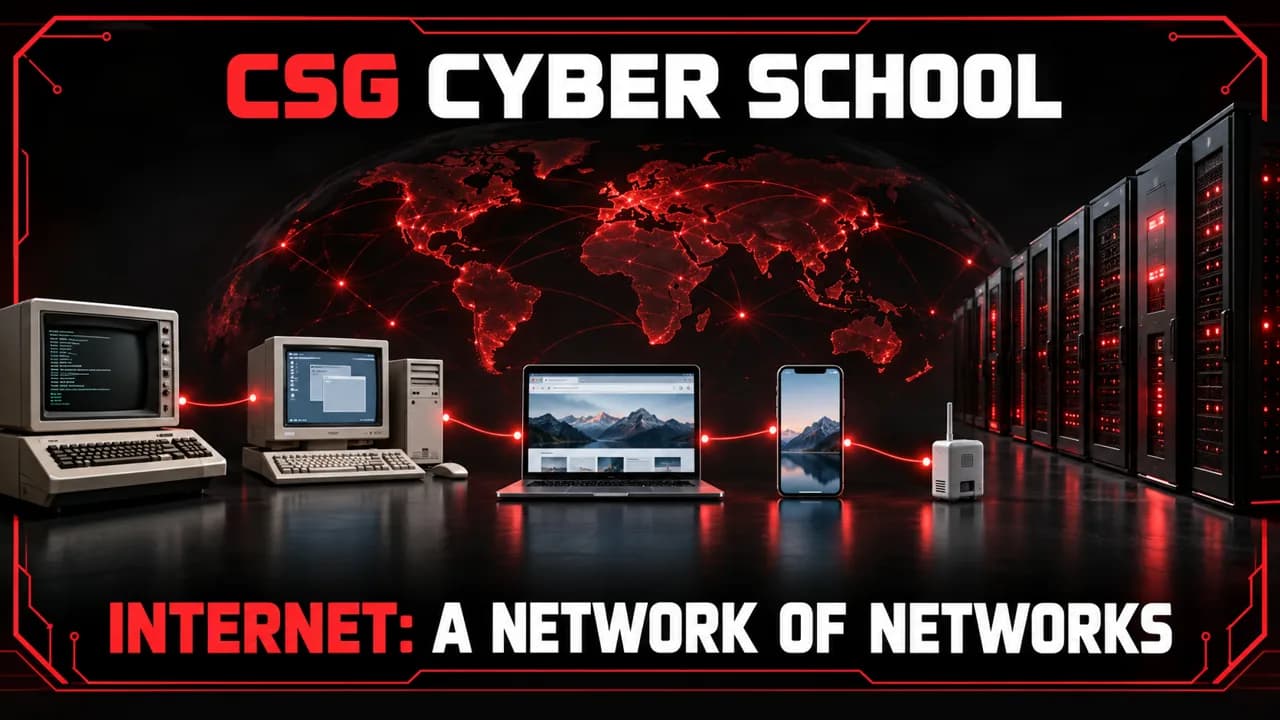
The Internet connects independently operated networks around the world. An intranet is a private organizational network using similar networking technologies.
Intranets support internal communication, file sharing, data management and project collaboration. Authentication checks identity; authorization determines permitted actions. Approved partners may use an extranet, and remote staff may connect through a protected gateway.
Example: a company’s public website is available to visitors, while its internal leave-request portal may be restricted to employees.
Internet Architecture: Devices, Links and ISPs
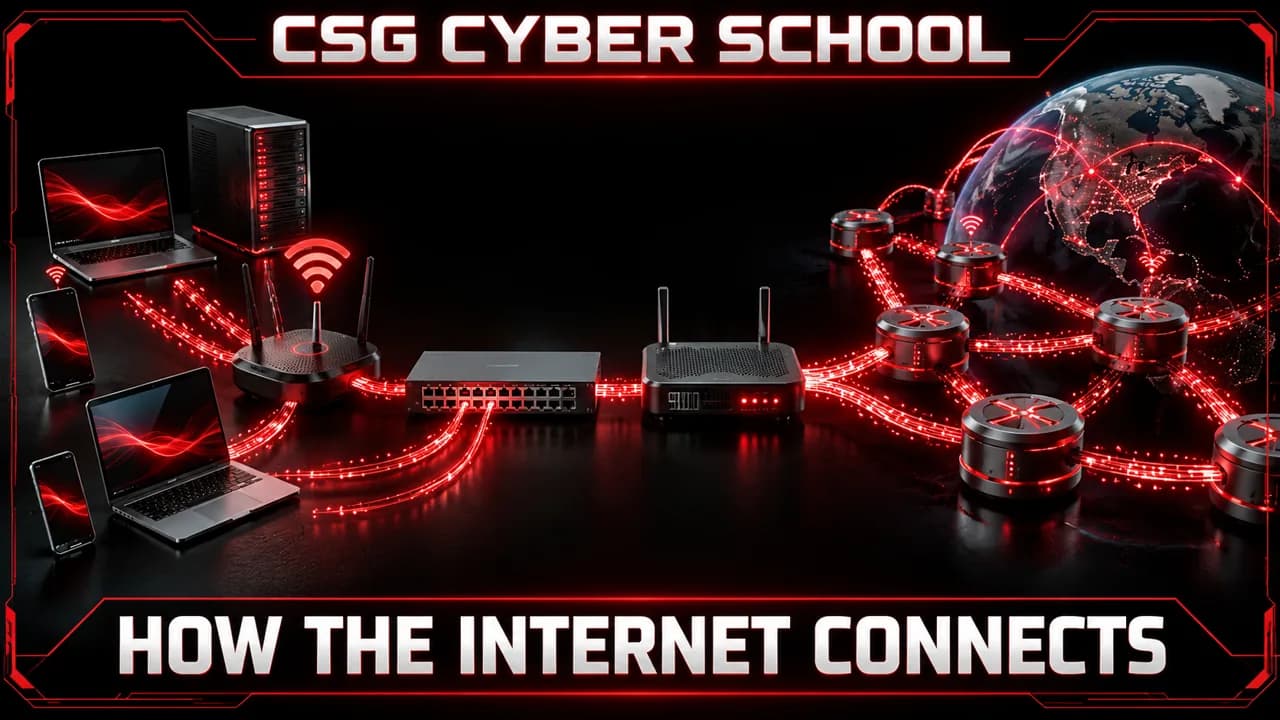
- End devices: computers, phones, tablets, servers and IoT devices send or receive data.
- Infrastructure: switches connect devices within a local Ethernet network; routers forward packets between networks. Wireless access points connect Wi-Fi devices.
- Links: twisted-pair copper, coaxial cable and optical fibre carry wired signals. Wi-Fi, cellular, satellite and other radio links carry wireless signals; infrared supports some short-range links.
- ISPs: Internet Service Providers, such as Jio and Airtel, connect customers to other networks.
Why a network of networks?
Many local, provider, corporate and government networks interconnect. LAN, MAN and WAN describe approximate network scope, rather than a compulsory chain every packet follows. Different operators manage their own networks: this is distributed control.
IP, DNS, TCP, UDP and FTP
A protocol is an agreed set of communication rules. The Internet protocol suite, commonly called TCP/IP, includes several protocols—not every Internet application uses TCP.
| Protocol | What to remember |
|---|---|
| IP — Internet Protocol | Addresses and routes packets between networks. IPv4 addresses are 32 bits; IPv6 addresses are 128 bits. Addresses identify interfaces within a network context; private addresses may be reused in different networks. |
| DNS — Domain Name System | Looks up records associated with names, including IPv4 and IPv6 addresses. A domain can have several addresses. |
| TCP — Transmission Control Protocol | Provides an ordered, reliable byte stream using acknowledgements and retransmissions. A connection can still fail. |
| UDP — User Datagram Protocol | Sends datagrams without built-in delivery or ordering guarantees. Applications may add their own reliability. |
| FTP — File Transfer Protocol | Transfers files. Plain FTP does not encrypt traffic; FTPS adds TLS. SFTP is a different protocol using SSH. |
DNS example: typing a domain is like using a contact name to look up an address. DNS helps find the destination; it does not carry the webpage itself.
TCP/UDP example: a file transfer needs complete, correctly ordered data. A live call may prefer the next fresh audio packet over waiting for a late one. The application and protocol design determine the actual behaviour.
How the Internet Works
- You enter a website address; the device checks or looks up the required DNS records.
- The browser establishes the required connection and requests the resource.
- Data travels in packets with addressing and control information. Links transmit it as physical signals representing bits.
- A local switch or access point carries traffic to a router. Routers forward packets through connected networks toward the destination.
- The server responds, and the browser processes the returned content.
Packets may take different paths. TCP can recover missing data; UDP-based applications handle losses according to their own design. The Web is one service using the Internet, not the Internet itself.
A Short History of the Internet
- 1960s: packet-switching research developed; ARPANET connected four hosts by the end of 1969.
- 1970s: ARPANET used NCP, and network email emerged.
- 1980s: ARPANET moved to TCP/IP in 1983; DNS was introduced. Tim Berners-Lee proposed the World Wide Web in 1989.
- 1990s: the Web became publicly available in 1991; commercial Internet access, online commerce and early web communities expanded.
- 2000s: broadband, mobile access, Facebook and YouTube grew. Email was already decades old.
- 2010s onward: cloud services, IoT, 5G and AI-driven services expanded.
Websites, Web Pages, Domains and Servers
A web page is an individual document or view accessed through a browser. A website is a related collection of pages and resources; it can also consist of just one page.
A domain is a human-readable name used to reach services. A server stores or generates resources and responds to requests. DNS connects names with the records needed to locate services.
HTML provides structure, CSS controls presentation, and JavaScript adds behaviour in the browser. Back-end code handles server-side work, often using a database. Websites can include images, video, audio, PDFs and downloadable files.

Components of a Website
On CSG Cyber School, identify the header and logo, navigation menu, main content and media, action buttons or forms, and footer. Individual pages have their own URLs. Interactive elements may include sliders, embedded frames and quizzes; server-side components handle stored data and account-related actions.

Static and Dynamic Websites
- Static: the server delivers prebuilt files. A portfolio or brochure site may use this approach. JavaScript and animation can still be present.
- Dynamic: content is generated or updated using application logic and data. Shops, account portals, forums and many CMS blogs use this approach.
Example: a prebuilt restaurant menu can be static. A page showing your personal order history is dynamic because the response depends on your account and stored orders.
The distinction is how content is produced—not whether it moves or changes daily. Single-page and multi-page describe page structure, so they are separate classifications.
Technical references
Internet and Intranet — Topic Exam
Number System
A number system represents values using digits and a base. A digit's position tells us how much it contributes to the number.
| System | Base and digits | Place values, from the right |
|---|---|---|
| Decimal | 10; digits 0–9 | 1, 10, 100… |
| Binary | 2; digits 0 and 1 | 1, 2, 4, 8… |
| Octal | 8; digits 0–7 | 1, 8, 64… |
| Hexadecimal | 16; digits 0–9 and A–F | 1, 16, 256… |
Quick method: multiply each digit by its place value, then add. In hexadecimal, A means 10 and F means 15.
- Decimal 42 = 4 × 10 + 2 × 1.
- Binary 101₂ = 1 × 4 + 0 × 2 + 1 × 1 = 5₁₀.
- Octal 12₈ = 1 × 8 + 2 × 1 = 10₁₀.
Number System — Topic Exam
Computer Ports
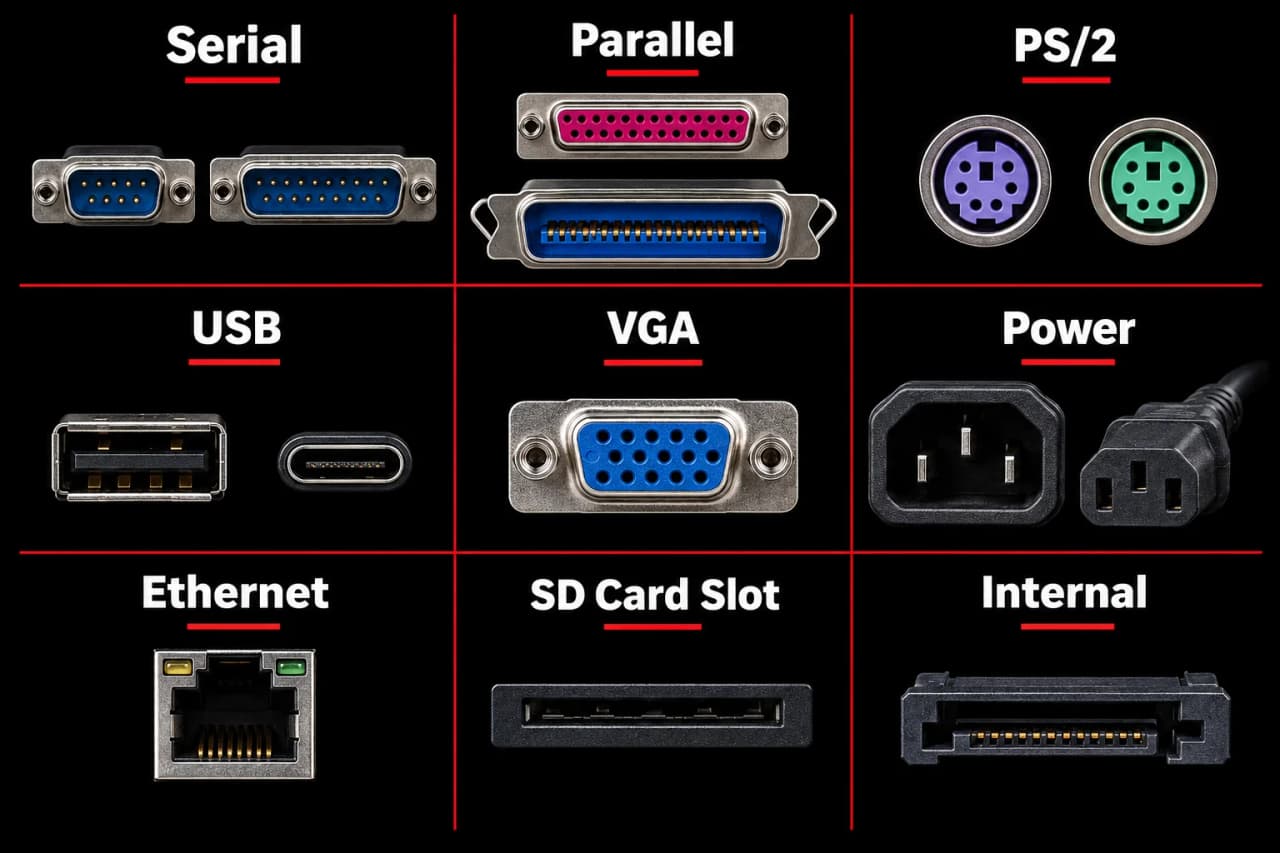
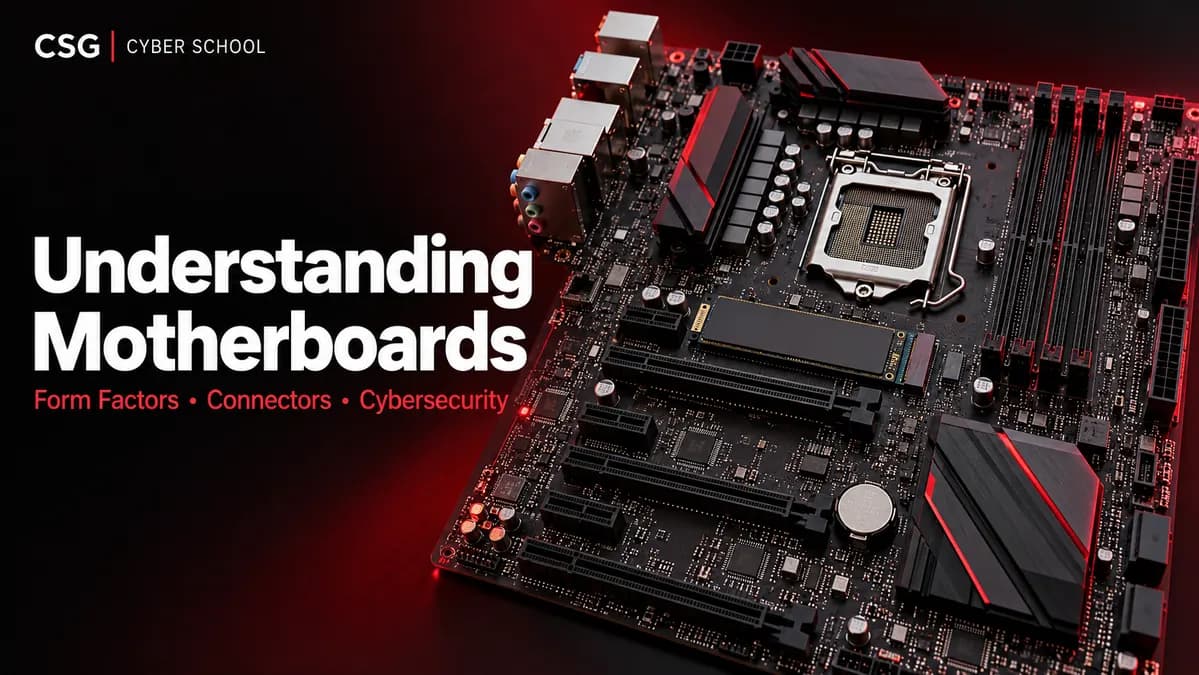
Internal connections sit inside the computer, such as motherboard SATA connectors and expansion slots. External ports let us connect equipment outside the case, such as a monitor, printer or keyboard.
- Serial: older RS-232 connections commonly use 9-pin DE-9 or 25-pin DB-25 connectors for modems and other equipment.
- Parallel: older printers and some scanners use parallel connections; common connectors are 25-pin DB-25 on the PC and 36-pin Centronics on the printer. IEEE 1284 standardizes parallel interfaces.
- PS/2: a round, 6-pin connector used for older keyboards and mice.
- USB: connects devices such as keyboards, drives and adapters; connector shapes include Type-A and Type-C.
- VGA: a 15-pin connector carrying analogue video from a graphics output to a monitor or projector.
- Power connector: supplies electricity through a suitable power cable; desktop power supplies commonly have an IEC inlet.
- Ethernet: connects a wired network cable, usually through an 8P8C socket commonly called RJ45.
- SD card slot: reads compatible SD memory cards, often on laptops or card readers.
Computer Ports — Topic Exam
Data and Information
Data is recorded facts, such as numbers, text or measurements. Information is data arranged and interpreted in a useful context.
Example: “50 customers” is a count. “50 customers visited today, compared with 80 yesterday” adds context for a decision. The count alone does not tell us whether revenue increased; we also need sales data.
| Data | Information |
|---|---|
| Raw recorded facts | Processed or interpreted facts |
| May be unorganized or lack context | Organized for a purpose |
| Often needs analysis before a decision | Helps support a decision |
Data is not always meaningless: context and accuracy determine how useful it becomes.
Data and Information — Topic Exam
Computer Networking
A computer network connects devices so they can exchange data and share resources. With permission, we can access shared files on another computer or use a network printer, scanner or storage device.
- Network cable: twisted-pair Ethernet cables commonly use RJ45-style connectors. Cat5e and Cat6 are common choices; speed also depends on cable length and equipment.
- Hub: an older connection device that repeats incoming signals to its other ports. It does not select the intended recipient.
- Switch: connects devices in a local network and normally forwards Ethernet frames using learned MAC addresses.
- Router: forwards packets between different IP networks, such as a home network and an ISP.
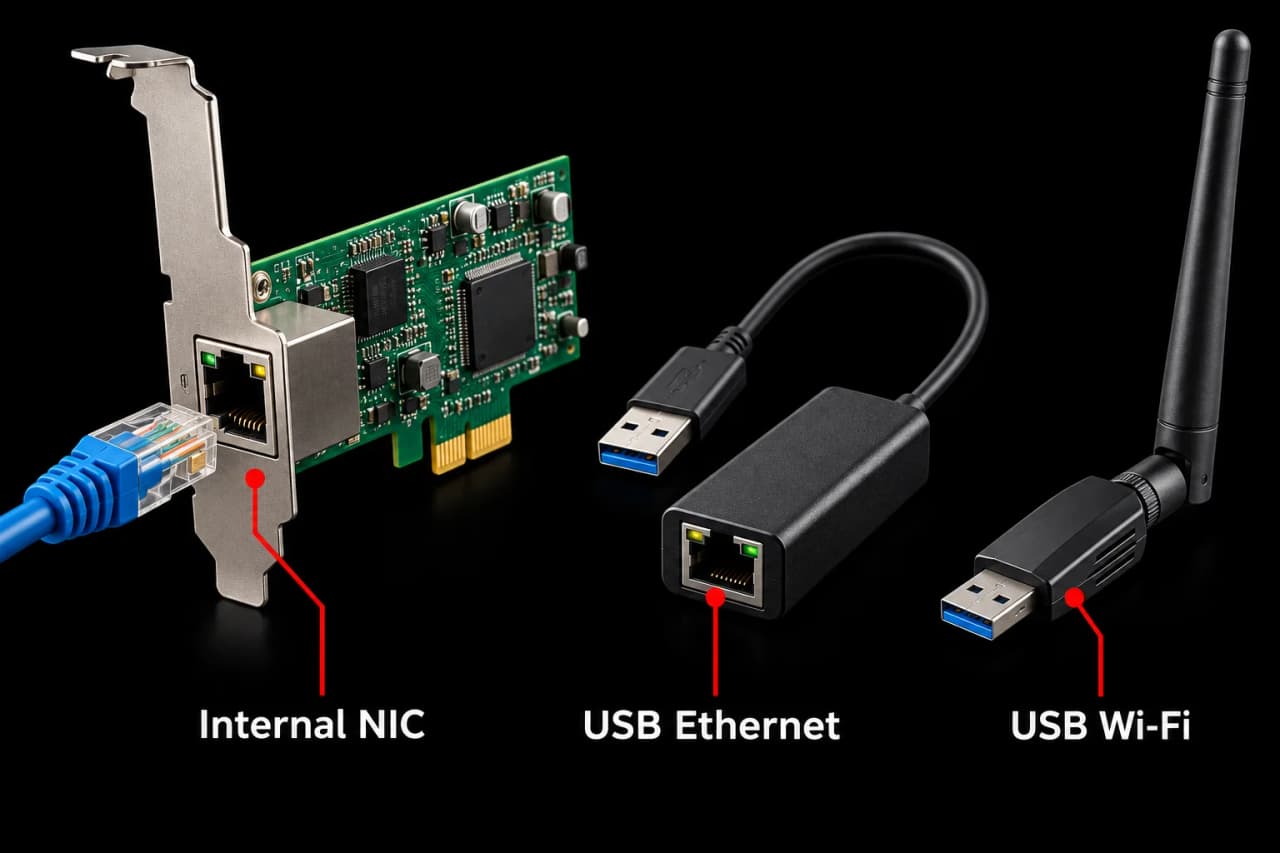
- Internal NIC: a Network Interface Card connects a computer to a network. It may be built into the motherboard or installed in a compatible expansion slot.
- External adapter: a USB Ethernet or Wi-Fi adapter adds network connectivity through a USB port.
A wired NIC has an Ethernet connection; a wireless adapter uses a radio and antenna. They are different interfaces, although one computer can have both. Interfaces commonly have manufacturer-assigned MAC addresses, but software can change or randomize an address.
Driver note: the operating system may detect a USB network adapter and install a compatible driver automatically. Otherwise, use the manufacturer's supported driver.
Computer Networking — Topic Exam
Operating System
An operating system (OS) is system software that manages hardware resources and provides services for applications. It helps users and programs work with the computer without controlling every hardware detail themselves.
Objectives: make the computer convenient to use, manage resources efficiently and share them fairly between programs and users.
- Memory and processor management: allocate RAM, use virtual memory and schedule CPU time.
- Device and file management: coordinate devices through drivers and organize files and folders.
- Security: enforce authentication and permissions to restrict unauthorized access.
- Accounting and performance: track resource use and help identify delays or overload.
- User interaction: accept commands through a graphical interface or terminal and show results.
- Error reporting: record logs, error messages and diagnostic information for troubleshooting.
Operating System — Topic Exam
Build Your Own PC
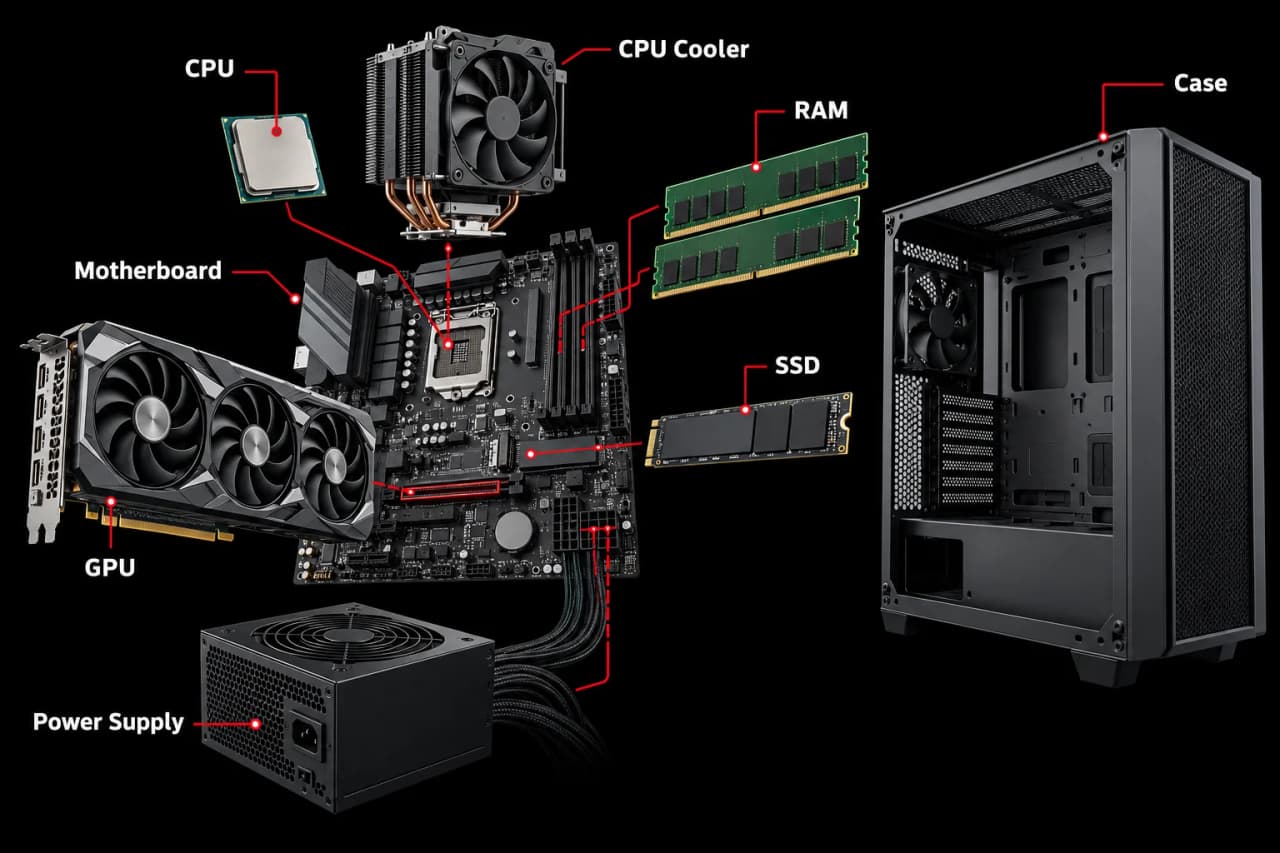
Start with compatible parts: CPU, motherboard, CPU cooler, RAM, SSD or other storage, power supply and case. A dedicated graphics card is optional if the processor has suitable integrated graphics and the motherboard supports its display output.
- Check compatibility: match the CPU socket, supported RAM type, case size, cooler clearance and power requirements.
- Prepare safely: switch off and unplug power, work on a stable surface and follow antistatic precautions. Handle boards by their edges.
- Fit the core parts: align the CPU with its socket without forcing it, fit the cooler as directed, then install RAM and an M.2 SSD in the recommended slots.
- Mount the board and power supply: use the case's correct motherboard standoffs. Connect the motherboard's main power and CPU power cables.
- Add storage and graphics: a SATA drive needs data and power cables. If using a graphics card, fit it into the appropriate PCIe slot and connect its required power.
- Connect the case: attach power-button, USB, audio and fan cables using the motherboard manual. Check every connection before closing the case.
- First start: connect a display and keyboard, check the firmware detects the CPU, RAM and storage, then install the OS, drivers and updates.
Never open the power supply itself. Connector layouts vary, so the manuals for your exact components are the final reference.
Build Your Own PC — Topic Exam
Thank You — Keep Learning
You have reached the end of this Computer Fundamentals blog. Revisit any topic you found difficult, then try the topic quizzes to check your understanding. Reading the article is a learning milestone, not a professional certification.
Ready for guided lessons and practical work? Explore CSB — Computer Basics or continue towards CSSCP — CSG Cyber School Certified Penetration Tester.
Discussion
Ask a question or share what you learned. Comments appear after review.