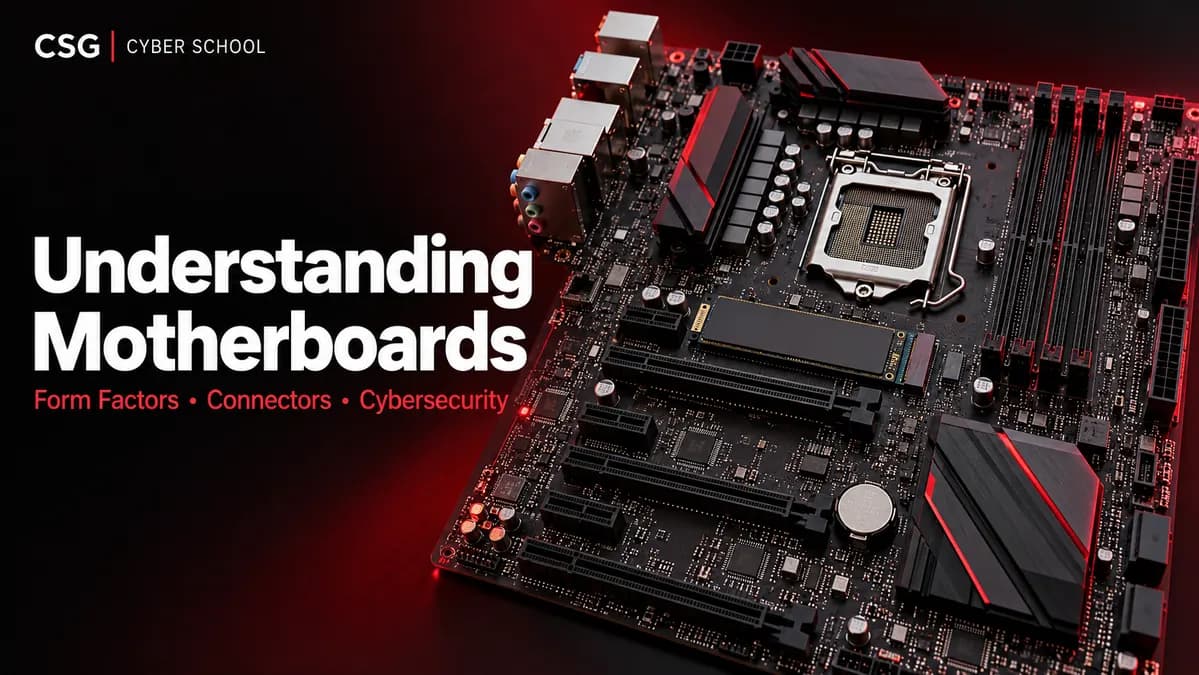
Before choosing a CPU, adding a network card or investigating an unfamiliar device, it helps to understand the board that connects everything. This guide explains motherboard sizes, connectors and compatibility, then connects those basics to physical security and enterprise systems.
1. What is a motherboard?
A motherboard is the main circuit board that connects a computer’s CPU, RAM, storage and other hardware. It provides the sockets, slots and pathways those parts use to work together.
Think of the main electrical board in a house: different rooms and appliances connect through it. The comparison is not exact, but it helps explain the motherboard’s central role. The CPU does the processing; the motherboard connects the parts and distributes power to the components attached to it.
For cybersecurity, knowing what is connected helps you recognise an unfamiliar device, check an upgrade and understand which physical connections may expose data.
2. Motherboard form factors: ATX and Mini-ITX
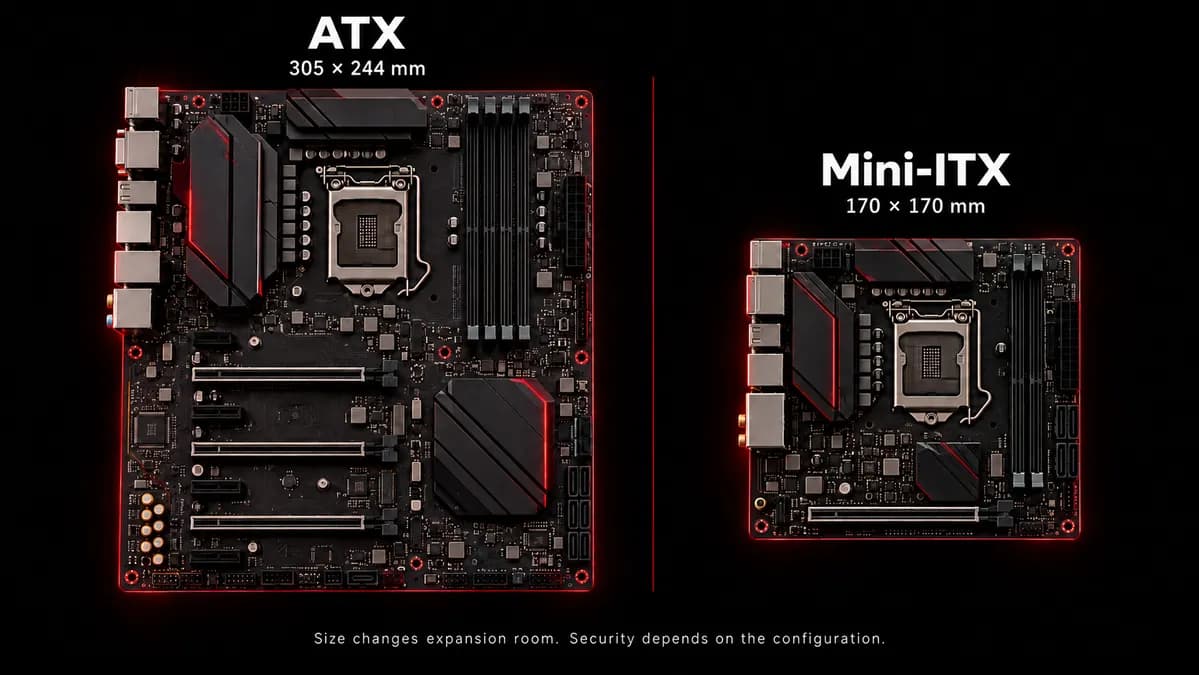
A motherboard’s form factor describes its physical size, layout and mounting arrangement. The case must support the board you choose.
Imagine two houses: one has five rooms and the other has two. Both can be useful, but they have different amounts of space. Motherboards follow a similar idea: a larger board usually gives the designer more room for slots and connectors.
| Form factor | Typical dimensions | What it means in practice |
|---|---|---|
| ATX | 305 × 244 mm | More board space, often with more expansion slots and memory slots. |
| Mini-ITX | 170 × 170 mm | A compact board, typically with two memory slots and one expansion-slot position. |
Available space does not guarantee a particular feature. Always check the exact board’s specifications. A long graphics card can also cover nearby slots or need a larger case.
A compact build can make cooling and cable routing harder, especially with powerful components. That does not mean every small computer overheats or every large one stays cool. Power consumption, airflow, component spacing and the cooling system all matter.
3. Motherboard connectors and what they do
A house has different connections for different jobs. A computer does too: a data connector, a CPU socket and a power connector have different roles.
PCI and PCIe expansion slots
PCI is an older expansion standard; modern computers generally use PCI Express (PCIe). Depending on the slot and available lanes, PCIe can connect a graphics card, network interface card, storage adapter or another expansion device.
Some devices use direct memory access (DMA) to transfer data to or from memory without the CPU copying every byte. This is normal functionality. The security concern is an untrusted device gaining memory access it should not have.
Supported systems can use an IOMMU and operating-system protections to restrict DMA. These protections depend on the hardware, firmware and configuration; having a PCIe slot alone does not prove that a computer is vulnerable.
Power connections
- Motherboard power: a typical desktop board uses a 24-pin ATX connector from the power supply.
- CPU power: a separate CPU power connector, commonly a 4-pin or 8-pin EPS/ATX12V connection, supplies the processor’s power circuitry.
- Graphics-card power: some GPUs need additional power cables connected directly from the power supply to the card.
These connectors are not interchangeable. Follow the motherboard, GPU and power-supply manuals, and use the correct cables for that power supply.
Power also matters during a physical security check. An unauthorised component installed inside a computer may remain connected after a restart. Rebooting does not remove the device or automatically make it trusted.
SATA, eSATA and offline data access
SATA commonly connects internal hard disks and SATA SSDs. eSATA was designed for external SATA connections. A normal SATA drive also needs power; the data connection alone does not provide it.
A drive removed from a switched-off computer may be connected to another authorised computer or a compatible adapter. Reading it still requires suitable software and a supported file system. It does not require booting the original operating system installed on that drive.
This is called offline access. It can help with recovery, but it also explains why physical protection and full-disk encryption matter. A working cable does not bypass properly protected encryption.
Internal headers
Headers are smaller internal connections for items such as the case’s power button, indicator lights, front USB ports, front audio and fans. The exact pins and supported functions vary.
A USB socket on the front of the case usually connects to a motherboard header through an internal cable. During an inspection, check those internal connections as well as the ports visible outside.
M.2 slots
M.2 is a compact module and connector format. Suitable slots can take an SSD or a wireless module, depending on their design.
Not every M.2 module works in every M.2 slot. Check the module’s length, keying, supported interface and the board’s manual. For example, an M.2 storage socket might support PCIe/NVMe, SATA, or both; an M.2 wireless socket is a different use case.
Small does not mean unimportant. A short SSD or wireless module is easy to overlook when checking what hardware is installed.
4. Motherboard and CPU compatibility
Suppose you need a replacement phone battery. “It supplies power” is not enough: its size, connector and supported model must match. CPU compatibility needs the same care.
A processor must be supported by the exact motherboard model. Check its socket, chipset and firmware/BIOS support, then confirm the processor in the manufacturer’s CPU support list.
AMD and Intel platforms use different socket families, and even processors from the same manufacturer are not universally interchangeable. A matching physical socket is one check, not the whole compatibility test.
Also check the memory generation, power supply and CPU cooler. Choosing a motherboard form factor tells you whether it fits the case; it does not tell you whether every other component will work with it.
5. Enterprise motherboards: capacity, redundancy and NUMA
A normal desktop usually has one CPU socket. Some enterprise server and workstation boards support multiple processor sockets, more memory and additional connectivity. Many enterprise systems still use a single socket.
Picture a shop with one employee. When several customers arrive together, that person has to handle the queue. More employees can share suitable work. Multiple processors can serve a similar purpose, but software must be able to use the extra resources; adding a CPU does not automatically double every task’s speed.
Redundancy
Redundancy means providing extra components or paths so a supported system can keep operating when one fails. Examples include redundant power supplies or network connections, when the server supports them.
Think of keeping a second working light available if the first fails. The purpose is continued service. A backup has a different job: recovering data after deletion, damage or another loss. Redundancy does not replace backups.
Scalability
Scalability is the ability to increase capacity as demand grows. A shop might add staff, shelves or floor space. A computer system might add supported memory, storage or processors, or spread work across more machines.
There are limits. A board with no free memory slots, an unsupported CPU or insufficient power cannot be upgraded just by adding another component.
NUMA: local and remote memory
Non-uniform memory access (NUMA) describes systems in which memory access time depends on where the memory is connected relative to the processor.
Imagine two employees at separate desks. A file on your own desk is quicker to reach than one on the other desk. In a NUMA system, local memory is generally quicker for a processor to access than memory attached to another node. That difference concerns topology and latency, not a requirement to obtain another employee’s permission.
The operating system and applications can take memory placement into account. A multi-socket system is a useful example, although NUMA is not limited to machines with several physical sockets.
6. Does motherboard size affect cybersecurity?
A larger board may offer more expansion options, while a smaller board may limit future upgrades. Neither size is automatically safer.
More slots mean more places where hardware could be installed, so an accurate device inventory matters. Fewer slots do not remove risks from firmware, storage, USB devices or a badly configured operating system.
- Know which expansion cards, drives and wireless modules should be installed.
- Restrict physical access and investigate unfamiliar hardware.
- Keep supported firmware updated and review relevant security settings.
- Use supported DMA protections and protect stored data with suitable encryption.
- Choose a case, power supply and cooling arrangement that fit the actual build.
The practical lesson is simple: understand the connections before deciding what a device does or whether a change is safe. The board’s size is part of the design; security comes from the whole system and how it is managed.
Continue learning with CSG Cyber School
Build the wider picture with Computer Basics for Cybersecurity, explore our cybersecurity courses, or visit the CSG Cyber School homepage.
Discussion
Ask a question or share what you learned. Comments appear after review.