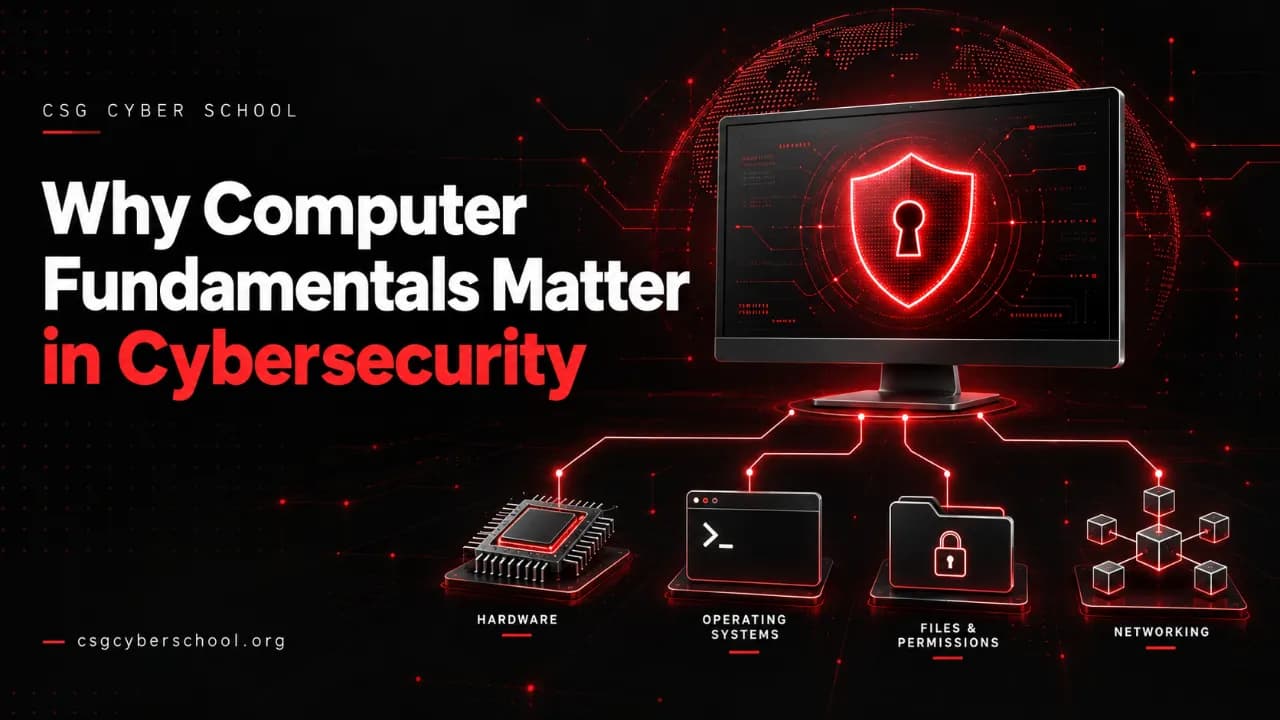
Learning cybersecurity can feel like learning a list of tools. Install one, copy a command, run a scan. But what happens when the output is confusing, or the command fails?
That is where computer fundamentals become useful. This guide explains the basics through everyday examples: opening Chrome, saving a photo, running several apps and visiting a website.
1. What are computer fundamentals?
You open Chrome, type a website address and see a page. It looks like one simple action. Behind it, the processor, memory, storage, operating system and network all have a part to play.
Computer fundamentals means understanding those parts and how they work together. You do not need to memorise every technical term on day one. Start by asking what happens between clicking something and seeing the result.
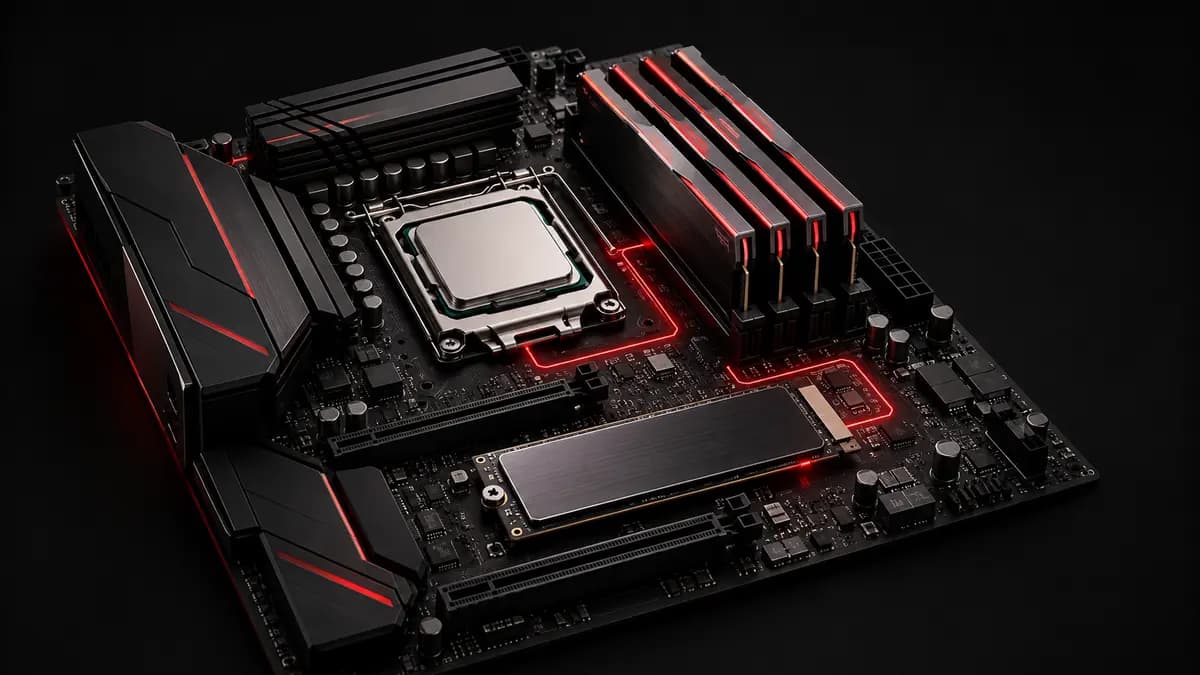
- CPU: executes the instructions that programs need.
- RAM: holds data and instructions that running programs are using.
- SSD or hard disk: keeps files and installed software when the computer is switched off.
- Operating system: manages hardware resources and provides services for applications.
When Chrome opens, the operating system loads the resources it needs into memory and gives its processes time on the CPU. The browser also needs networking to reach a website. The work happening behind that familiar window is what these fundamentals help you understand.
2. Why do computer fundamentals matter in cybersecurity?
Imagine two students, Aman and Rahul. They run the same security tool and both get an error.
Aman immediately says, “The tool is not working.” Rahul first checks the internet connection, the target address and the tool settings. Perhaps the target cannot be reached. Perhaps a required service is not available. Perhaps the test was configured incorrectly.
The difference is not that Rahul knows a secret command. He understands enough about the system to investigate what happened.
Cybersecurity tools can collect results quickly. You still need to decide whether those results make sense. Fundamentals give you a way to troubleshoot, recognise missing information and choose a sensible next step.
3. What is a vulnerability?
A vulnerability is a weakness in software, hardware or its configuration that could be exploited to compromise security.
Think of a house with two doors. If one door has a broken lock, that weak point matters even when the other door is secure. A computer system can have a similar problem: most of it works normally, but one weakness creates a risk.
Examples include an outdated application with a known security flaw, incorrect permissions that expose private files, or a password that is easy to guess. These examples are different kinds of weaknesses; they do not all have the same cause or impact.
A tester needs to understand the system before deciding what a finding means. Seeing something unusual is a starting point, not proof that the whole system is vulnerable.
4. Developer, system administrator and ethical hacker: what is the difference?
Take a school website as an example. Several people may work on the same system, but they have different responsibilities.
| Role | Main responsibility |
|---|---|
| Developer | Builds the website or application and maintains its code. |
| System administrator | Manages the server, accounts, updates, configuration and day-to-day operation. |
| Ethical hacker or penetration tester | Tests security within an agreed scope and with permission, then explains the weaknesses found. |
These roles often overlap. Developers fix security bugs, and administrators harden systems too. An ethical hacker benefits from understanding both how a system was built and how it is managed.
5. How does a computer store data?
A computer represents digital information using bits: 0s and 1s. Text, photos, sound and video are encoded as sequences of these bits.
When you save a photo as a PNG or JPEG file, the file format defines how its image data is organised. The storage device keeps that data, and an image viewer interprets it when you open the file.
The computer is not storing the visible photograph in the same way we see it. It stores an encoded digital representation that software can read and display again.
6. What is a process?
A process is a running instance of a program. Open a calculator, a game or a browser, and the operating system starts the processes needed to run it. One application can use several processes; a browser is a common example.
The operating system manages their CPU time, memory and other resources. Some processes have a visible window, while others run in the background.
That is why understanding processes matters in cybersecurity. A program does not need an open window to be active. Knowing what normally runs on a computer helps you investigate unexpected activity without assuming every background process is malicious.
7. RAM and memory management: a simple example
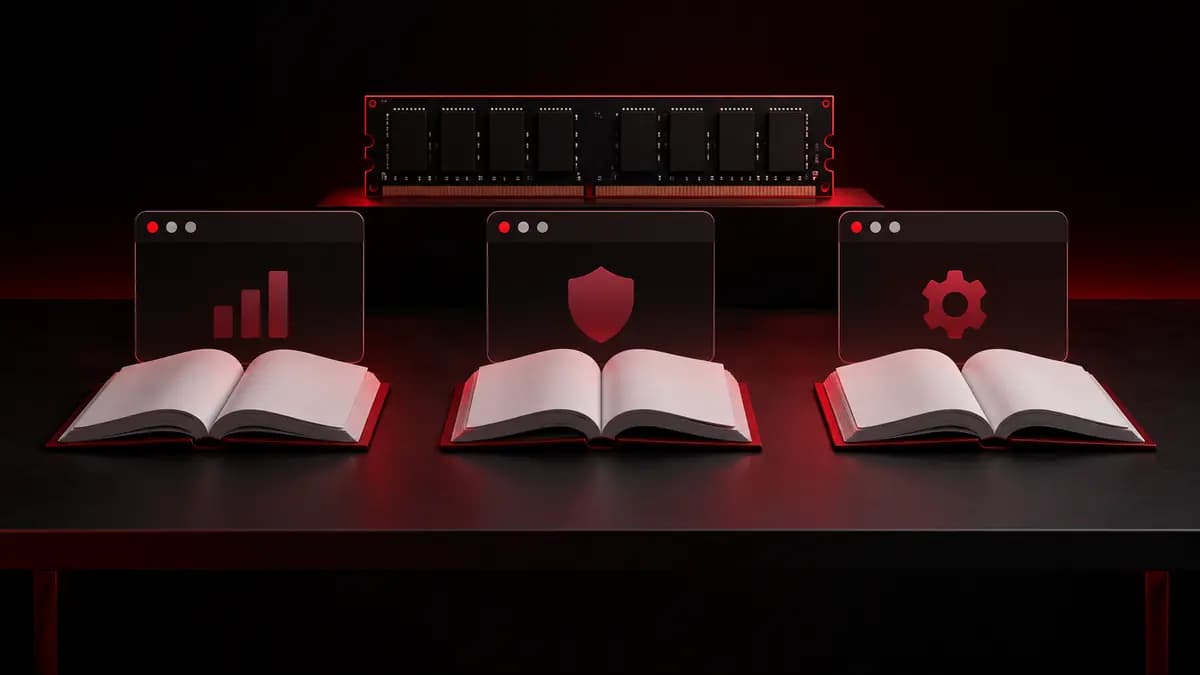
Think of RAM as the desk you use while studying. Storage is where your books stay when you are not using them. You bring the books you need onto the desk so you can work with them.
If the desk is crowded and you bring out more books, working becomes harder. A computer can face similar memory pressure when Chrome, a game, a code editor and other applications all need RAM at once.
The operating system allocates memory, keeps track of its use and helps protect one process from accessing another process’s memory without permission. RAM itself does not make these management decisions.
When available memory is low, the system may compress memory or move some data to storage using virtual memory. This can slow things down. Under severe pressure, an application may fail or be closed, depending on the operating system. Having three applications open does not automatically mean RAM is full; it depends on how much memory they need.
8. How do computers communicate?
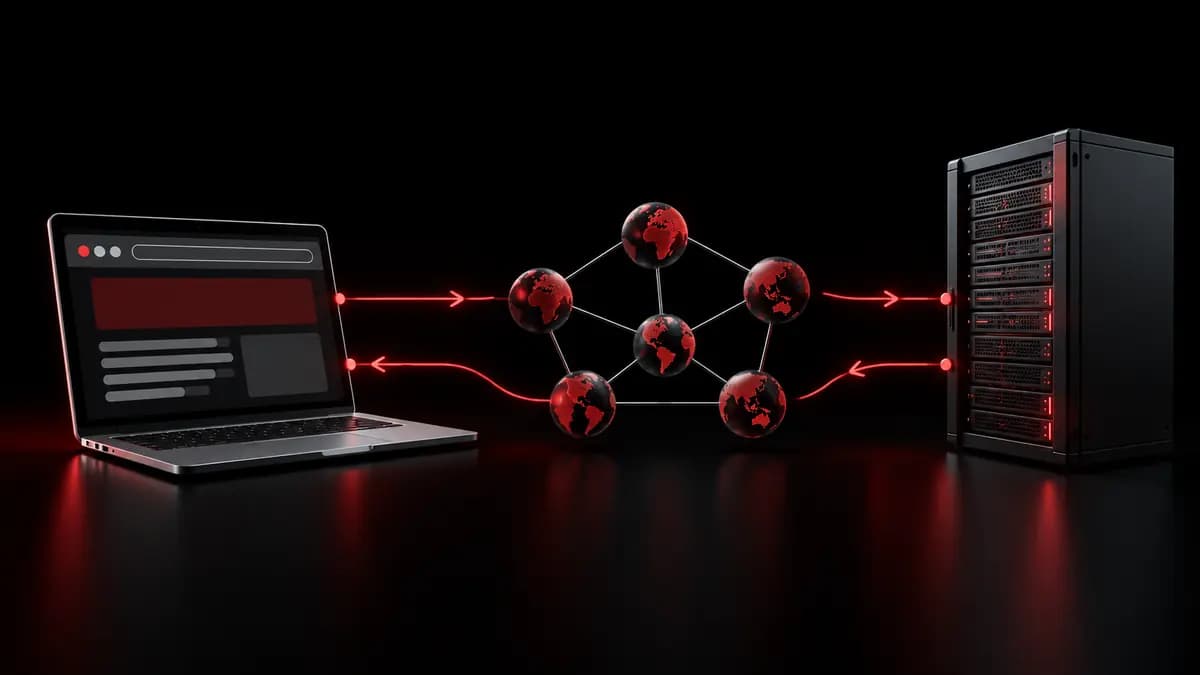
Suppose you enter csgcyberschool.org in your browser. How does your laptop get the page?
- Find the destination. If the address is not already cached, DNS helps resolve the domain name to an IP address.
- Establish a connection. The browser uses the appropriate network protocols. HTTPS also protects the connection using encryption.
- Send a request. The browser asks the server for the page or resource it needs.
- Receive the response. The server responds, and the browser interprets the returned content to display the page.
This is a simplified view. Caches and other services can be involved too. The important point is that the browser, network and server all have separate jobs.
To understand those jobs, learn what IP addresses, DNS, DHCP and HTTP do. The OSI model is a useful framework for organising networking concepts; it is a model, rather than another protocol that sends the page.
9. A tool user reads the output. A penetration tester asks what it means.
Imagine an Nmap result that looks like this:
PORT     STATE  SERVICE
22/tcp   open   ssh
A beginner might stop at “port 22 is open.” A penetration tester asks what the result establishes, what still needs checking and whether that service should be reachable in the first place.
An open port means a service is accepting connections from the scanner’s position. It does not, by itself, prove a vulnerability. The service label may come from the port-number mapping; further identification can be needed to confirm what is actually running.
For an authorised review, the next questions could concern the service configuration, authentication and whether its software is supported. The goal is to understand the evidence, not turn an open-port result into an automatic “secure” or “insecure” verdict.
The same thinking applies when a tool returns an error or no useful result. A failed scan does not prove that a target is secure. A tester works out the limitation and chooses another appropriate way to investigate within the agreed scope.
Continue learning
For a more detailed study guide, read Computer Basics for Cybersecurity. You can also explore our cybersecurity courses when you are ready to put the concepts into practice.
Explore CSG Cyber School
Visit the CSG Cyber School homepage, explore our cybersecurity courses, or keep studying with Computer Basics for Cybersecurity.
Check your understanding
Try 10 questions from this article. There is no timer, and you can try again.
Discussion
Ask a question or share what you learned. Comments appear after review.